> ## Documentation Index
> Fetch the complete documentation index at: https://support.lumafield.com/llms.txt
> Use this file to discover all available pages before exploring further.

# カスタムスライス平面（Custom Slice Planes）

> 標準軸以外の特徴を確認する

複雑な形状の部品を扱う場合、カーディナル X／Y／Z 平面以外の新しい軸を作成するために Custom Slice Plane を作成します。3D スキャンデータ内の任意のサブ形状に対して Custom Slice Plane を定義できます。
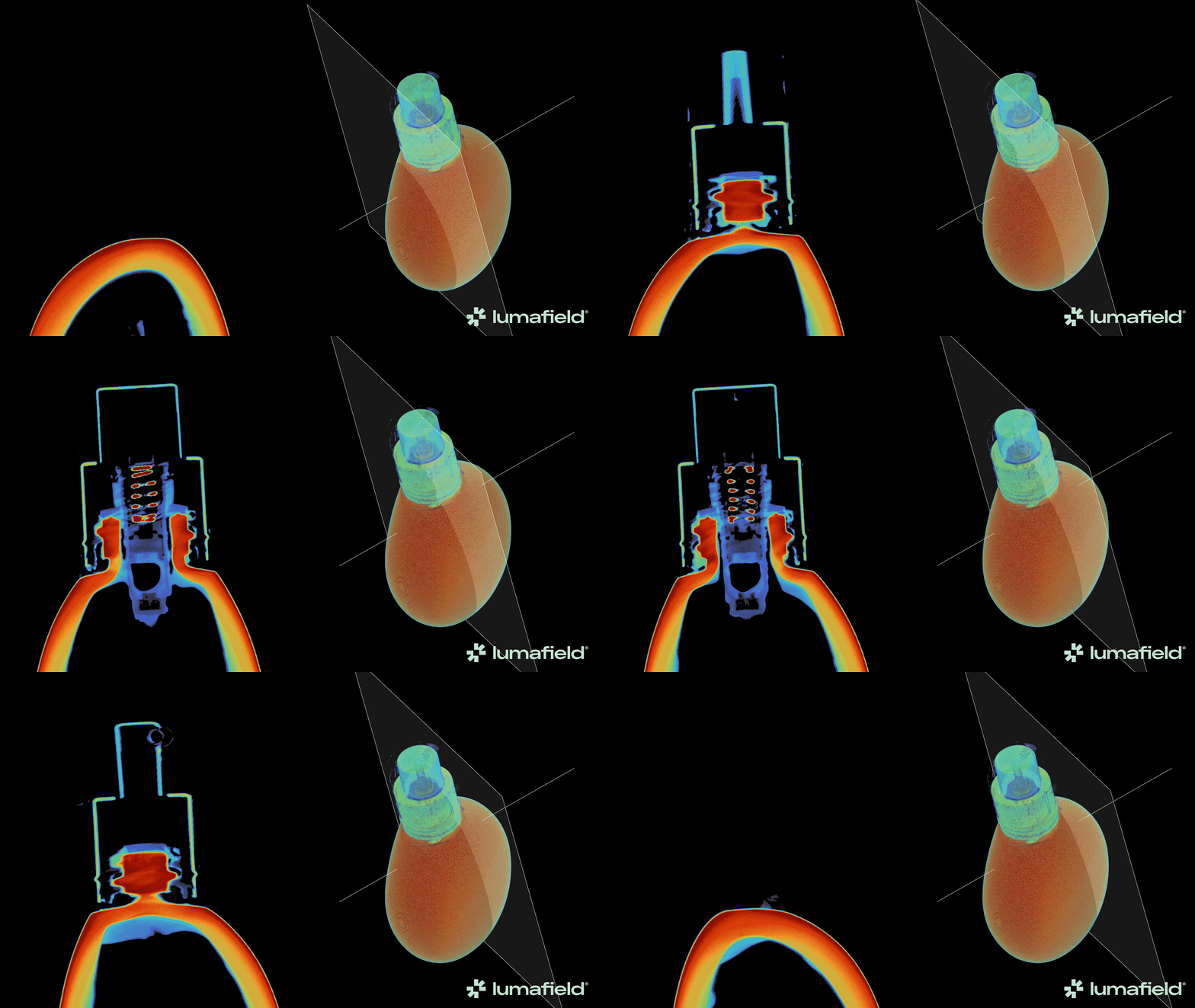
<img src="https://mintcdn.com/lumafield/_jKcDKGZaKtCP3nI/images/Guerlain-Glass-Foundation-Animation-1.gif?s=604454da592a9ba15274cc6c2ad106e9" alt="Custom Slice Plane Demo" width="1920" height="1080" data-path="images/Guerlain-Glass-Foundation-Animation-1.gif" />

<h2 id="creating-a-custom-slice-plane">
  Custom Slice Plane の作成
</h2>

まず、Custom Slice Plane の親 Data Object となる Reconstruction または ROI を選択します。次に、Toolbar から Slice Tool を選択します。
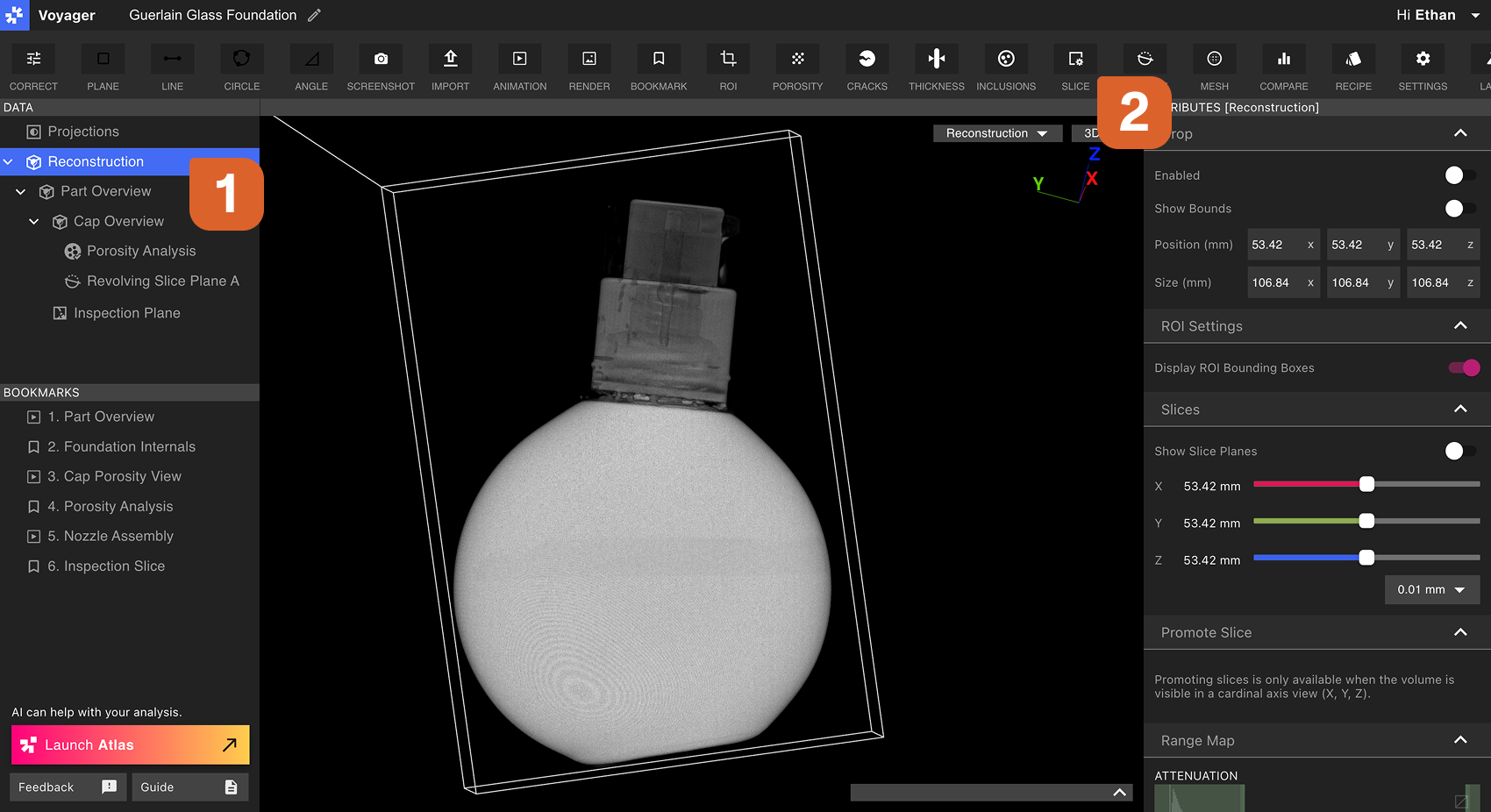
<img src="https://mintcdn.com/lumafield/7RwZRqYbUAMo0IZs/images/Custom_Slice_Planes_Step1.png?fit=max&auto=format&n=7RwZRqYbUAMo0IZs&q=85&s=76e05caf60e034ab91f40afd1779d80d" alt="Creating a Custom Slice Plane Step 1" width="1700" height="926" data-path="images/Custom_Slice_Planes_Step1.png" />

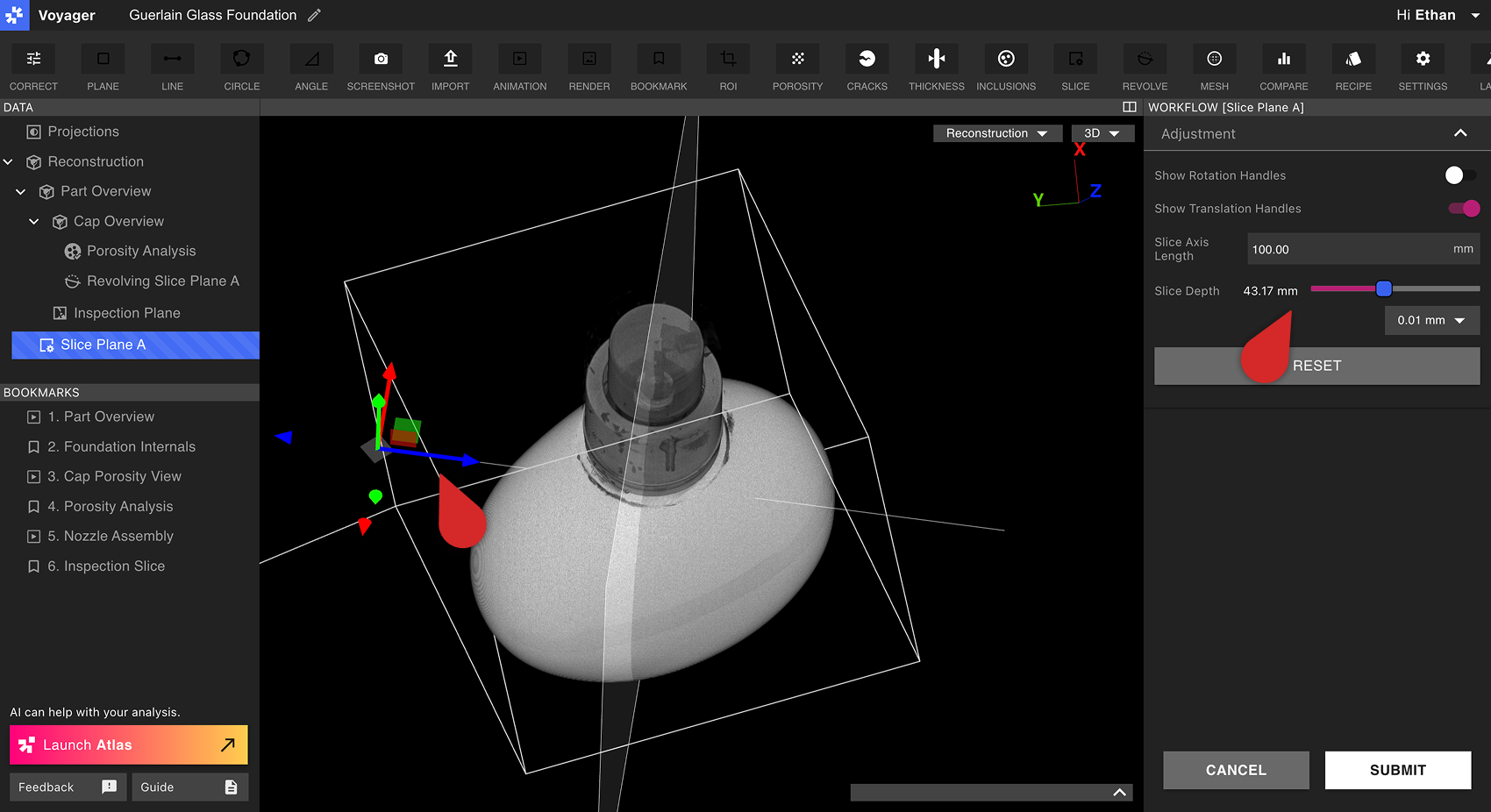
Workflow Editor の Rotation Handles と Translation Handles を使って、Custom Slice Plane の向きと位置を調整します。Axis の長さを選択し、Slice Depth Slider で Custom Slice Plane をスクラブします。
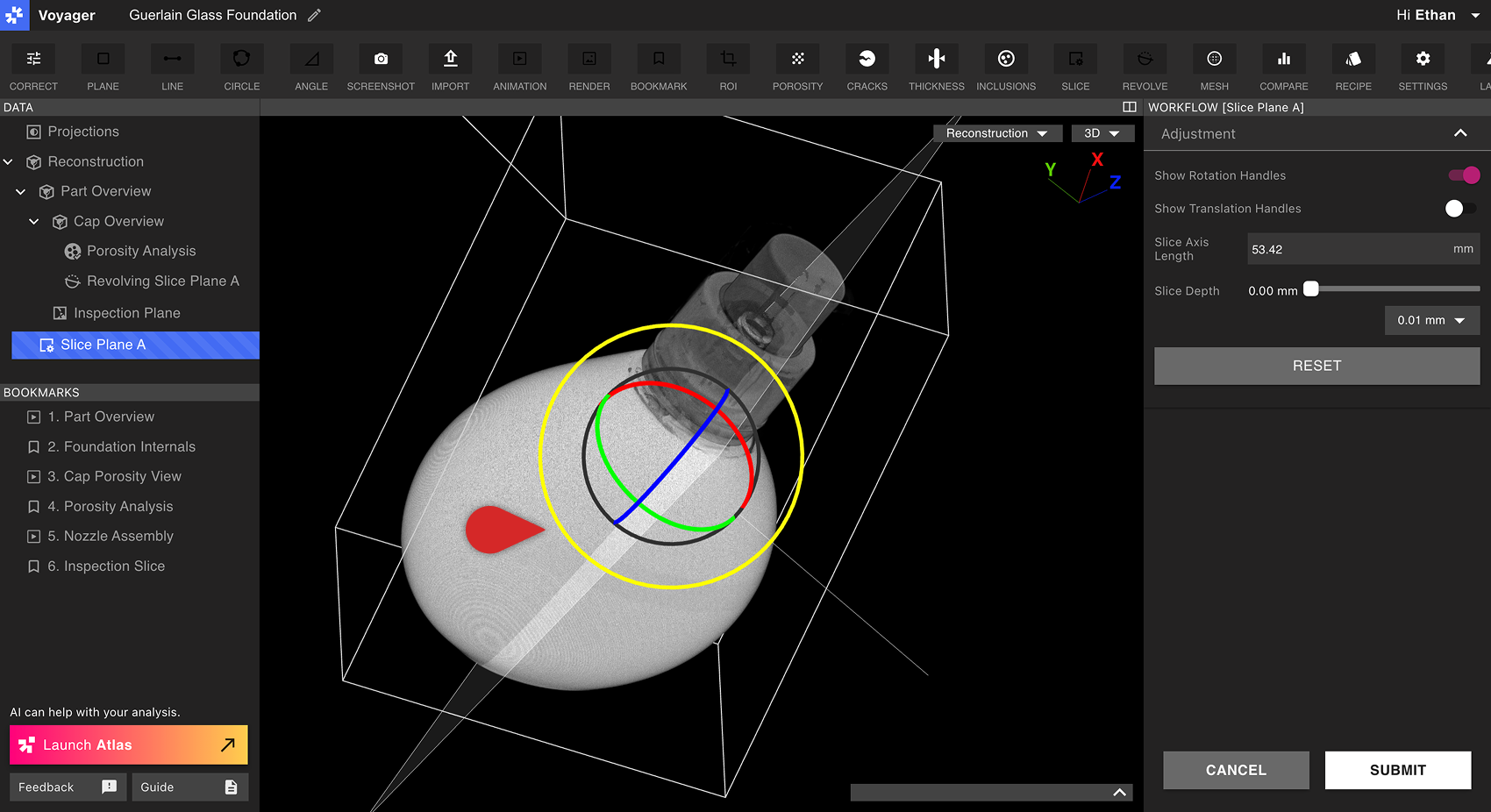
<img src="https://mintcdn.com/lumafield/oz_vMWmpX748jLB_/images/Custom_Slice_Planes_Step2.png?fit=max&auto=format&n=oz_vMWmpX748jLB_&q=85&s=7def5fa1d156421e070b389e9e072602" alt="Creating a Custom Slice Plane Step 2" width="1700" height="926" data-path="images/Custom_Slice_Planes_Step2.png" />

<img src="https://mintcdn.com/lumafield/oz_vMWmpX748jLB_/images/Custom_Slice_Planes_Step3.png?fit=max&auto=format&n=oz_vMWmpX748jLB_&q=85&s=22ef6f89110025f86a803485ce5a47da" alt="Creating a Custom Slice Plane Step 3" width="1700" height="926" data-path="images/Custom_Slice_Planes_Step3.png" />

Submit を選択すると Custom Slice Plane が作成されます。新しい Custom Slice Plane Data Object が Data Panel にすぐ表示されます。

<h2 id="viewing-a-custom-slice-plane">
  Custom Slice Plane の表示
</h2>

Custom Slice Plane は、Reconstruction または ROI のカーディナル X／Y／Z 平面と同様に動作します。Custom Slice Plane を選択するとViewportに表示され、Slice Depth スライダーがViewport下部と Attributes Panel の両方に表示されます。

Custom Slice Plane は、Viewport 右上の View ドロップダウン、または Data Panel から選択できます。

<img src="https://mintcdn.com/lumafield/oz_vMWmpX748jLB_/images/Custom_Slice_Planes_Controls.png?fit=max&auto=format&n=oz_vMWmpX748jLB_&q=85&s=fbdde2a917e37fcaa5d04fb6aae6d26c" alt="Custom Slice Plane Controls" width="1700" height="926" data-path="images/Custom_Slice_Planes_Controls.png" />
