> ## Documentation Index
> Fetch the complete documentation index at: https://support.lumafield.com/llms.txt
> Use this file to discover all available pages before exploring further.
# Analysis Modules
> Expand your analysis capabilities
Beyond the core features of Voyager, Lumafield offers specialized analysis modules designed to solve complex engineering challenges and streamline your data workflow.
**Pro and Enterprise plans now include all modules.** Organizations on the **Pro** and **Enterprise** plans receive every Analysis Module listed below as part of their subscription. Customers on the Legacy plan can purchase modules individually — reach out to your Customer Success Manager or [sales@lumafield.com](mailto:sales@lumafield.com) for details.
## Integrity Analysis
The Integrity Analysis Module is Lumafield’s comprehensive solution for identifying and quantifying internal defects and features. This module utilizes advanced algorithms to non-destructively inspect complex internal geometries.
Learn more about each tool included in Integrity Analysis:
* [Porosity Analysis](/voyager/voyager-porosity-analysis)
* [Crack Detection](/voyager/voyager-crack-detection)
* [Wall Thickness Analysis](/voyager/voyager-wall-thickness-analysis)
* [Inclusion Analysis](/voyager/voyager-inclusion-analysis)
 ## Exporting & Reporting
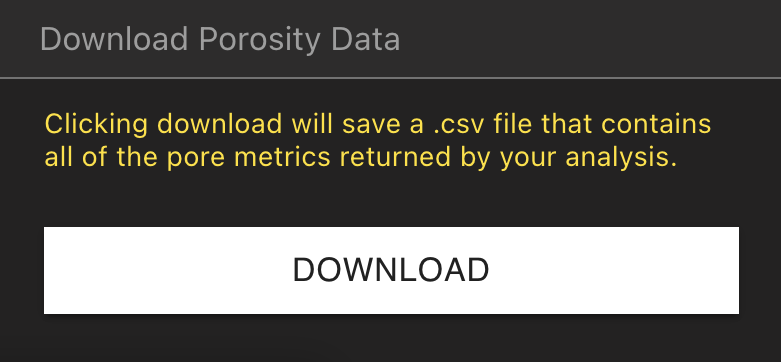
The Exporting & Reporting Module allows users to export downsampled volumes and results generated by Integrity Analysis tools for downstream reporting and analysis.
Supported exports include:
* Porosity Analysis results (CSV)
* Crack Detection results (CSV)
* Wall Thickness Analysis results (CSV, PLY)
* Inclusion Analysis results (CSV)
* 100 MB Dataviews resolution volume
## Exporting & Reporting
The Exporting & Reporting Module allows users to export downsampled volumes and results generated by Integrity Analysis tools for downstream reporting and analysis.
Supported exports include:
* Porosity Analysis results (CSV)
* Crack Detection results (CSV)
* Wall Thickness Analysis results (CSV, PLY)
* Inclusion Analysis results (CSV)
* 100 MB Dataviews resolution volume
 ## Full Resolution Exports
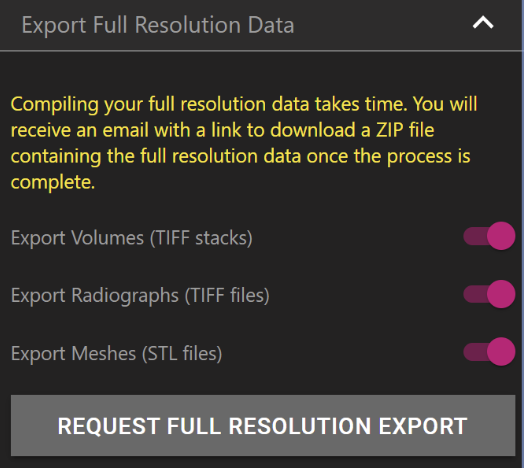
The Full Resolution Exports Module enables users to download complete Project data. Users can request the export directly from the Attributes Panel within Voyager. Full Resolution data exports are then delivered as a ZIP file via email.
Supported export views and formats include:
* Volumes (TIFF Stack)
* Radiographs (TIFF files)
* Meshes (STL files)
Find the Full Resolution Export feature within the Settings Tool in Voyager.
## Full Resolution Exports
The Full Resolution Exports Module enables users to download complete Project data. Users can request the export directly from the Attributes Panel within Voyager. Full Resolution data exports are then delivered as a ZIP file via email.
Supported export views and formats include:
* Volumes (TIFF Stack)
* Radiographs (TIFF files)
* Meshes (STL files)
Find the Full Resolution Export feature within the Settings Tool in Voyager.
 ## Uplink
Uplink allows you to upload, store, and analyze volumetric data from any industrial CT scanner within the cloud-based Voyager platform. By supporting common formats, Uplink makes scans accessible to your entire team for seamless remote collaboration.
Currently supported upload formats:
* Volume Graphics Files (.VGL + .RAW or .VOL)
* Volume Graphics Files (.VGL + DICOM stack)
* TIFF Stack
For more information, see the full article on [Uplink](/uplink).
## Uplink
Uplink allows you to upload, store, and analyze volumetric data from any industrial CT scanner within the cloud-based Voyager platform. By supporting common formats, Uplink makes scans accessible to your entire team for seamless remote collaboration.
Currently supported upload formats:
* Volume Graphics Files (.VGL + .RAW or .VOL)
* Volume Graphics Files (.VGL + DICOM stack)
* TIFF Stack
For more information, see the full article on [Uplink](/uplink).