> ## Documentation Index
> Fetch the complete documentation index at: https://support.lumafield.com/llms.txt
> Use this file to discover all available pages before exploring further.
# Running Your First Scan
> Set up scans on your Neptune
Introduction
Lumafield’s Neptune scanners offer an accessible workflow for office, factory, or lab settings. Using the touchscreen interface and included fixturing kit, anyone can quickly prepare and configure parts for inspection. Follow the steps below to run a scan on your Neptune.
Scanner start-up
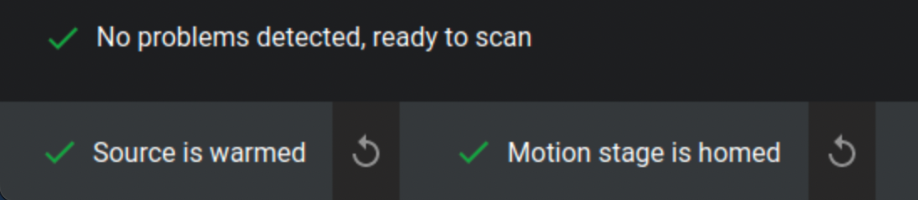
Before you begin, ensure the scanner is properly homed and warmed. If these steps have not been completed, refer to the [Neptune Machine Initialization](/neptune/neptune-initialization) guide. Confirm that green check marks are visible in the bottom left corner of the interface, indicating the system is ready for operation.
Four steps to running a scan
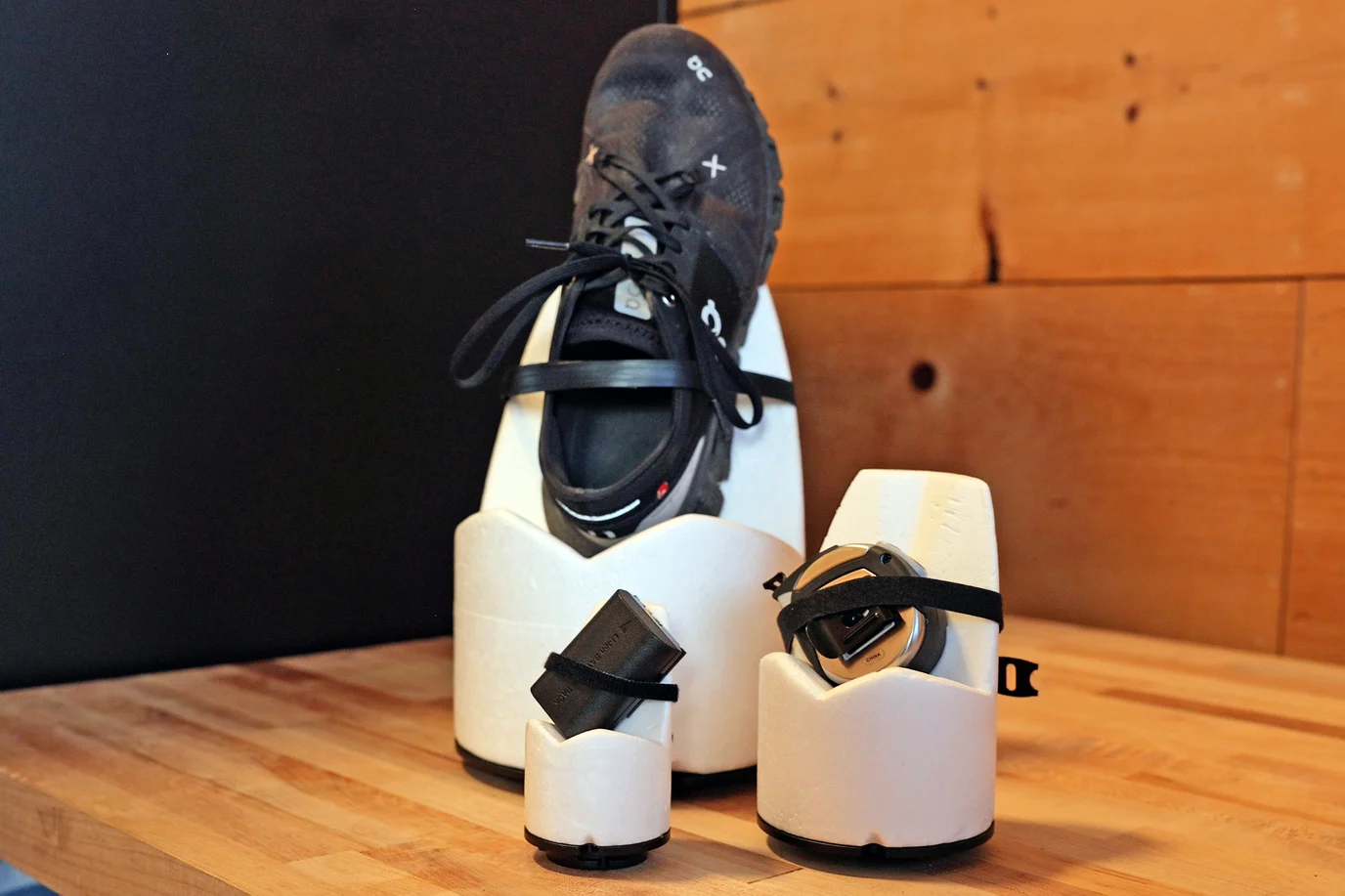 Every Lumafield scanner includes a dedicated fixturing kit. Use these components to elevate your part above the rotary stage and secure it firmly in place. Make sure that the rotary stage is out of the Field of View (FOV) when scanning.
**Fixturing best practices:**
* **Weight Limit:** The rotary stage supports a maximum sample weight of 5 kg (11 lbs).
* **Density:** Use low-density fixturing materials (like foam) to make it easier to isolate your part during analysis.
* **Orientation:** Angle flat surfaces to reduce scan artifacts and improve image quality.
* **Stability:** Ensure the part is completely stationary to prevent motion-related errors.
* **Customization:** Use the ¼-20 threaded baseplates to design custom buildplates tailored to your part geometry.
Please reference the [Neptune Fixturing Guide](/neptune/neptune-fixturing-guide) for more details.
Every Lumafield scanner includes a dedicated fixturing kit. Use these components to elevate your part above the rotary stage and secure it firmly in place. Make sure that the rotary stage is out of the Field of View (FOV) when scanning.
**Fixturing best practices:**
* **Weight Limit:** The rotary stage supports a maximum sample weight of 5 kg (11 lbs).
* **Density:** Use low-density fixturing materials (like foam) to make it easier to isolate your part during analysis.
* **Orientation:** Angle flat surfaces to reduce scan artifacts and improve image quality.
* **Stability:** Ensure the part is completely stationary to prevent motion-related errors.
* **Customization:** Use the ¼-20 threaded baseplates to design custom buildplates tailored to your part geometry.
Please reference the [Neptune Fixturing Guide](/neptune/neptune-fixturing-guide) for more details.
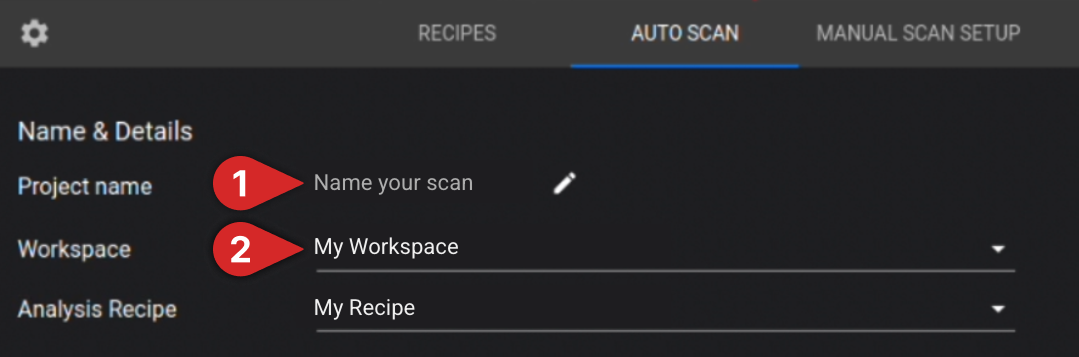 **Optional:** Set an Analysis Recipe to run on the scan when complete.
**Important:** Perform this step with the door open. Failure to do so significantly increases the risk of a mechanical crash, which can cause serious damage to the X-ray source or detector.
With the scanner door open, secure your fixture to the rotary stage and gradually increase the magnification. Periodically perform a full 360° rotation to verify that the part and fixturing maintain adequate clearance from the X-ray source, filter wheel, and detector.
**Neptune Microfocus demonstration**
**Optional:** Set an Analysis Recipe to run on the scan when complete.
**Important:** Perform this step with the door open. Failure to do so significantly increases the risk of a mechanical crash, which can cause serious damage to the X-ray source or detector.
With the scanner door open, secure your fixture to the rotary stage and gradually increase the magnification. Periodically perform a full 360° rotation to verify that the part and fixturing maintain adequate clearance from the X-ray source, filter wheel, and detector.
**Neptune Microfocus demonstration**
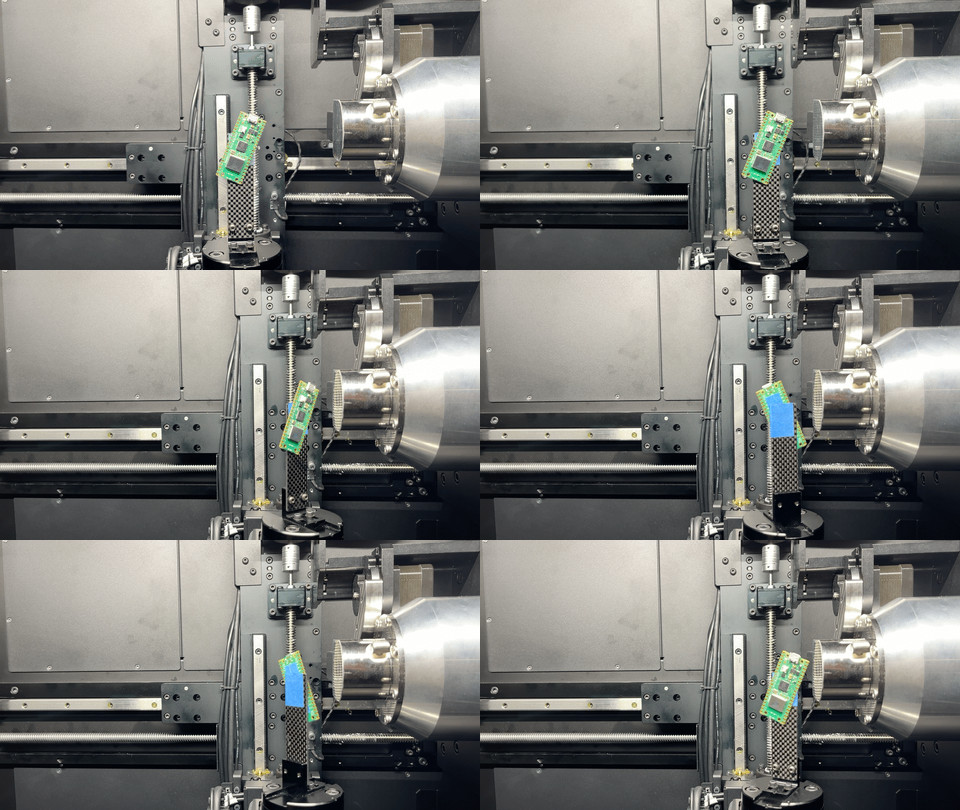 **Neptune Standard & High Power demonstration**
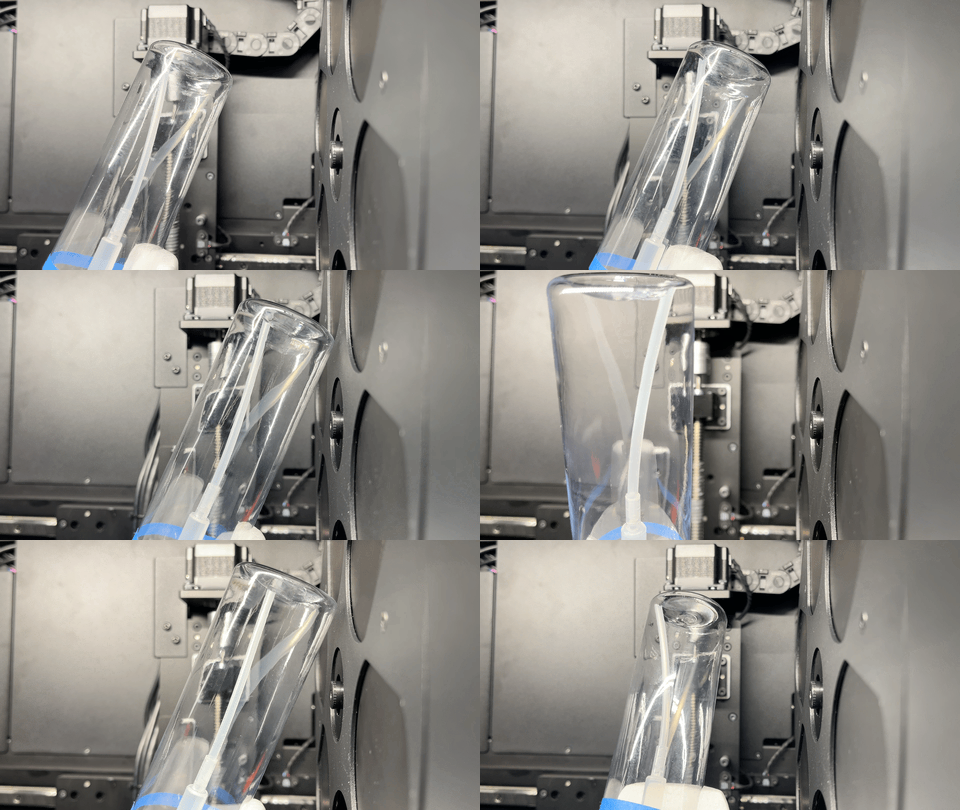 After setting your magnification, close the scanner door and enable X-rays. Select “VERIFY BOUNDS” to ensure the part remains within the FOV. If any portion of the part exits the frame, it will not appear in the scan. To avoid this, decrease the magnification and repeat the verification process until the entire part is successfully contained within the FOV.
 **Optional:** Users with the [Expanded Volume Module](/neptune/neptune-expanded-volume), can use the offset slider to allow portions of the object to exit the frame while still ensuring a complete reconstruction. Please refer to the [Neptune Positioning Guide](/neptune/neptune-positioning-guide) for more information
The following Auto Scan settings must be selected to begin a scan:
* **Select Material Type:** Specify whether your part is “Mono-material” or “Multi-material”
* **Set Scan Time:** Adjust the scan duration using the slider or by manually entering the desired time
**Optional:** Users with the [Expanded Volume Module](/neptune/neptune-expanded-volume), can use the offset slider to allow portions of the object to exit the frame while still ensuring a complete reconstruction. Please refer to the [Neptune Positioning Guide](/neptune/neptune-positioning-guide) for more information
The following Auto Scan settings must be selected to begin a scan:
* **Select Material Type:** Specify whether your part is “Mono-material” or “Multi-material”
* **Set Scan Time:** Adjust the scan duration using the slider or by manually entering the desired time
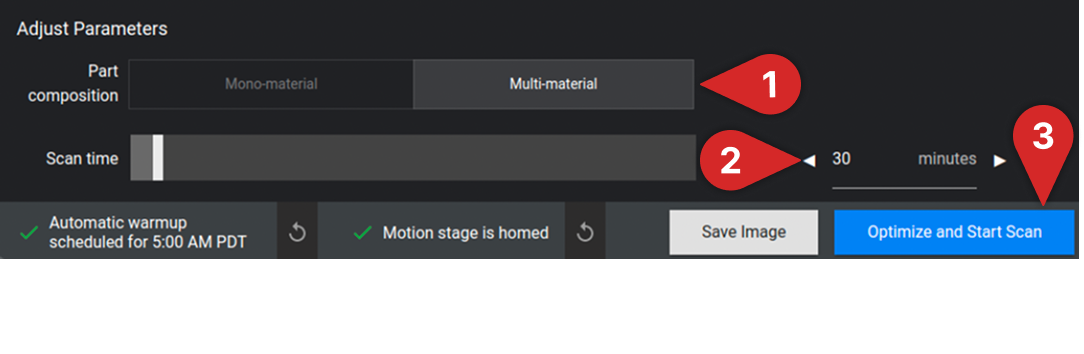 **Note:** Increasing the scan time generally improves scan quality.
Select “Optimize and Start Scan” to begin scanning!
For more information on how to configure scan settings, please read the [Neptune Auto Scan Settings Guide](/neptune/neptune-auto-scan-settings-guide).
**Note:** Increasing the scan time generally improves scan quality.
Select “Optimize and Start Scan” to begin scanning!
For more information on how to configure scan settings, please read the [Neptune Auto Scan Settings Guide](/neptune/neptune-auto-scan-settings-guide).