> ## Documentation Index
> Fetch the complete documentation index at: https://support.lumafield.com/llms.txt
> Use this file to discover all available pages before exploring further.
# Custom Slice Planes
> View off-normal features of parts
When working with a part that has complex geometry, create a Custom Slice Plane to create new axes beyond the default Cardinal X, Y and Z planes. Define Custom Slice Planes for any sub-geometries present within 3D scan data.
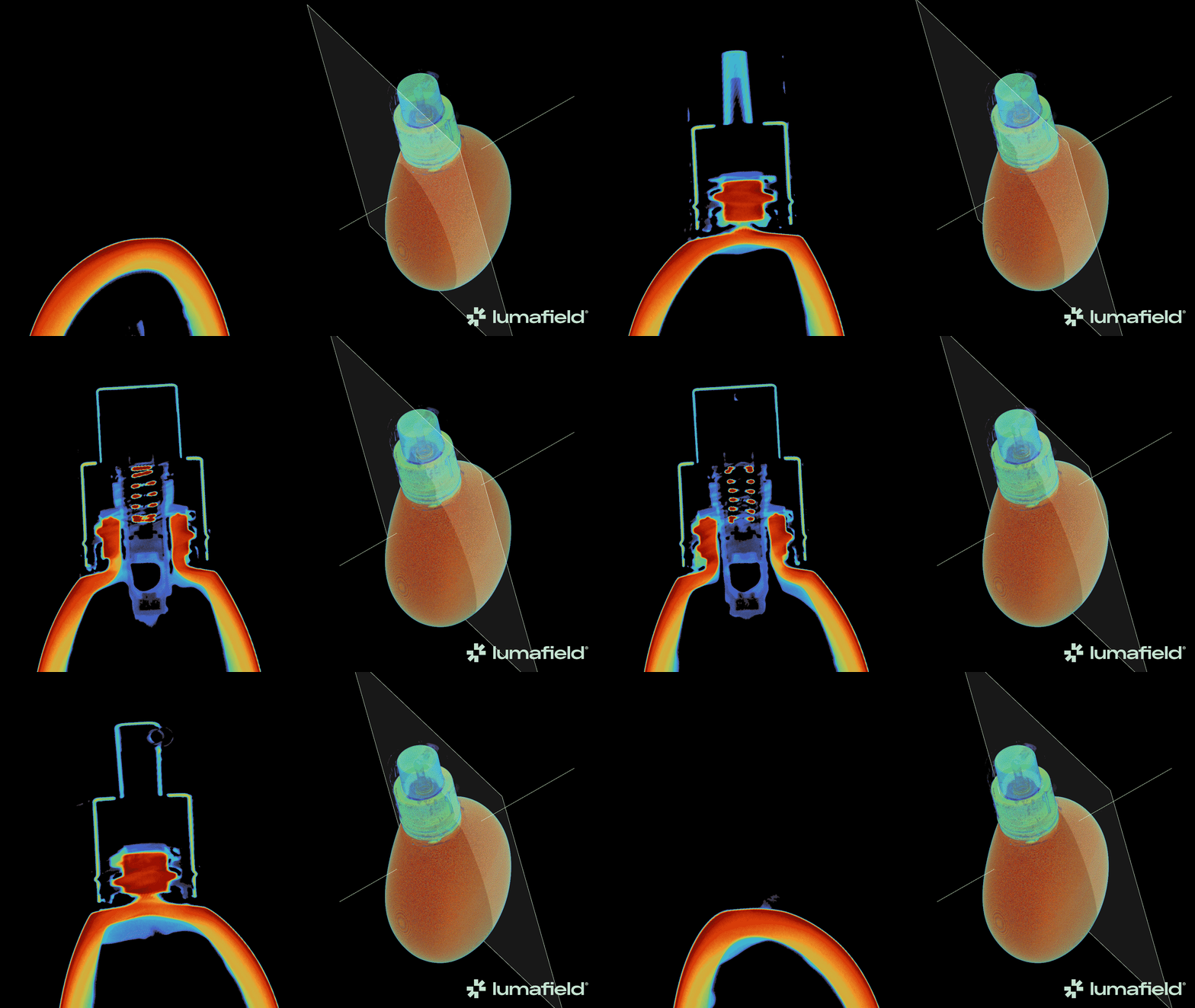
Creating a Custom Slice Plane
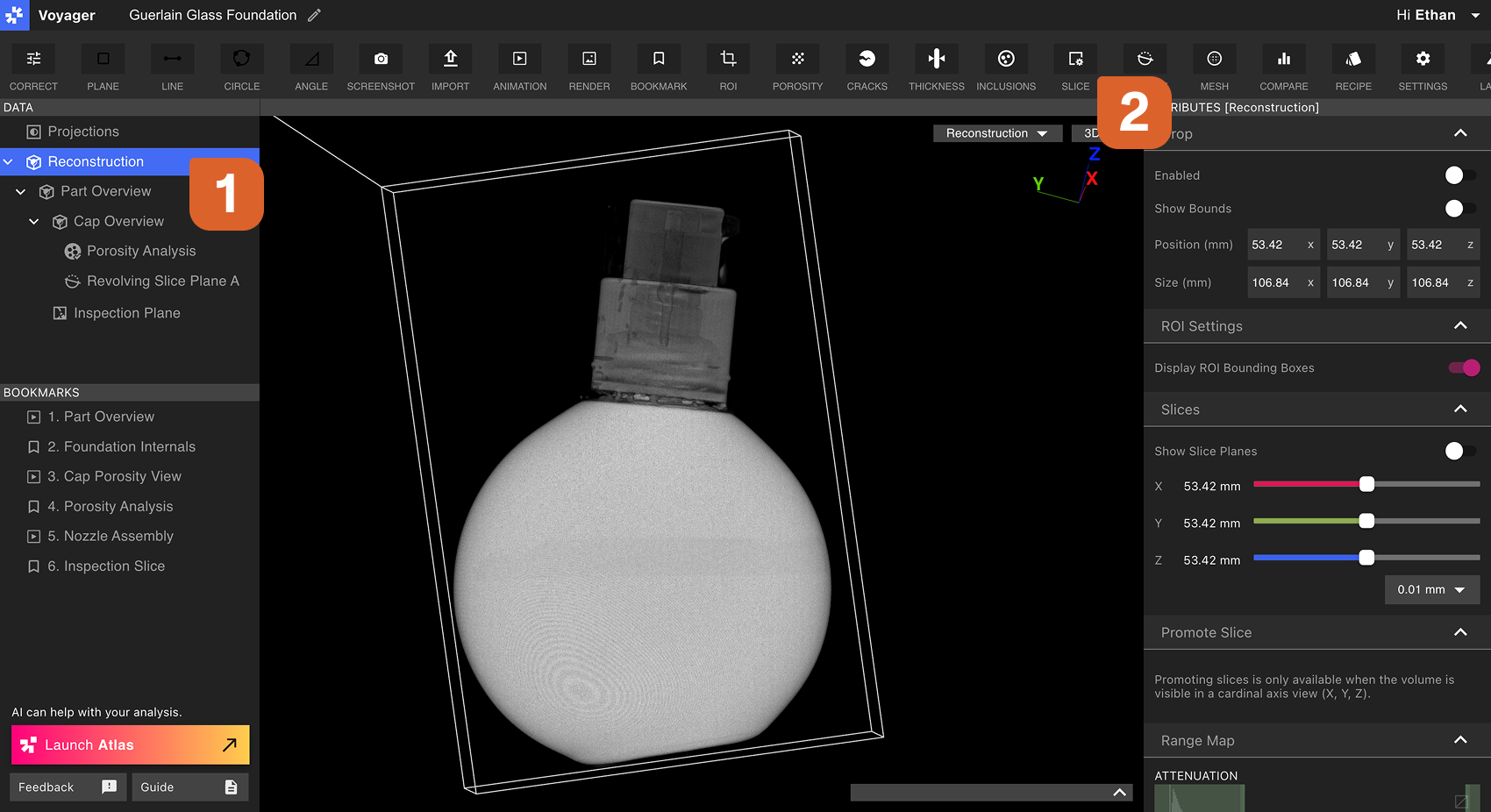
First, select a Reconstruction or ROI to serve as the parent Data Object for the Custom Slice Plane. Next, select the Slice Tool from the Toolbar.
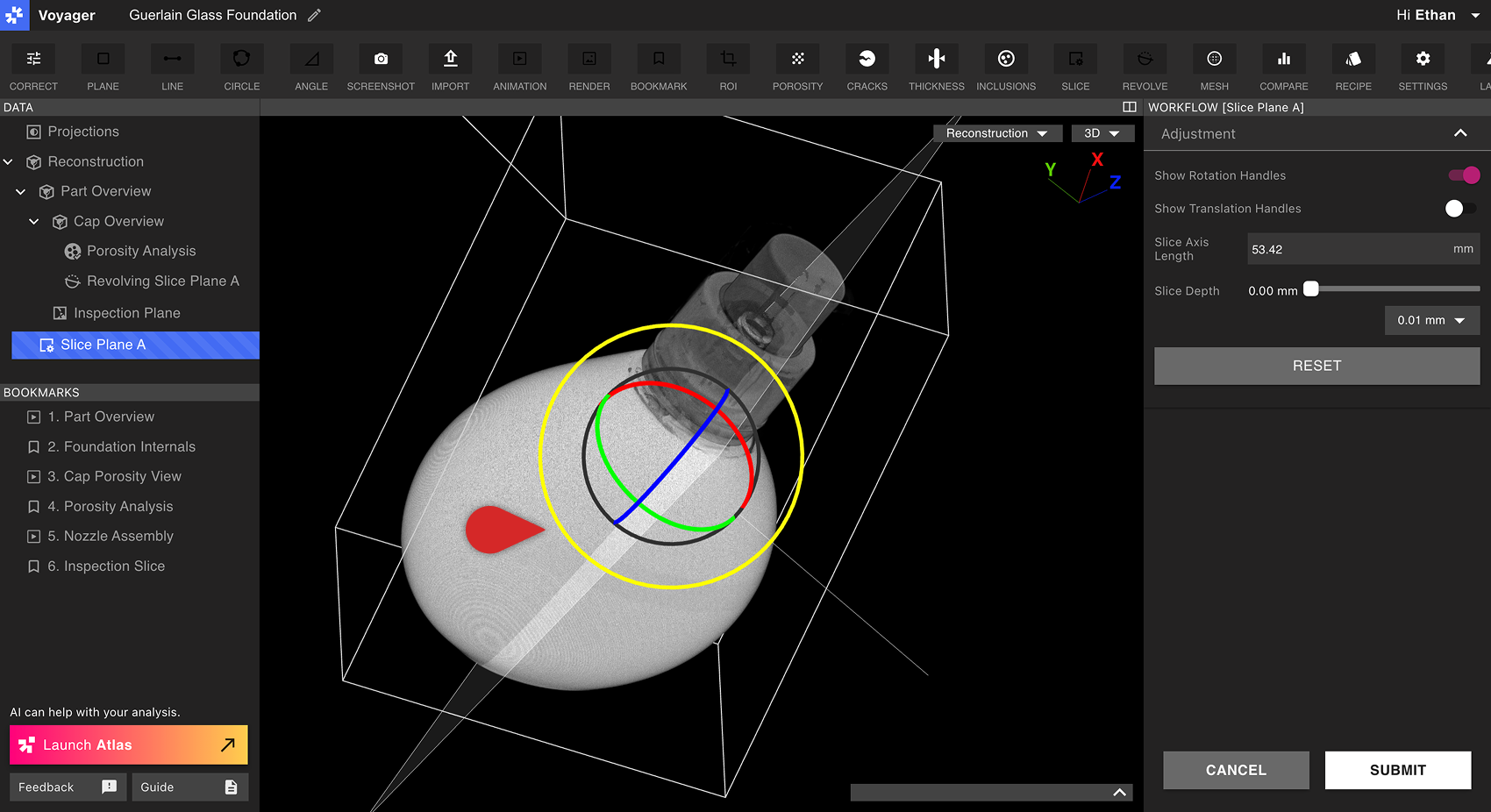
 Use the Rotation Handles and Translation Handles in the Workflow Editor to orient and move the Custom Slice Plane to the desired position. Choose a length for the Axis, and scrub through the Custom Slice Plane using the Slice Depth Slider.
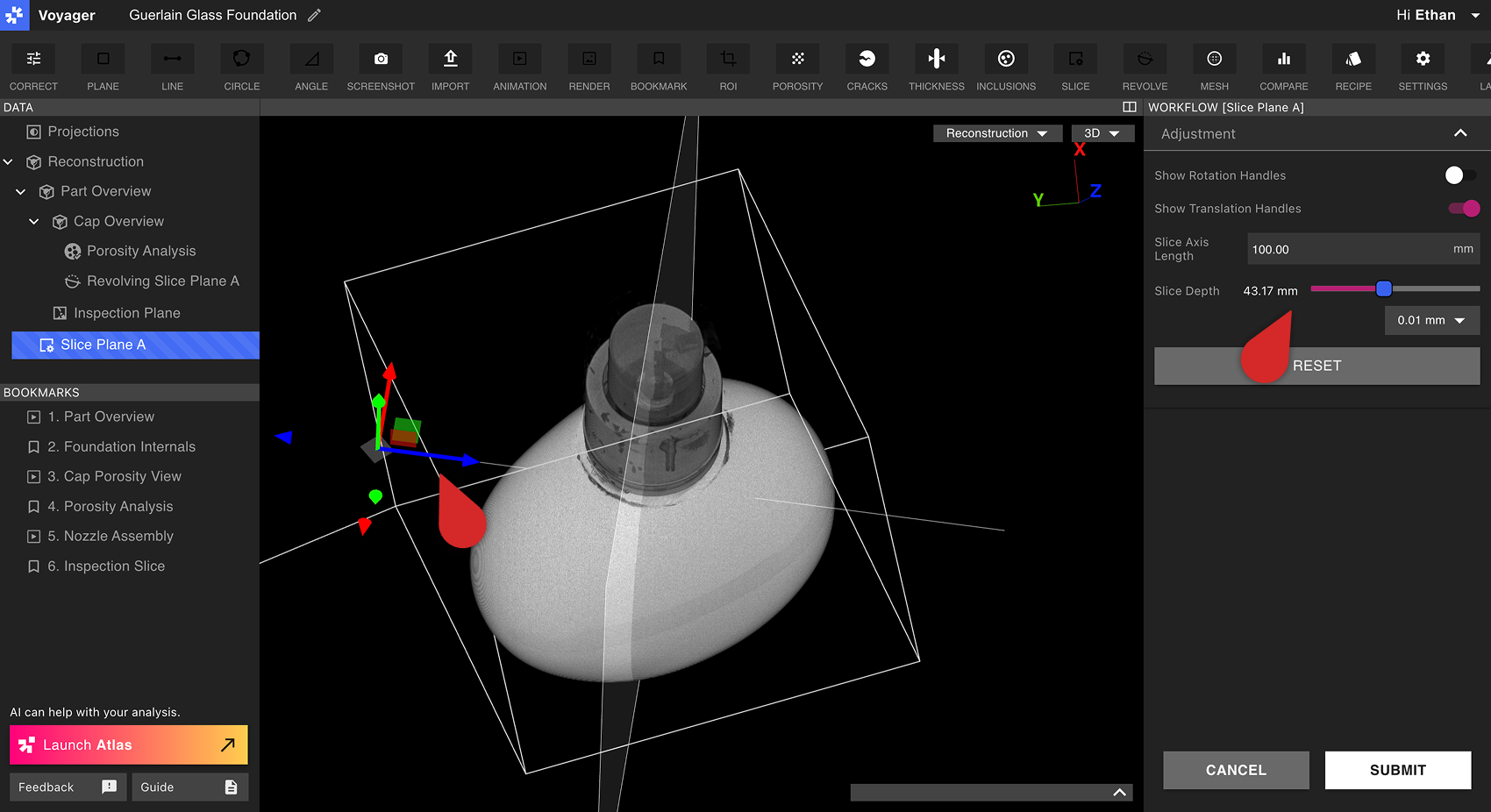 Select Submit to create the Custom Slice Plane. The new Custom Slice Plane Data Object will appear in the Data Panel immediately.
Viewing a Custom Slice Plane
A Custom Slice Plane behaves like a Cardinal X, Y or Z plane of a Reconstruction or ROI. Selecting a Custom Slice Plane brings it into the Viewport, and a Slice Depth slider appears both at the bottom of the Viewport as well as in the Attributes Panel.
A Custom Slice Plane can be selected from the View dropdown in the top-right of the Viewport, or from the Data Panel.
