> ## Documentation Index
> Fetch the complete documentation index at: https://support.lumafield.com/llms.txt
> Use this file to discover all available pages before exploring further.
# Datum Definition
> Define Plane, Axis, and Midplane datums on parts and CAD for use in datum reference frames
Datums are reference geometry used to construct **Datum Reference Frames (DRFs)** — the coordinate systems that anchor GD\&T evaluations like [Profile](/voyager/voyager-profile). Voyager's Datum Tool, part of [3D Auto-Dimensioning](/voyager/voyager-auto-dimensioning), lets you define datums on both your scanned part and on imported CAD so the two can be correlated for accurate datum simulation.
All measurements should be performed on an [ROI](/voyager/voyager-region-of-interest) that roughly orients your part to the correct orientation. The datums you define inherit the orientation of the ROI they are built on.
The Datum Tool is available in [Dimensioning Mode](/voyager/voyager-modes#dimensioning-mode).
Supported datum types
Voyager currently supports three datum types:
* **Plane** — built from a single extracted plane feature
* **Axis** — built from a single extracted cylinder feature
* **Midplane** — built from a pair of parallel plane features
More types and richer datum-simulation parameterization will be added over time.
Defining datums on a scanned part
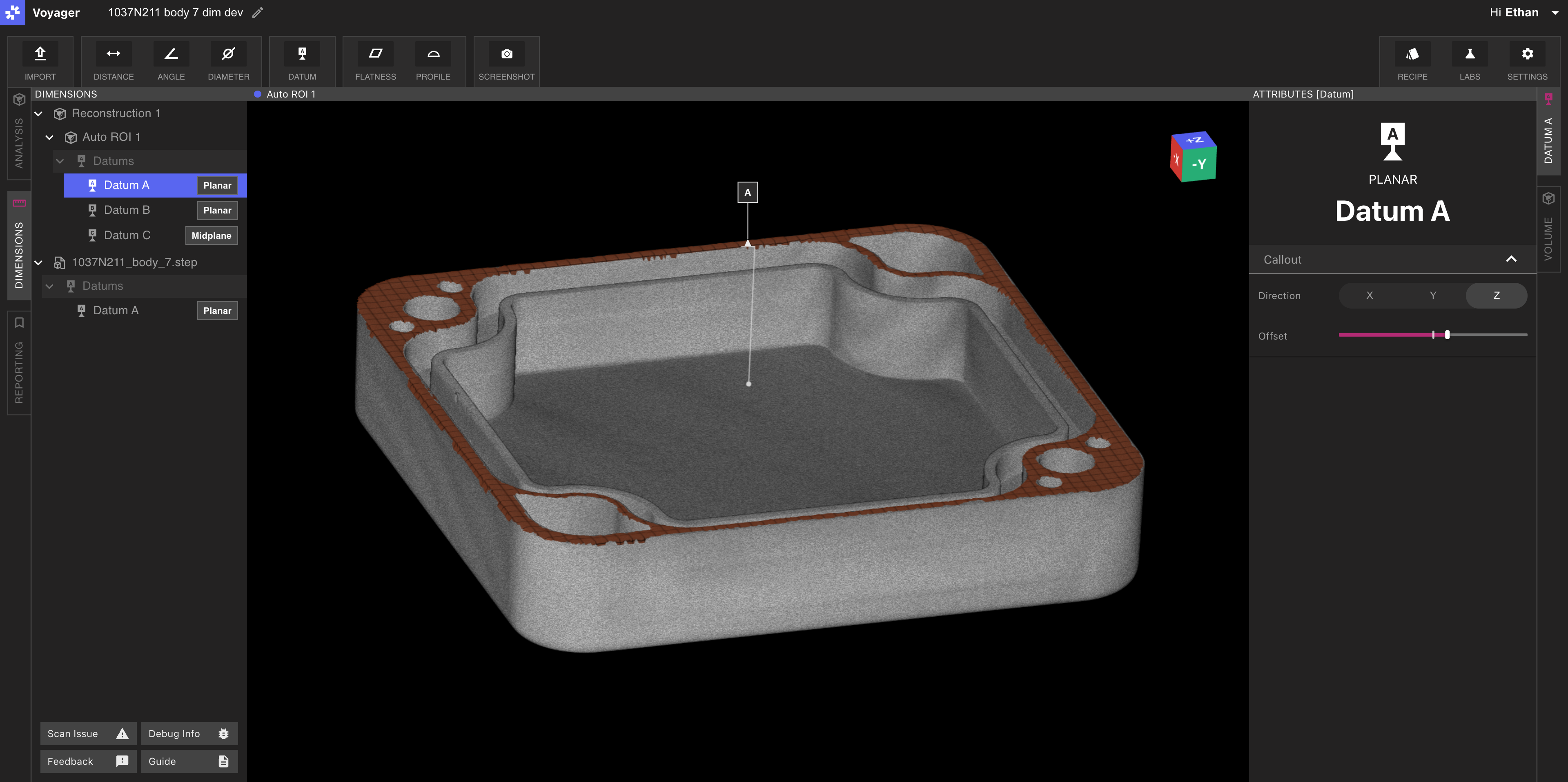
Datums on the part are built from features produced by [Automatic Feature Extraction](/voyager/voyager-auto-dimensioning#automatic-feature-extraction). To define a datum:
Choose **Datum** from the Toolbar in Dimensioning Mode.
Pick Plane, Axis, or Midplane.
Click the extracted plane (Plane), cylinder (Axis), or pair of parallel planes (Midplane). Eligible features highlight on hover.
Assign a label (such as `A`, `B`, or `C`) and submit. The new datum is added to the scene.
Defining datums on imported CAD
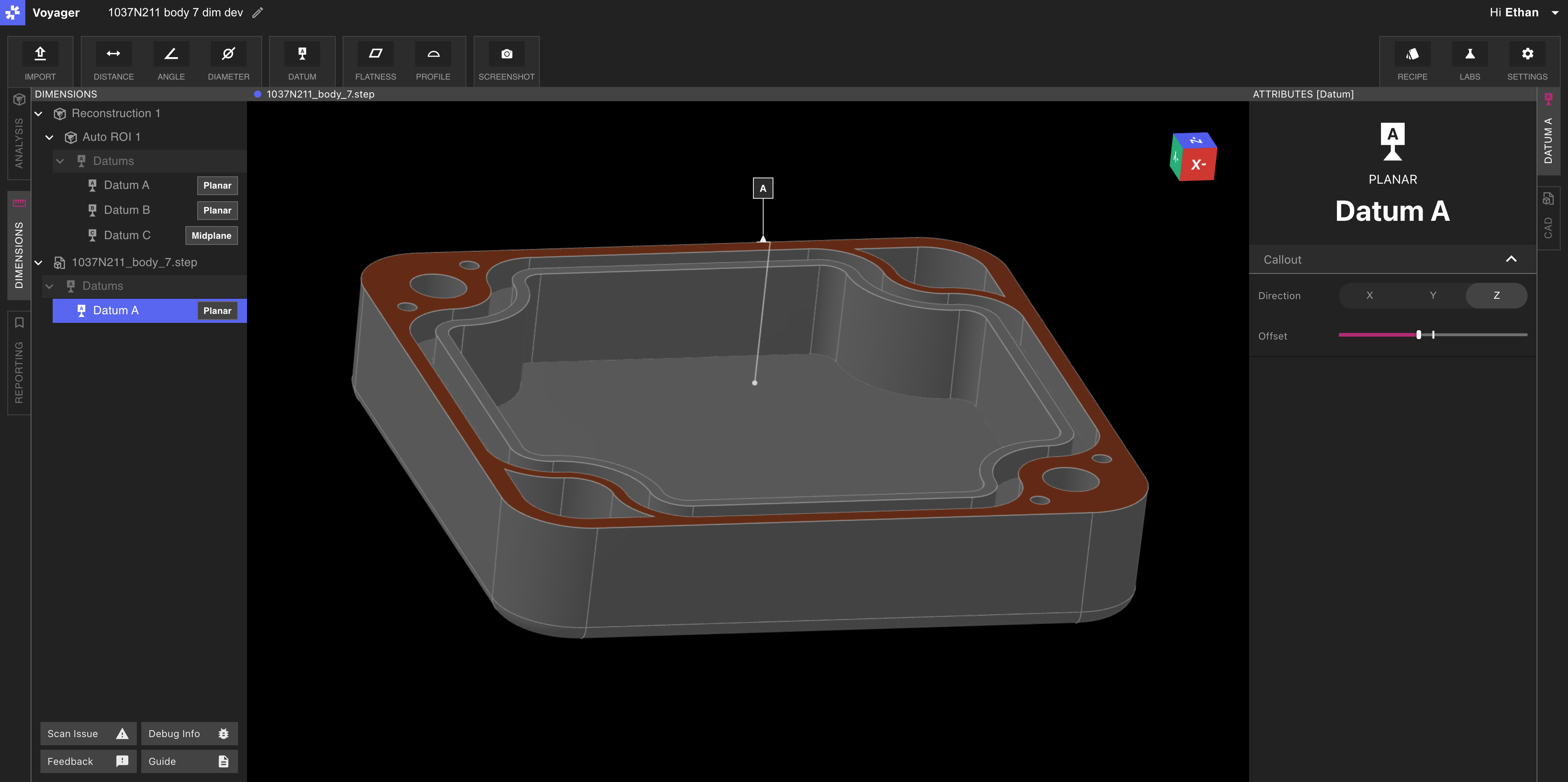
Datums can also be defined on uploaded CAD models. Use the [Import Tool](/voyager/voyager-import) to bring a `.STEP` file into your Project — see [Nominal CAD Import](/voyager/voyager-nominal-import) for the focused walkthrough — then run the same Datum workflow against the CAD body.
For [Profile](/voyager/voyager-profile), you must define **a corresponding DRF** on both the imported CAD and on the scanned part. Matching labels (for example, `A`, `B`, `C`) on each side enable Voyager to correlate the two frames in the Profile workflow's datum-correlation step.
Adjusting leaders and labels
Each datum displays a leader and a labeled flag in the Viewport. Use the leader and label controls in the Attributes Panel to adjust orientation and offset. Clean placement makes it easier to read complex DRF setups in [Reporting Mode](/voyager/voyager-modes#reporting-mode) Bookmarks, Renders, and Animations.
Related pages
* [3D Auto-Dimensioning](/voyager/voyager-auto-dimensioning)
* [Direct Dimensions](/voyager/voyager-direct-dimensions)
* [Flatness](/voyager/voyager-flatness)
* [Profile](/voyager/voyager-profile) — uses datums to align CAD and part for evaluation
* [Nominal CAD Import](/voyager/voyager-nominal-import) — focused STEP-import walkthrough
* [Import Tool](/voyager/voyager-import) — main Mesh and CAD import article
* [Voyager Modes](/voyager/voyager-modes)
* [Voyager 2.0 Release Notes](/platform/voyager-release-notes) and [Monthly Highlights](/platform/monthly-highlights)