> ## Documentation Index
> Fetch the complete documentation index at: https://support.lumafield.com/llms.txt
> Use this file to discover all available pages before exploring further.
# Flatness
> GD&T Flatness evaluation on extracted plane features
Flatness is a GD\&T tolerance evaluation that quantifies how close a real surface is to a perfectly flat plane. The Flatness Tool in [3D Auto-Dimensioning](/voyager/voyager-auto-dimensioning) runs this evaluation against any plane feature extracted from your scan.
All measurements should be performed on an [ROI](/voyager/voyager-region-of-interest) that roughly orients your part to the correct orientation. Without a properly oriented ROI, downstream feature evaluation may not align with your part coordinate system.
The Flatness Tool is available in [Dimensioning Mode](/voyager/voyager-modes#dimensioning-mode) once Automatic Feature Extraction has produced plane features on the parent reconstruction. Every ROI built on that reconstruction inherits those planes.
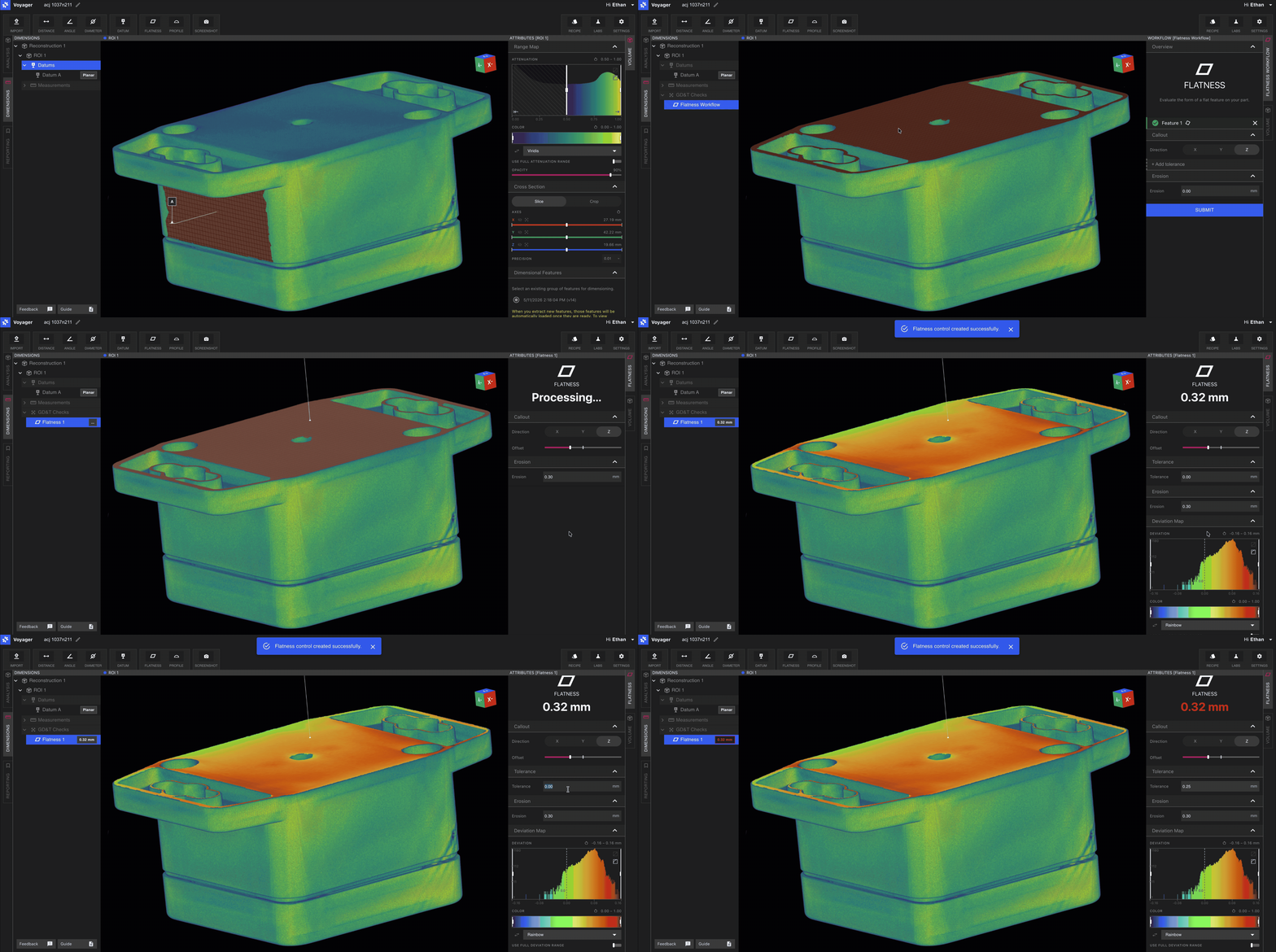
Workflow
Choose **Flatness** from the Toolbar in Dimensioning Mode.
Click any plane feature on your ROI. Eligible planes highlight on hover.
Enter an **erosion** parameter — the inset distance from the plane edge used to exclude noisy boundary regions from the evaluation — and a **tolerance** value.
Submit to compute the Flatness deviation. The result appears as a deviation heatmap on the plane along with a pass/fail color-coded label.
Both **erosion** and **tolerance** can be edited after evaluation. Use the Attributes Panel to iterate on either parameter; the heatmap and pass/fail label update without resubmission.
Interpreting results
The Flatness result is rendered as a heatmap projected onto the evaluated plane, with a numeric Flatness value and pass/fail state in the dimension label. Use the leader and label controls in the Attributes Panel to adjust label placement so the result is easy to read alongside other dimensions in the scene.
For very small Flatness tolerances, increase erosion slightly to mask out edge noise from feature extraction — this typically produces a cleaner read on the body of the surface without re-running extraction.
Related pages
* [3D Auto-Dimensioning](/voyager/voyager-auto-dimensioning)
* [Direct Dimensions](/voyager/voyager-direct-dimensions)
* [Datum Definition](/voyager/voyager-datums)
* [Profile](/voyager/voyager-profile)
* [Voyager Modes](/voyager/voyager-modes)
* [Voyager 2.0 Release Notes](/platform/voyager-release-notes) and [Monthly Highlights](/platform/monthly-highlights)