> ## Documentation Index
> Fetch the complete documentation index at: https://support.lumafield.com/llms.txt
> Use this file to discover all available pages before exploring further.
# Import Tool
> Load external Mesh and CAD files into Voyager
Voyager analyses are not limited to data generated from Lumafield scans. The Import Tool loads external Mesh and CAD files into the Project Editor for workflows such as [Mesh Compare](/voyager/voyager-cad-comparison), [2D Dimensioning](/voyager/voyager-measurement-tools), and the [3D Auto-Dimensioning](/voyager/voyager-auto-dimensioning) suite (notably [Profile](/voyager/voyager-profile)).
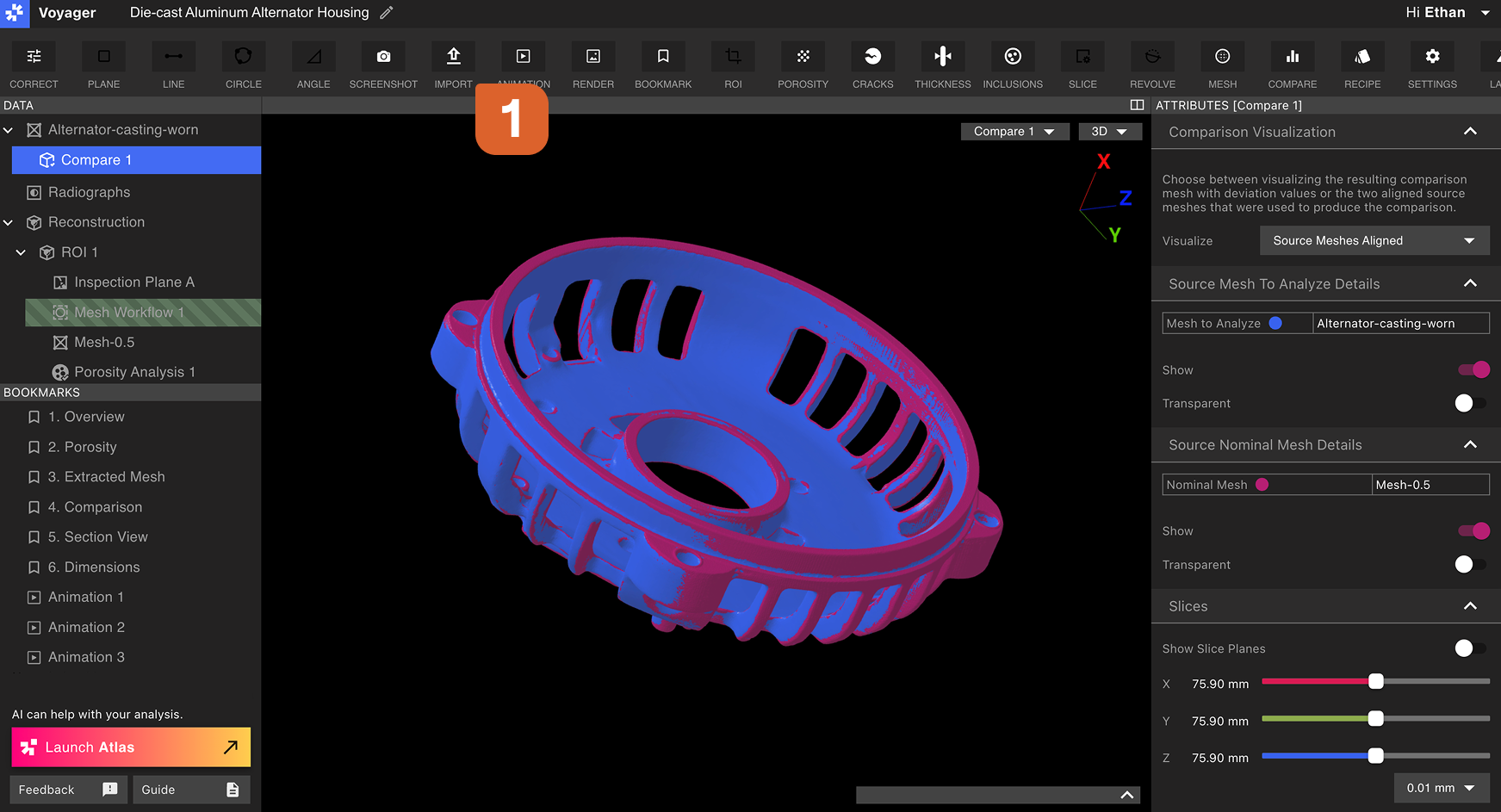 The Import Tool supports two file types, and the available type depends on the active [Mode](/voyager/voyager-modes):
| Mode | Supported file type | Used for |
| ------------------------------------------------------------- | ------------------- | -------------------------------------------------------------------------------------------------------------- |
| [Analysis Mode](/voyager/voyager-modes#analysis-mode) | `.STL` | [Compare Tool](/voyager/voyager-cad-comparison), Mesh-based [measurements](/voyager/voyager-measurement-tools) |
| [Dimensioning Mode](/voyager/voyager-modes#dimensioning-mode) | `.STEP` | Nominal CAD for [Profile](/voyager/voyager-profile), [Datum](/voyager/voyager-datums) definition on CAD |
The Import Tool supports two file types, and the available type depends on the active [Mode](/voyager/voyager-modes):
| Mode | Supported file type | Used for |
| ------------------------------------------------------------- | ------------------- | -------------------------------------------------------------------------------------------------------------- |
| [Analysis Mode](/voyager/voyager-modes#analysis-mode) | `.STL` | [Compare Tool](/voyager/voyager-cad-comparison), Mesh-based [measurements](/voyager/voyager-measurement-tools) |
| [Dimensioning Mode](/voyager/voyager-modes#dimensioning-mode) | `.STEP` | Nominal CAD for [Profile](/voyager/voyager-profile), [Datum](/voyager/voyager-datums) definition on CAD |
Importing an STL Mesh (Analysis Mode)
From the Toolbar in [Analysis Mode](/voyager/voyager-modes#analysis-mode), select the Import Tool, choose a file to upload, and set the Mesh scale **matching the unit set in your **`.STL`** file**.
A common default for `.STL` files from external software is **mm**, which is also the default for `.STL` files exported from Voyager.
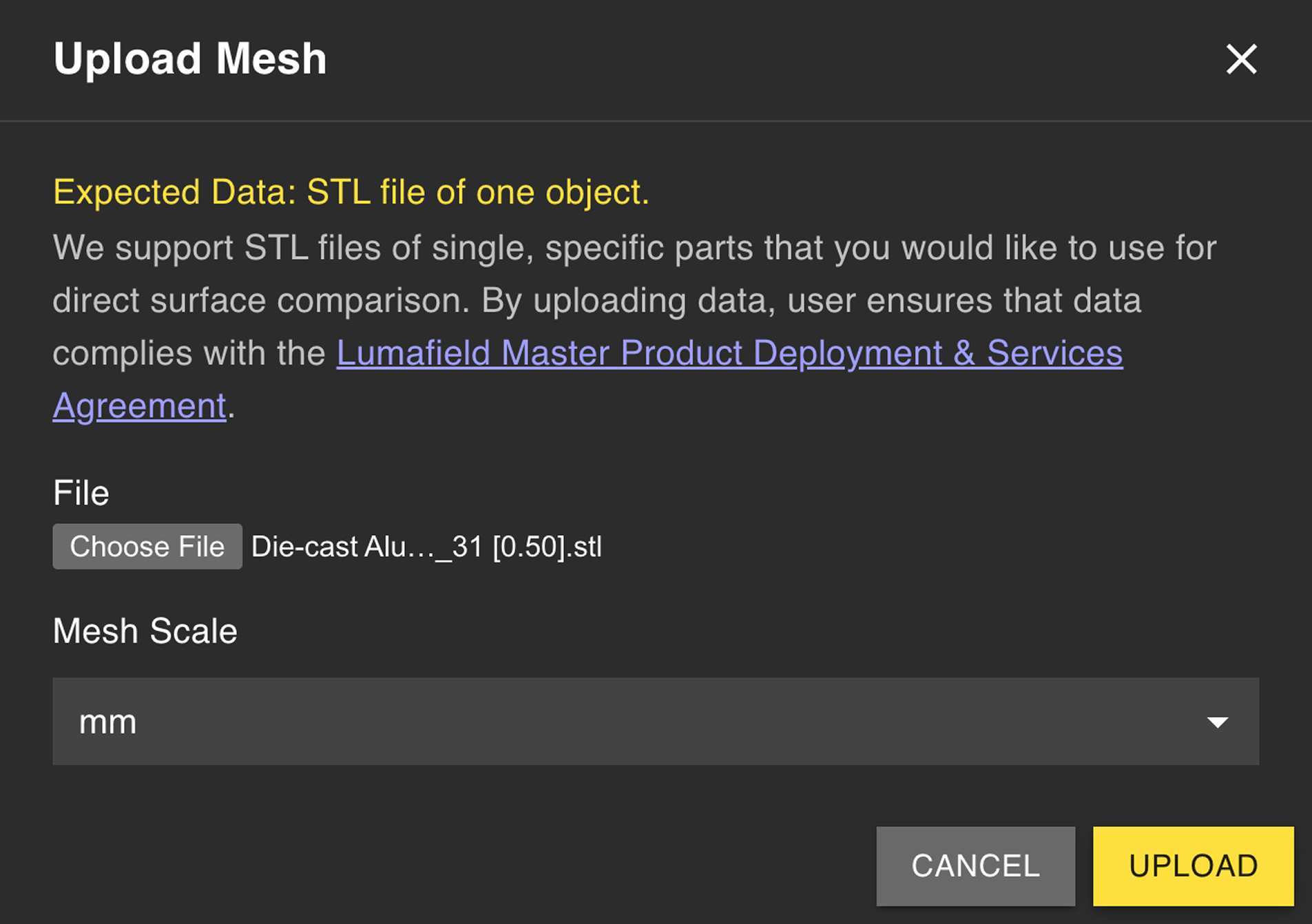 After the upload completes, a new Mesh Data Object appears in the Data Panel. The Mesh is then available for Voyager analyses in the same manner as a Mesh generated with Voyager's [Mesh Tool](/voyager/voyager-mesh-tool).
Importing a STEP CAD file (Dimensioning Mode)
From the Toolbar in [Dimensioning Mode](/voyager/voyager-modes#dimensioning-mode), select the Import Tool to upload a `.STEP` file as the nominal CAD body for your scanned part. STEP imports are the foundation of the [Profile](/voyager/voyager-profile) workflow, which compares your scan against the nominal CAD under a Datum Reference Frame.
For a focused walkthrough of the STEP-import workflow — including file-prep guidance and integration with [Datum Definition](/voyager/voyager-datums) and [Profile](/voyager/voyager-profile) — see the dedicated [Nominal CAD Import](/voyager/voyager-nominal-import) article.
Switch to Dimensioning Mode and select the Import Tool from the Toolbar.
Choose the STEP file representing the nominal part. STEP carries native units and exact geometry, so no scale entry is required.
Use the [Datum Tool](/voyager/voyager-datums) to build a Datum Reference Frame on the imported CAD, mirroring the DRF on the scanned part. Matching labels (for example, `A`, `B`, `C`) make datum correlation in the Profile workflow trivial.
With matching DRFs on the part and CAD, run [Profile](/voyager/voyager-profile) to compare the scan against the nominal CAD.
Export STEP files from your CAD tool with the part isolated as a single body. Multi-body assemblies should be split before upload so Profile evaluates the intended geometry.
Related pages
* [Voyager Modes](/voyager/voyager-modes)
* [Compare Tool](/voyager/voyager-cad-comparison) — STL-based Mesh comparison in Analysis Mode
* [3D Auto-Dimensioning](/voyager/voyager-auto-dimensioning)
* [Datum Definition](/voyager/voyager-datums)
* [Profile](/voyager/voyager-profile)