> ## Documentation Index
> Fetch the complete documentation index at: https://support.lumafield.com/llms.txt
> Use this file to discover all available pages before exploring further.
# Welcome to Voyager
> Lumafield’s platform for CT scan data interaction
Overview
Voyager is Lumafield's cloud-based software for managing, inspecting, and analyzing data captured on [**Neptune**](/neptune/neptune-intro) and [**Triton**](/triton/triton-intro) scanners. Whether you're new to X-ray CT or a veteran, Voyager gives you the Tools to organize scan Projects, navigate reconstructed volumes, measure geometry, and run analysis Workflows.
Voyager has two primary components:
* The [**Project Editor**](#voyager-project-editor) for interactive visualization, measurement, and analysis of CT data
* The [**Dashboards**](#voyager-dashboards) for Project organization, Workspace management, and administrative settings
See the [Voyager Release Notes](/platform/voyager-release-notes) and [Monthly Highlights](/platform/monthly-highlights) for what's new — most recently, [**Voyager 2.0**](/voyager/voyager-modes) and the [3D Auto-Dimensioning](/voyager/voyager-auto-dimensioning) suite.
***
Voyager Project Editor
The Project Editor is Lumafield's analysis software for interacting directly with CT scan data — creating and navigating data, measuring geometries, and running analysis Workflows. See [**Getting Around**](/voyager/voyager-getting-around) for the layout.
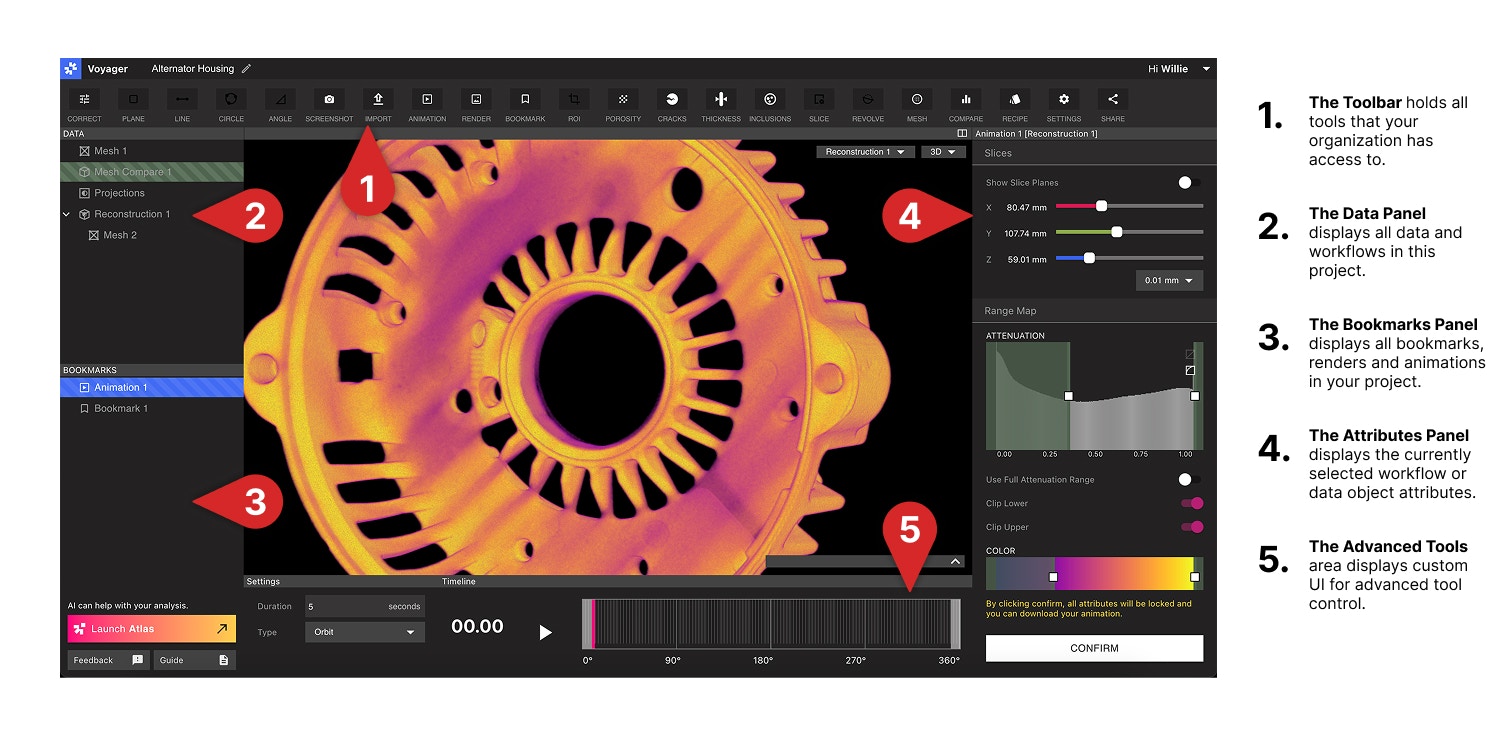
Voyager Modes
As of [Voyager 2.0](/platform/voyager-release-notes), the Toolbar is organized into three task-focused [**Modes**](/voyager/voyager-modes). Switching Modes preserves your data — only the Tool set changes.
[ROIs](/voyager/voyager-region-of-interest), [Inspection Planes](/voyager/voyager-inspection-planes), [Measurement Tools](/voyager/voyager-measurement-tools), [Mesh](/voyager/voyager-mesh-tool), [Compare](/voyager/voyager-cad-comparison), and the full Integrity Analysis suite ([Porosity](/voyager/voyager-porosity-analysis), [Inclusion](/voyager/voyager-inclusion-analysis), [Crack](/voyager/voyager-crack-detection), [Wall Thickness](/voyager/voyager-wall-thickness-analysis)).
The [**3D Auto-Dimensioning**](/voyager/voyager-auto-dimensioning) GD\&T suite — [Direct Dimensions](/voyager/voyager-direct-dimensions), [Flatness](/voyager/voyager-flatness), [Datums](/voyager/voyager-datums), and [Profile](/voyager/voyager-profile) — built on Automatic Feature Extraction.
[Bookmarks](/voyager/voyager-bookmarks), [Render](/voyager/voyager-render-tool), and [Animation](/voyager/voyager-animation-tool) for sharing critical views and turning a Project into a report.
Begin every Project with a [Region of Interest](/voyager/voyager-region-of-interest). ROIs improve resolution and contrast, align the part to a coordinate system, and are required by every Tool in [Dimensioning Mode](/voyager/voyager-modes#dimensioning-mode).
Analysis Mode data
In [Analysis Mode](/voyager/voyager-modes#analysis-mode), the Project Editor organizes Project data into the following types, each rendered as a Data Object:
* **Projections** — raw X-ray radiographs captured during the scan
* **Reconstruction** — the full CT volume reconstructed from those Projections
* **Region of Interest (ROI)** — an oriented sub-volume of a Reconstruction or another ROI
* **Plane** — a slice-based view that enables 2D measurement
* **Mesh** — a surface representation produced by the [Mesh Tool](/voyager/voyager-mesh-tool) or imported via the [Import Tool](/voyager/voyager-import)
* **Analysis Results** — outputs of Workflows (e.g. CAD Comparison, Porosity, Inclusion, Crack, and Wall Thickness)
Dimensioning Mode data
In [Dimensioning Mode](/voyager/voyager-modes#dimensioning-mode), the [3D Auto-Dimensioning](/voyager/voyager-auto-dimensioning) suite produces a parallel set of GD\&T-focused Data Objects on top of an oriented ROI:
* **Extracted Features** — planes and cylinders produced by [Automatic Feature Extraction](/voyager/voyager-auto-dimensioning#automatic-feature-extraction); the inputs to every Tool in this Mode
* **Full-part Mesh** — a sub-voxel boundary mesh used by [Profile](/voyager/voyager-profile)
* **Imported CAD** — `.STEP` nominal geometry loaded via the [Import Tool](/voyager/voyager-import) for Profile evaluation; see [Nominal CAD Import](/voyager/voyager-nominal-import)
* **Datums** — Plane, Axis, and Midplane references built on extracted features (or on imported CAD)
* **Datum Reference Frame (DRF)** — a correlated set of datums spanning the part and the imported CAD
* **Direct Dimensions** — [Distance, Angle, and Diameter](/voyager/voyager-direct-dimensions) measurements with tolerance and pass/fail color coding
* **GD\&T Evaluations** — [Flatness](/voyager/voyager-flatness) and [Profile](/voyager/voyager-profile) results, displayed as deviation heatmaps with tolerance-aware labels
Rotate, pan, and zoom 3D Objects with standard mouse gestures; scrub through 2D Planes with the slider beneath the Viewport. Navigation is identical across all Modes.
Two sets of capabilities sit alongside the three Modes:
* [**Recipes**](/recipes/recipes-intro) — automated, repeatable sequences of scan and analysis steps for your Organization.
* [**Labs**](/voyager/voyager-labs) — experimental Apps including the [Data Quality Toolkit](/voyager/voyager-labs-data-quality-toolkit), [ROI Copy & Paste](/voyager/voyager-labs-copy-paste), and [2D Dimensioning](/voyager/voyager-labs-2d-dimensioning).
Contact your Customer Success Manager or email [customersuccess@lumafield.com](mailto:customersuccess@lumafield.com) to learn more about Advanced Tools.
***
Voyager Dashboards
Voyager Dashboards are the organizational and administrative layer of Voyager.
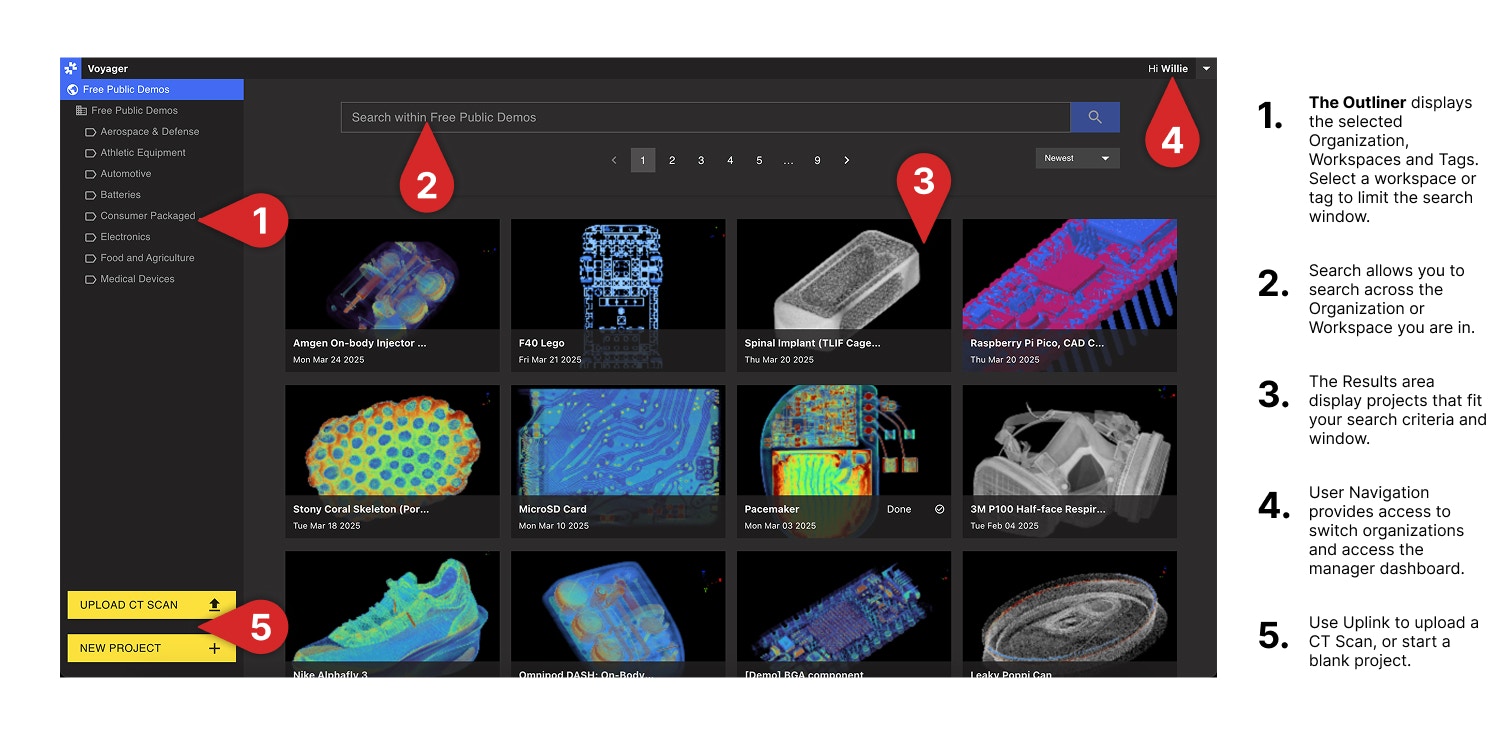 * The [**Project Dashboard**](/voyager/voyager-dashboard) is the central location for all CT Projects, automatically populated by completed scans. Use **Tags** and [Bulk Actions](/voyager/voyager-dashboard) to organize and search at scale, and view your Organization's **Workspaces** — the access boundaries that group related Projects.
* The [**Manager Dashboard**](/voyager/voyager-manager-dashboard) provides controls for user management, Workspace creation, scanner access, and Organization-wide settings. Access is limited to Organization Managers.
# Voyager Configurations
Voyager is offered as **Cloud**, **GovCloud**, and **On-Prem**.
* **Voyager Cloud** is Lumafield’s standard hosted deployment, with Lumafield-managed [software releases](/platform/voyager-release-notes) for supported hardware systems.
* **Voyager GovCloud** provides a similar deployment model for customers with elevated security and compliance requirements.
* **Voyager On-Prem** is installed within your environment, with software releases coordinated through Lumafield. See our [On-Prem Power](https://support.lumafield.com/neptune/voyager-on-prem-power) guide for server restart instructions.
* The [**Project Dashboard**](/voyager/voyager-dashboard) is the central location for all CT Projects, automatically populated by completed scans. Use **Tags** and [Bulk Actions](/voyager/voyager-dashboard) to organize and search at scale, and view your Organization's **Workspaces** — the access boundaries that group related Projects.
* The [**Manager Dashboard**](/voyager/voyager-manager-dashboard) provides controls for user management, Workspace creation, scanner access, and Organization-wide settings. Access is limited to Organization Managers.
# Voyager Configurations
Voyager is offered as **Cloud**, **GovCloud**, and **On-Prem**.
* **Voyager Cloud** is Lumafield’s standard hosted deployment, with Lumafield-managed [software releases](/platform/voyager-release-notes) for supported hardware systems.
* **Voyager GovCloud** provides a similar deployment model for customers with elevated security and compliance requirements.
* **Voyager On-Prem** is installed within your environment, with software releases coordinated through Lumafield. See our [On-Prem Power](https://support.lumafield.com/neptune/voyager-on-prem-power) guide for server restart instructions.