> ## Documentation Index
> Fetch the complete documentation index at: https://support.lumafield.com/llms.txt
> Use this file to discover all available pages before exploring further.
# Renormalization
> Extract and expand a specific range of attenuation values with renormalization to perceive greater detail in multi-material scans.
Volumetric scan data is stored as a rectangular prism of voxels that each have an attenuation value. The high-resolution source volume contains more voxels as well as more color depth than the Voyager Project Editor can support.
The cropping step of the [ROI Tool](/voyager/voyager-region-of-interest) allows you to choose a spatial region of interest of your part that you wish to see in high resolution. In a similar way, the Renormalization step allows you to choose a subset of attenuation values that is most useful to you. Renormalization works by selecting a lower bound and an upper bound on attenuation values of interest, and clipping values outside this range - making the colors you see in the data more useful. The next section explains how to control this clipping.
Understanding the Renormalization Options
There are three options in the Renormalize section of the ROI tool: **Default Range, Selected Range and Full Data Range**.
1. **Default Range:** Refers to the default normalization that Voyager applies to volumes after they have been created. Use this option to "reset" the volume to what Voyager typically displays for a data object.
2. **Selected Range:** Refers to the user-specified values that the rangemapper and visualization show. Use this to choose a specific range of your data to renormalize to.
3. **Full Data Range:** Refers to the raw, unclipped data. Use this if you believe the default range has clipped important data from your scan. This is possible with extremely high variation multi-material datasets where your application requires resolution of extremely different materials in one scan.
Selecting "Full Data Range" expands the normalization beyond default settings. Outliers in the unclipped data can have a large impact on the resulting data object.
Renormalizing Selected Ranges
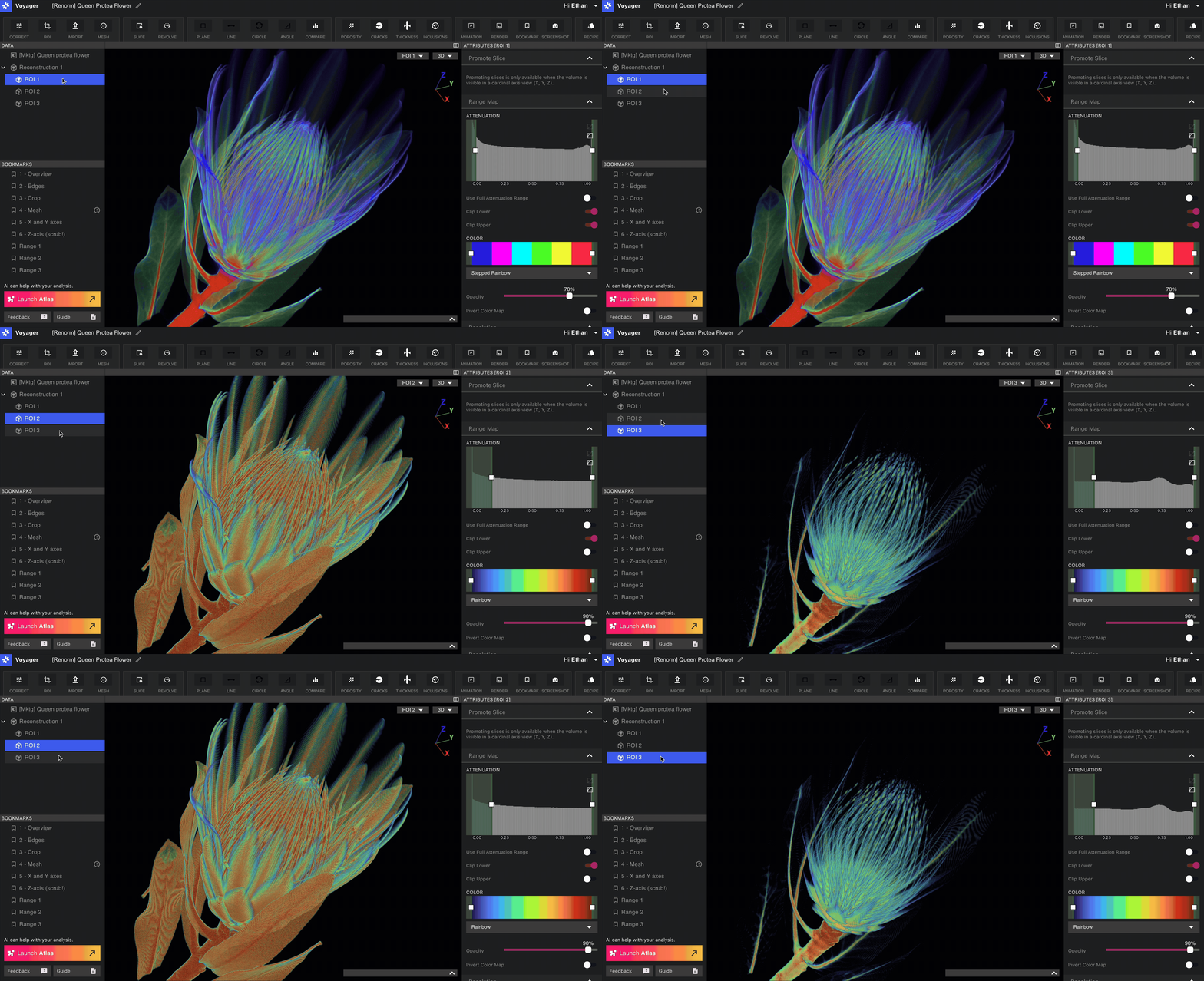
The below scan shows a standard low attenuation / high attenuation split. Renormalization allows you to isolate more dense and less dense material into separate data objects for individual analysis.