> ## Documentation Index
> Fetch the complete documentation index at: https://support.lumafield.com/llms.txt
> Use this file to discover all available pages before exploring further.
# Project Sharing
> Make Project data available to collaborators
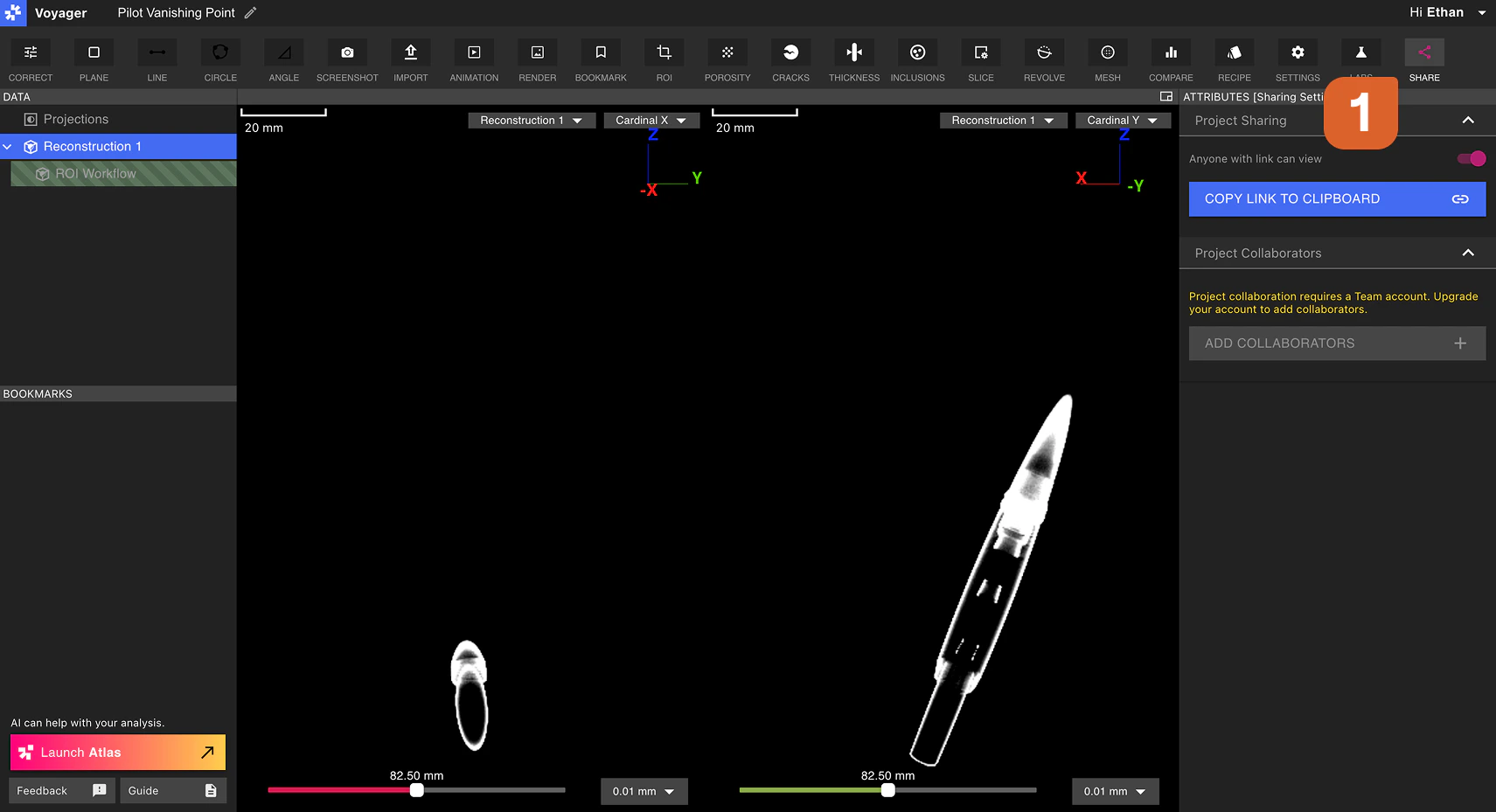
Use the Share Tool within the Project Editor to provision Project access to the right users. Select the Share Tool from the Toolbar to begin.
Project Sharing
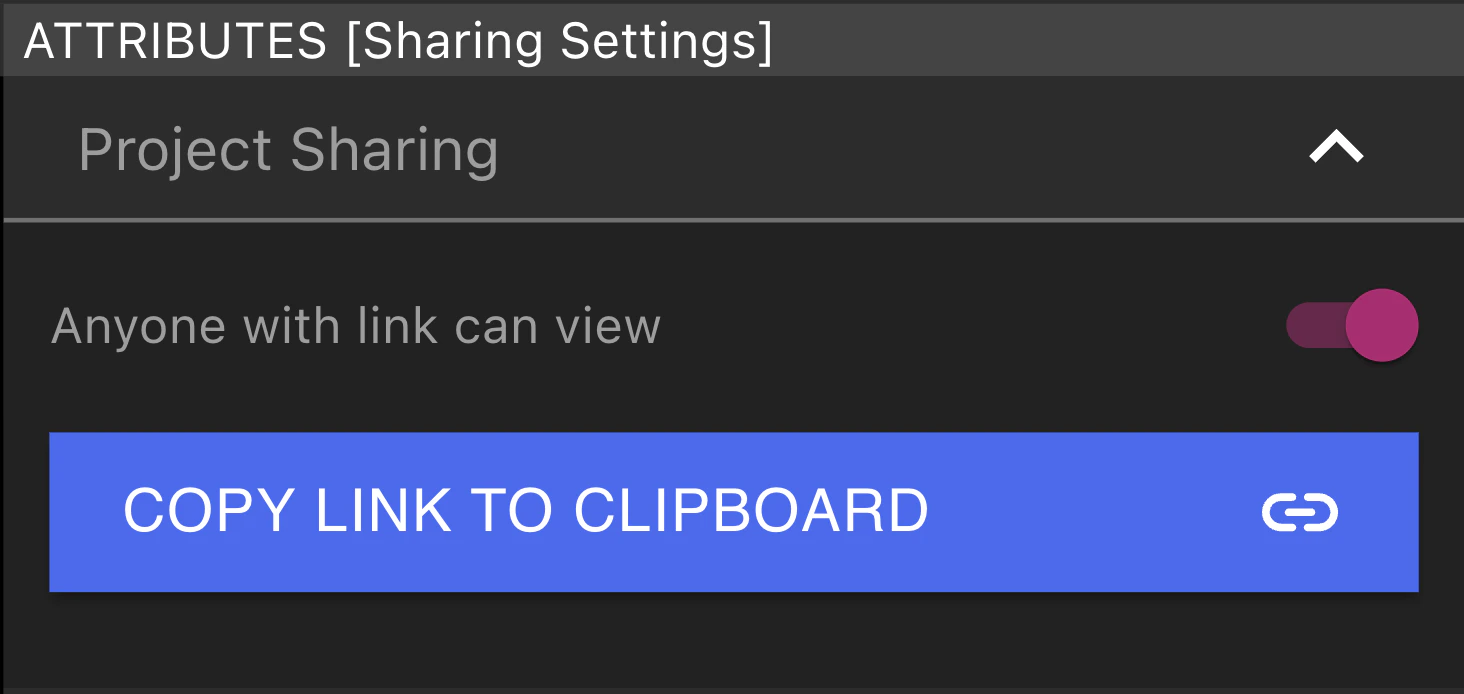
Any user with access to the Project can toggle Link Sharing for the Project. When enabled, any user is able to view the Project. When disabled, only users that are Members of the Project's Workspace are able to view the Project.
Select "Copy Link to Clipboard" to copy the Project link. If Link Sharing is enabled for the Project, anyone with this link is able to view the Project.
Project Collaborators
Select Add Collaborators to open the [Manager Dashboard](/voyager/voyager-manager-dashboard), where collaborators can be added at the Workspace level.
Requesting Project access
If a user follows a link to a Project that they do not have access to, a "Request Access" screen will appear. Selecting "Request Access" sends an email to the Organization Manager of the Workspace the Project is contained within. This email includes the requester's email, the Project name, and the Workspace name.
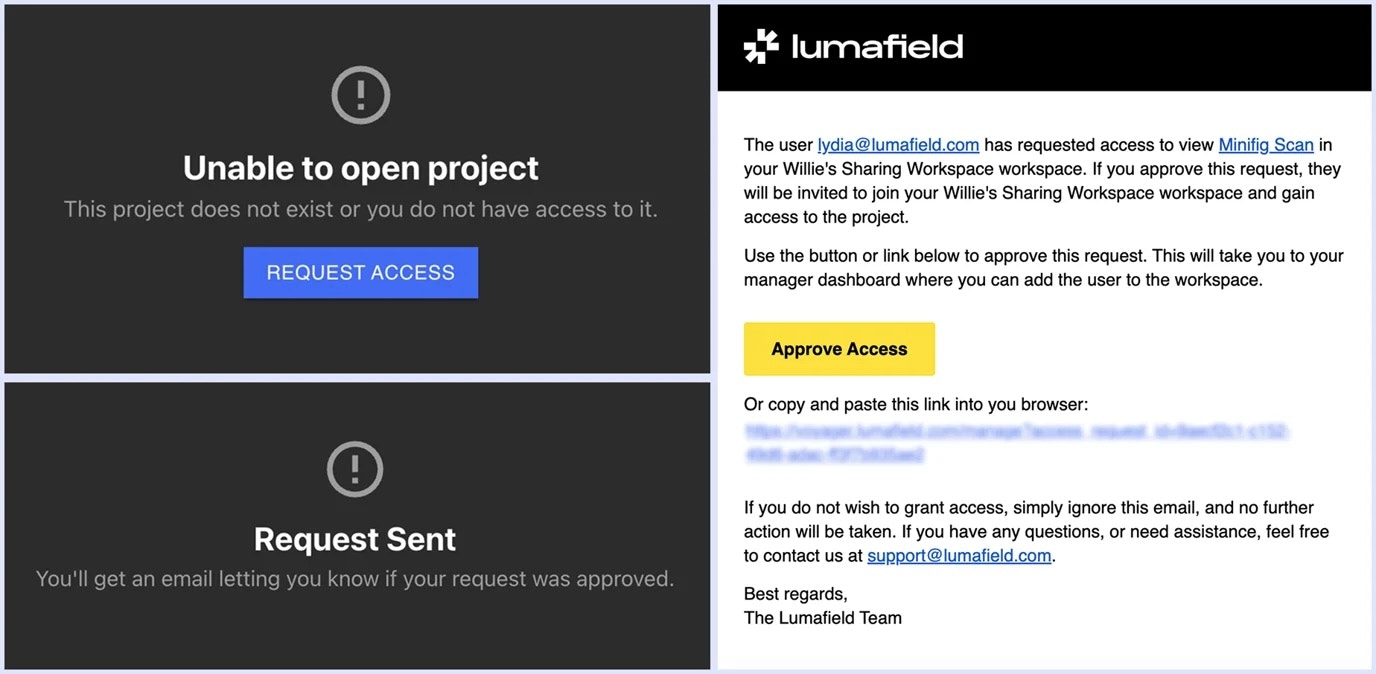 If the Organization Manager selects ‘Approve Access’, the Manager Dashboard opens with a pre-populated form containing the requester's email. The Organization Manager can then add the user to the Project's Workspace.
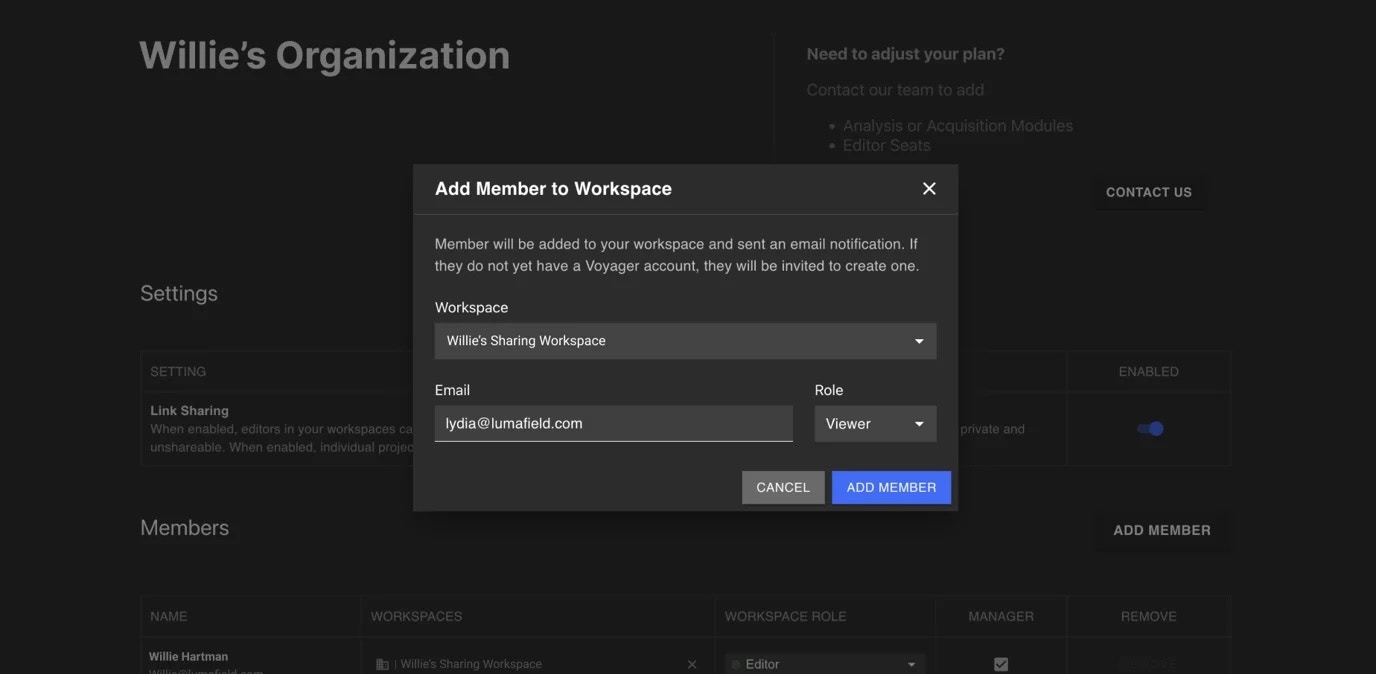 Adding the user to the Project's Workspace grants them access to all Projects within that Workspace.