> ## Documentation Index
> Fetch the complete documentation index at: https://support.lumafield.com/llms.txt
> Use this file to discover all available pages before exploring further.

# 多材料 Meshing

> 生成分离多材料零件材料的 Meshes

Mesh 工具可用于为单个多材料零件生成多个 Mesh——每种材料一个。

<h2 id="understanding-the-histogram">
  理解直方图
</h2>

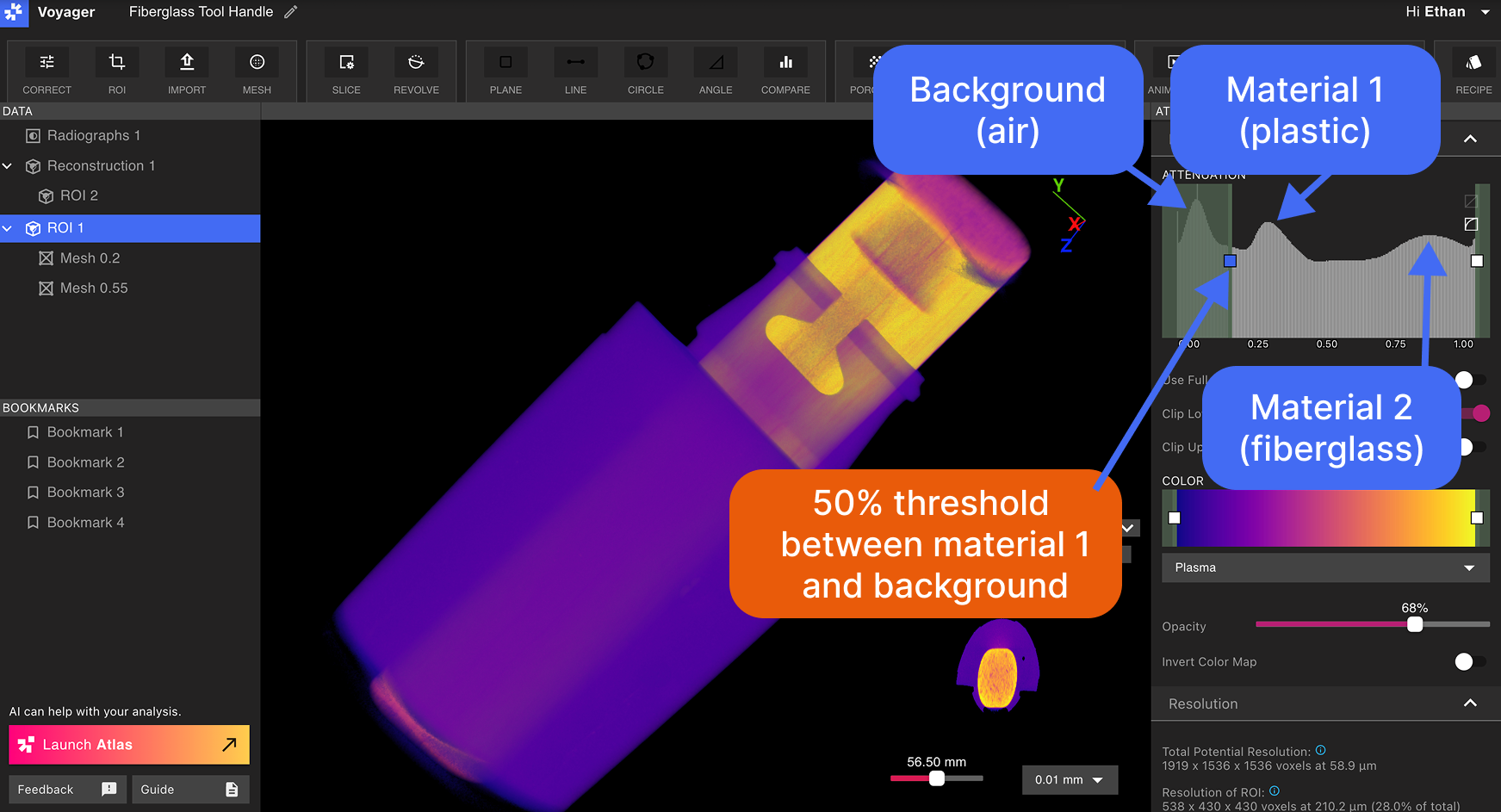
为 Mesh 提取选择的值可以从数据对象的范围图中看到的直方图直观地看出。 Mesh 工作流程编辑器中设置的阈值对应于表示衰减的范围图中的相同值。

衰减范围图中的峰值与材料相关。因此，如果您希望了解合适的选取阈值，通常需要选择要选择的材质与要将其分离的背景之间的 50% 的值。

<img src="https://mintcdn.com/lumafield/bI_lyvGPuEd9QeD5/images/Mesh_Overview_Multi.png?fit=max&auto=format&n=bI_lyvGPuEd9QeD5&q=85&s=64aeeff5ddfdd14a994a7e897d717dde" alt="Mesh 概览零" width="1743" height="943" data-path="images/Mesh_Overview_Multi.png" />

> 该工具手柄由包覆在玻璃纤维芯外的塑料层构成。请注意范围图中的材料峰值，以及用于将其分离的阈值位置。

从数据面板中选择所需的数据对象，然后选择[Mesh 工具](/zh-Hans/voyager/voyager-mesh-tool)。
<img src="https://mintcdn.com/lumafield/bI_lyvGPuEd9QeD5/images/Mesh_Multi_Two.png?fit=max&auto=format&n=bI_lyvGPuEd9QeD5&q=85&s=5a609770dd5c91383f6e5cb99202d497" alt="Mesh 多二" width="1743" height="943" data-path="images/Mesh_Multi_Two.png" />

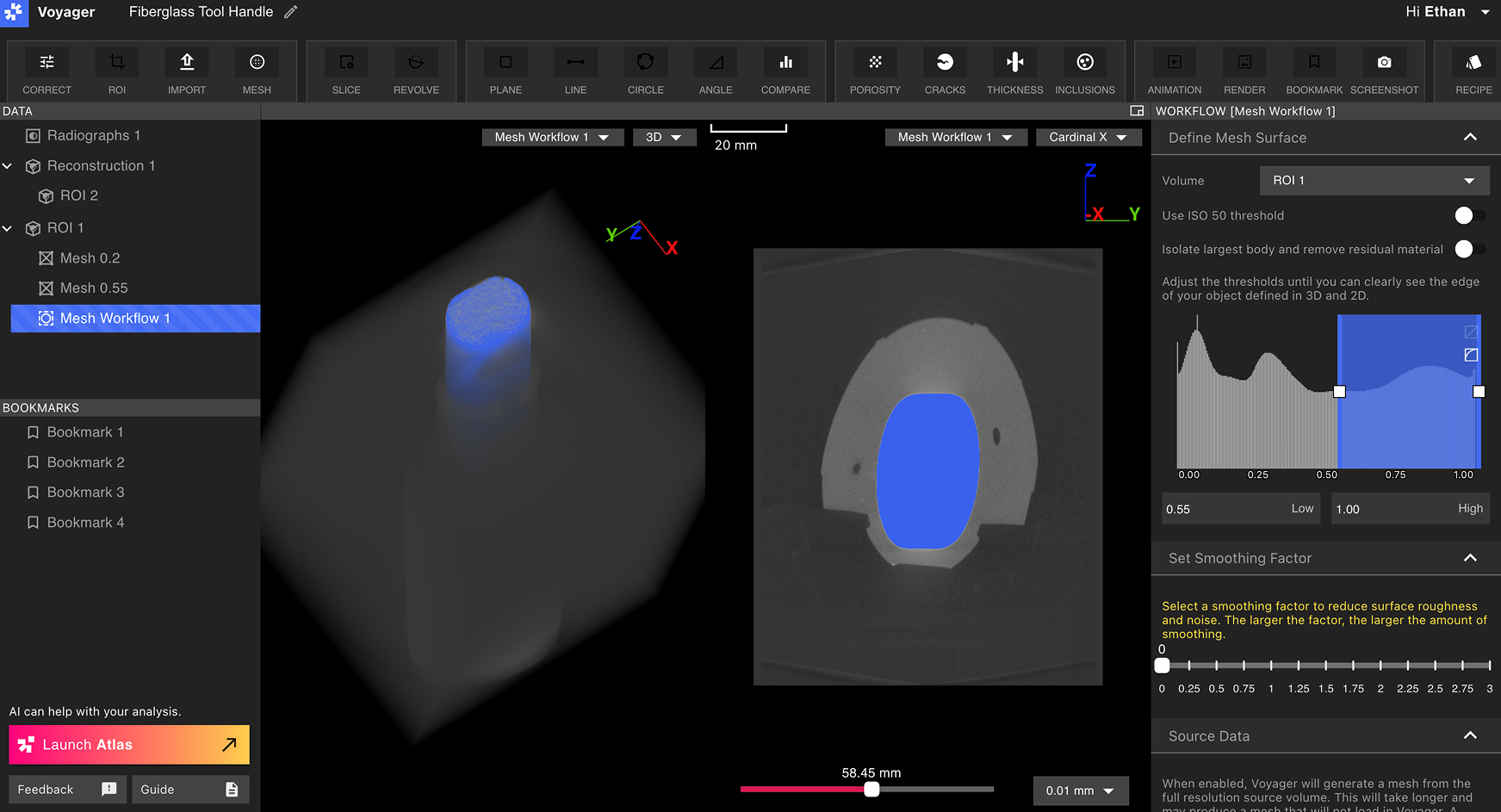
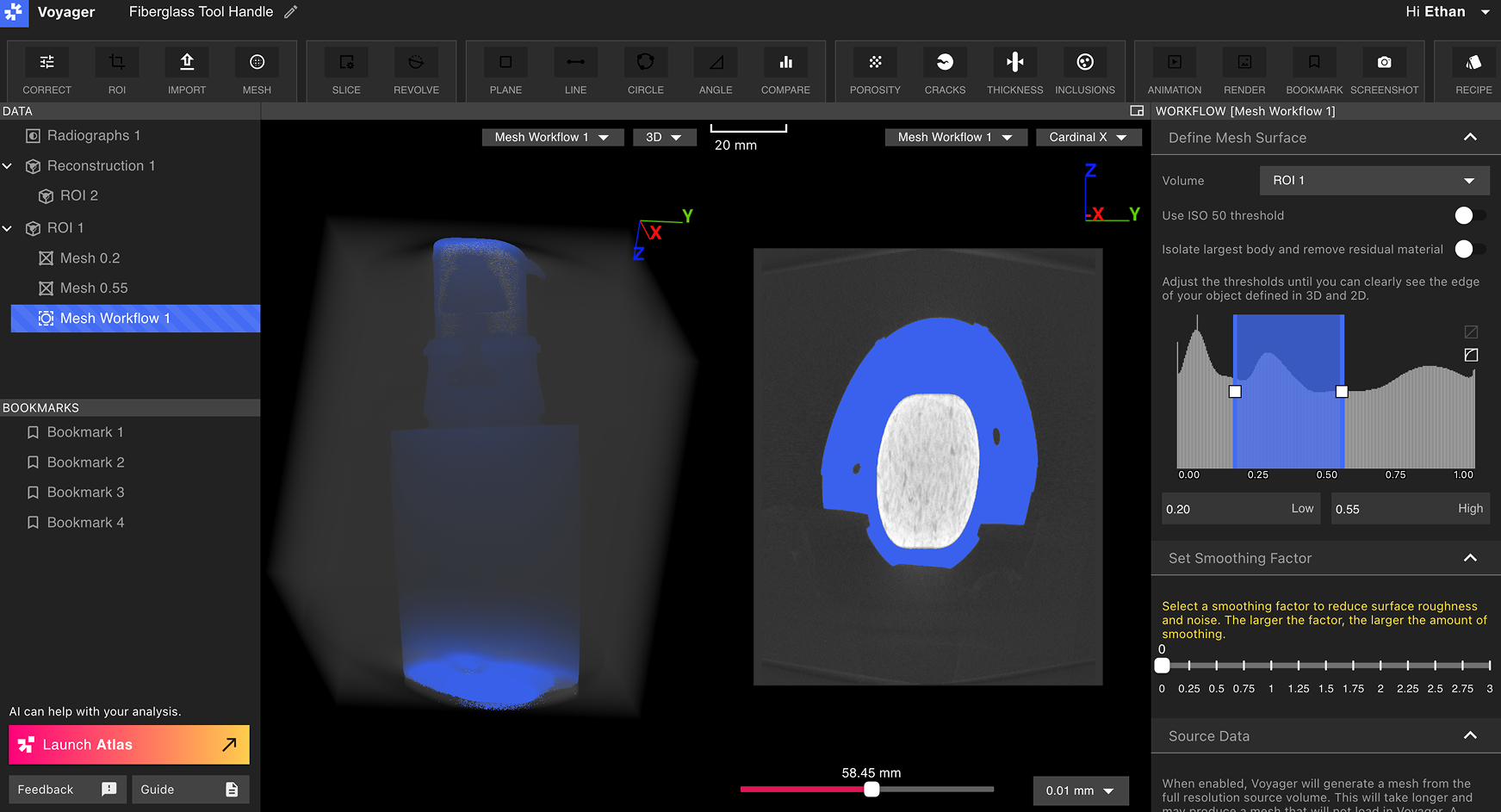
通过将范围映射器的滑块放置在山谷处（代表感兴趣材料的峰值的两侧）来隔离零件的材料。在上图中，代表塑料的峰值被隔离。

<img src="https://mintcdn.com/lumafield/bI_lyvGPuEd9QeD5/images/Mesh_Multi_Three.png?fit=max&auto=format&n=bI_lyvGPuEd9QeD5&q=85&s=918de1bce85337d6c263da1beae82e6a" alt="Mesh 多三" width="1743" height="943" data-path="images/Mesh_Multi_Three.png" />

在上图中，滑块隔离了代表玻璃纤维芯的峰值。

<h2 id="resulting-meshes">
  生成的 Meshes
</h2>

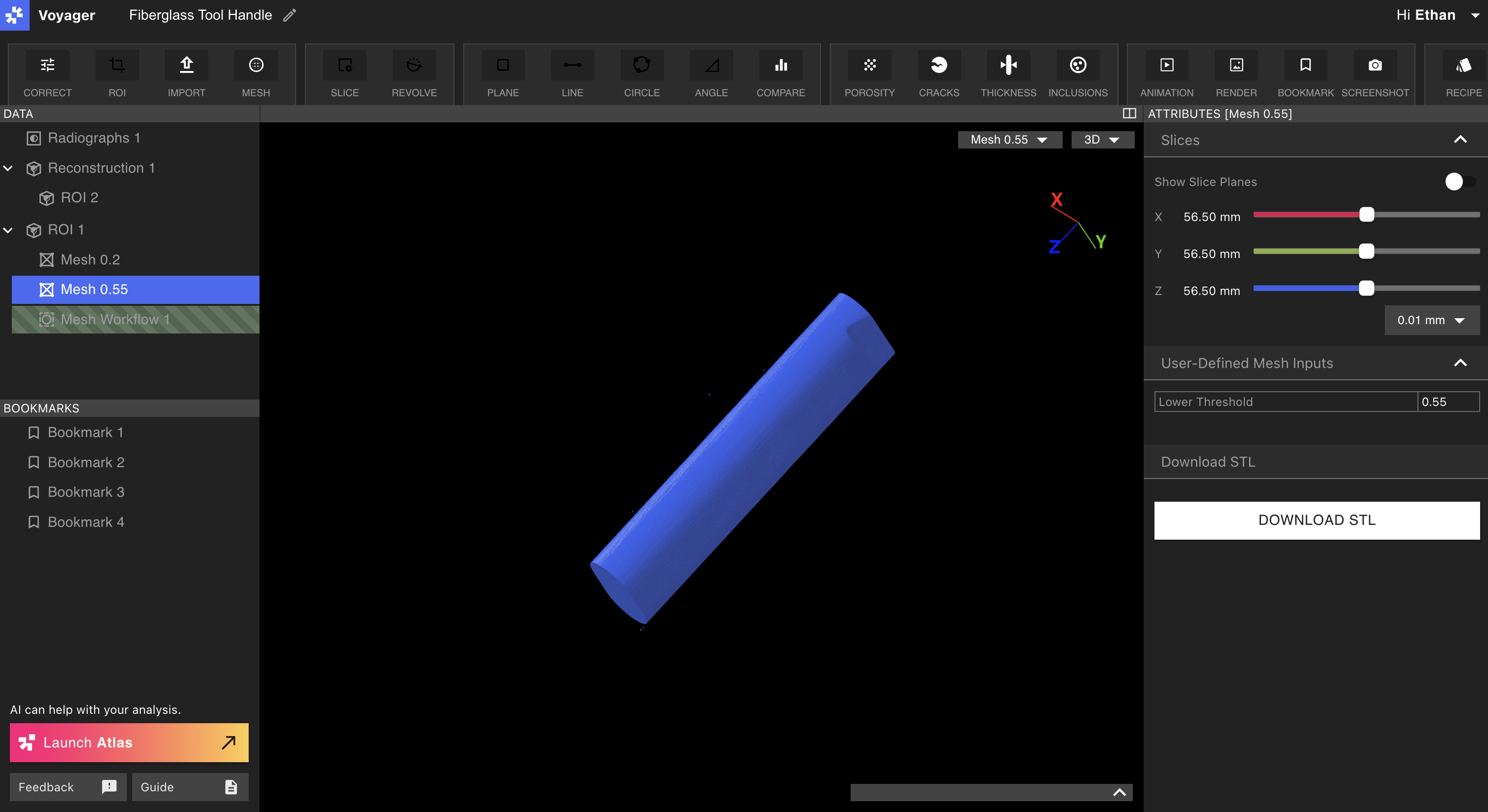
生成的 Meshes 将代表零件内的单一材料。

<Note>
  根据 Mesh 阈值或组件材料命名 Meshes。
</Note>

<img height="200" src="https://mintcdn.com/lumafield/bI_lyvGPuEd9QeD5/images/Mesh_Multi_Example.png?fit=max&auto=format&n=bI_lyvGPuEd9QeD5&q=85&s=066110e442da389e903cf4aa9bcd407e" alt="" title="" data-path="images/Mesh_Multi_Example.png" />