> ## Documentation Index
> Fetch the complete documentation index at: https://support.lumafield.com/llms.txt
> Use this file to discover all available pages before exploring further.

# 分析您的第一次掃描

> 使用 Voyager 了解您的零件

<h2 id="analyzing-scan-data">
  分析掃描數據
</h2>

Lumafield 的 Voyager 軟體提供了一套不斷擴展的工具來檢查和分析您的掃描零件。無論您使用 Lumafield 掃描器還是來自其他系統的數據，Voyager 都可以讓您輕鬆獲得所需的見解。

掃描分析的主要工作流程概述如下。請參閱 [Voyager](/zh-Hant/voyager/voyager-intro) 部分了解有關如何使用每種工具取得出色成果的更多詳細資訊。

<Steps>
  <Step title="找到您的掃描">
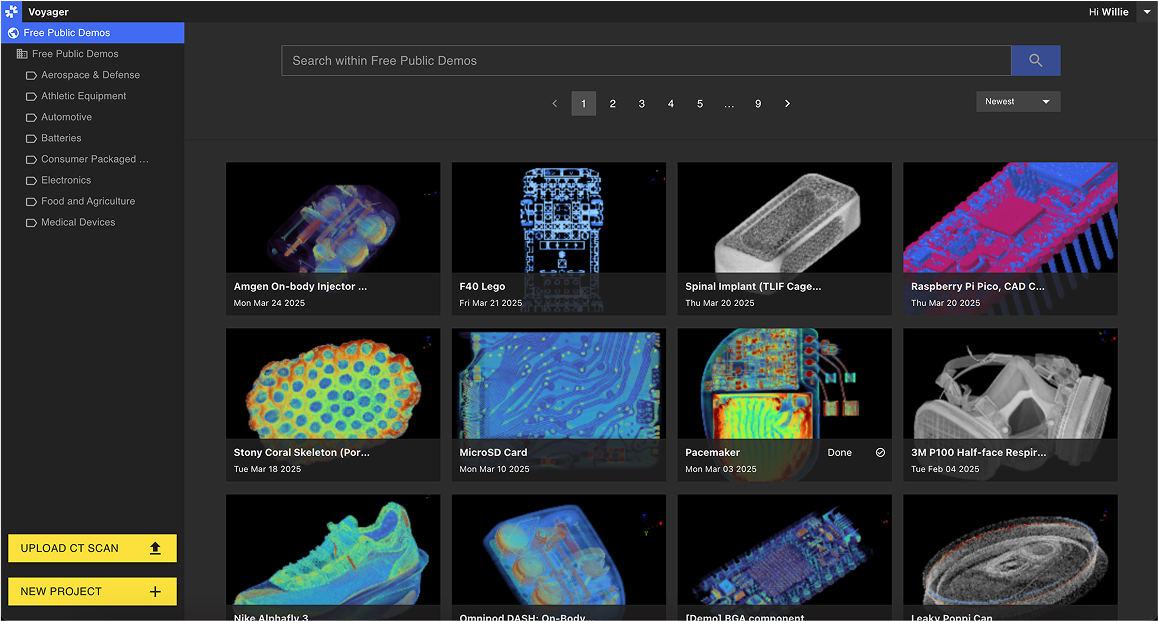
    請參閱[加入組織](/zh-Hant/platform/joining-an-organization)頁面來建立帳戶。登入後，您可以在 [voyager.lumafield.com](http://voyager.lumafield.com) 查看您的 Voyager 儀表板。
    <Frame>
      <img src="https://mintcdn.com/lumafield/80Xis7n-MF_L320t/images/overview_dashboard.png?fit=max&auto=format&n=80Xis7n-MF_L320t&q=85&s=092b021185335ff462ca8fc1efab77a1" alt="Overview Dashboard" width="1158" height="621" data-path="images/overview_dashboard.png" />
    </Frame>
  </Step>

  <Step title="開啟專案">
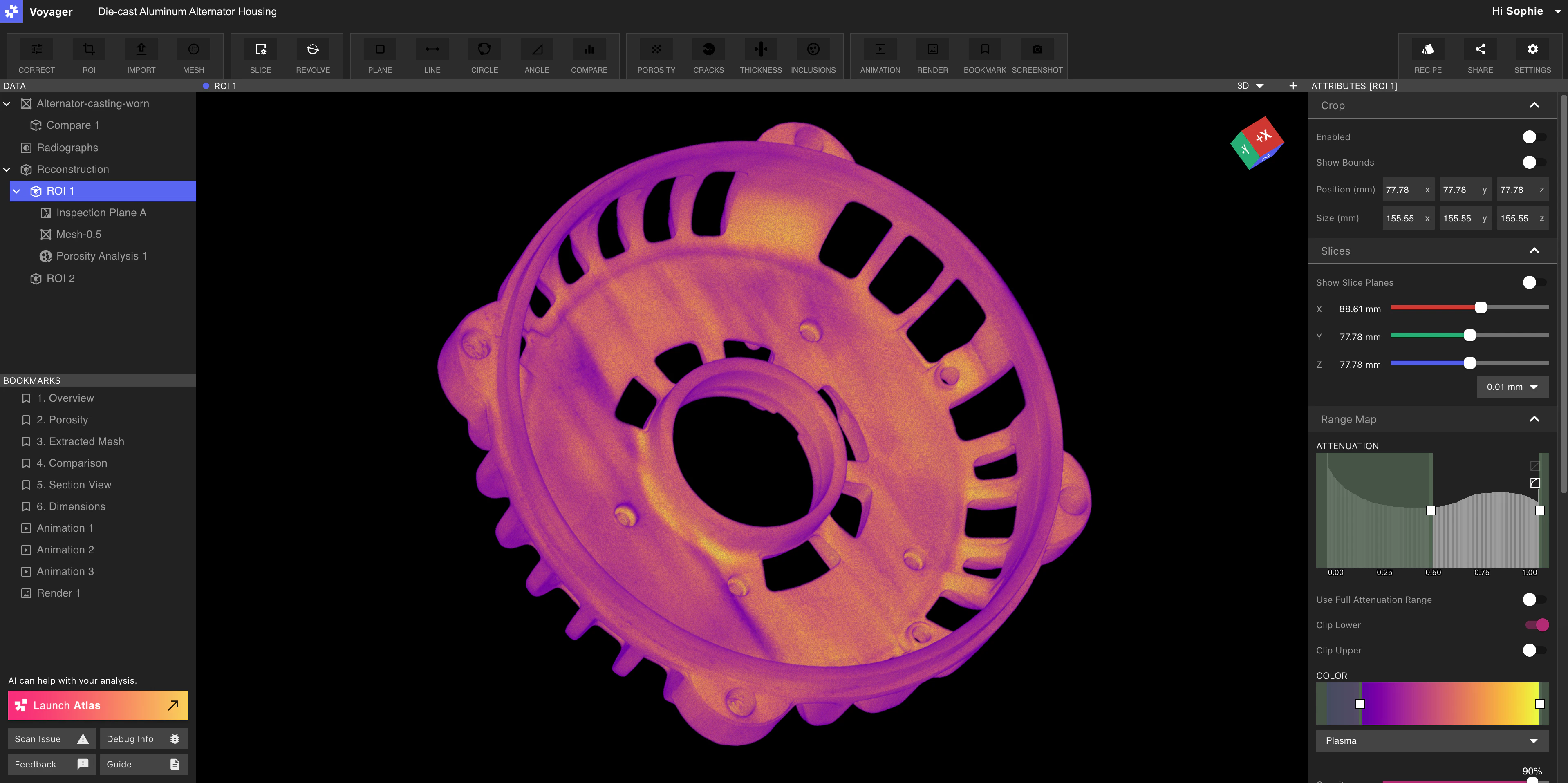
    看到掃描後，在專案視圖中開啟它。這是檢視和分析掃描數據的主要介面。

    <Frame>
      <img src="https://mintcdn.com/lumafield/bu-vah3nXIACJqIG/images/alternator-housing-voyager.png?fit=max&auto=format&n=bu-vah3nXIACJqIG&q=85&s=886f296abdea4bdfb1d9f3ee580a5848" alt="Alternator Housing Voyager" width="3836" height="1916" data-path="images/alternator-housing-voyager.png" />
    </Frame>
  </Step>

  <Step title="確定您的焦點">
    使用 ROI 工具重新調整零件方向，或縮放並增強較大零件的特定區域。

    建立 ROI 後，您可以使用以下工具來切割零件：

    <CardGroup cols="2">
      <Card title="建立 ROI" icon="crop-simple" href="/zh-Hant/voyager/voyager-region-of-interest" cta="使用 ROI 來縮放和增強掃描的一部分。" />

      <Card title="檢查平面" icon="draw-square" href="/zh-Hant/voyager/voyager-inspection-planes" cta="使用檢查平面建立和儲存尺寸。" />

      <Card title="自訂切片平面" icon="scissors" href="/zh-Hant/voyager/voyager-custom-slice" cta="使用自訂切片平面沿任意向量切片零件。" />

      <Card title="旋轉切片平面" icon="arrows-spin" href="/zh-Hant/voyager/voyager-revolving-slice" cta="使用旋轉切片平面沿軸切割圓柱形零件。 " />
    </CardGroup>
  </Step>

  <Step title="詳細分析">
    Voyager 提供了一套分析工具，幫助您更了解您的零件。使用 Integrity Analysis 評估固體零件的組成，使用 CAD Comparison 和壁厚等工具測量特徵，或使用檢查平面進行手動 2D 尺寸分析。

    <CardGroup cols="2">
      <Card title="建立網格" icon="triangle" href="/zh-Hant/voyager/voyager-mesh-tool" cta="為零件中的一種或多種材料建立網格。" />

      <Card title="建立比較" icon="code-compare" href="/zh-Hant/voyager/voyager-cad-comparison" cta="將零件表面與 CAD 或標準零件掃描進行比較。" />

      <Card title="孔隙率分析" icon="cheese-swiss" href="/zh-Hant/voyager/voyager-porosity-analysis" cta="尋找零件或材料中的空隙。" />

      <Card title="壁厚分析" icon="bottle-water" href="/zh-Hant/voyager/voyager-wall-thickness-analysis" cta="量化難以測量零件的壁厚。" />
    </CardGroup>
  </Step>

  <Step title="分享結果">
    透過建立書籤、動畫和渲染來與團隊分享關鍵分析視圖。您可以右鍵單擊任何書籤來複製該視圖的連結，並與其他工作區成員共享。

    預設情況下，所有掃描僅對有權存取掃描所在工作區的使用者可見。

    <Note>
      **注意：** 預設情況下，掃描僅對有權存取掃描所在工作區的使用者可見。組織管理員可以從[管理員儀表板](/zh-Hant/voyager/voyager-manager-dashboard)變更連結分享權限。
    </Note>

    <CardGroup cols={2}>
      <Card title="建立書籤" icon="bookmark" href="/zh-Hant/voyager/voyager-bookmarks" cta="使用書籤儲存分析的關鍵視圖。 " />

      <Card title="建立動畫" icon="file-video" href="/zh-Hant/voyager/voyager-animation-tool" cta="使用動畫工具建立強大的視覺化效果。" />
    </CardGroup>
  </Step>
</Steps>