> ## Documentation Index
> Fetch the complete documentation index at: https://support.lumafield.com/llms.txt
> Use this file to discover all available pages before exploring further.

# 書籤工具

> 儲存視圖並傳達掃描資料的結果

使用批判性視圖來標記項目，以揭示對項目資料的見解。書籤可鎖定 Viewport 的所有目前視覺化設置，並允許專案的所有協作者快速存取已新增書籤的視圖。使用描述性書籤名和註釋將 Voyager 項目製作成報告，以供外部共享或在團隊內使用。

<video controls className="w-full aspect-video" src="https://mintcdn.com/lumafield/CZuu22IRP81EkmVO/images/Bookmarks_Overview.mp4?fit=max&auto=format&n=CZuu22IRP81EkmVO&q=85&s=bd7249542cee2f11e8af64e7c99b3662" data-path="images/Bookmarks_Overview.mp4" />

在上面的範例中，建立了兩個書籤以顯示 Nest 掃描的概述和切片視圖。Viewport 佈局、衰減圖設定和顏色範圍在兩個書籤之間進行修改。

<h3 id="authoring-a-bookmark">
  創作書籤
</h3>

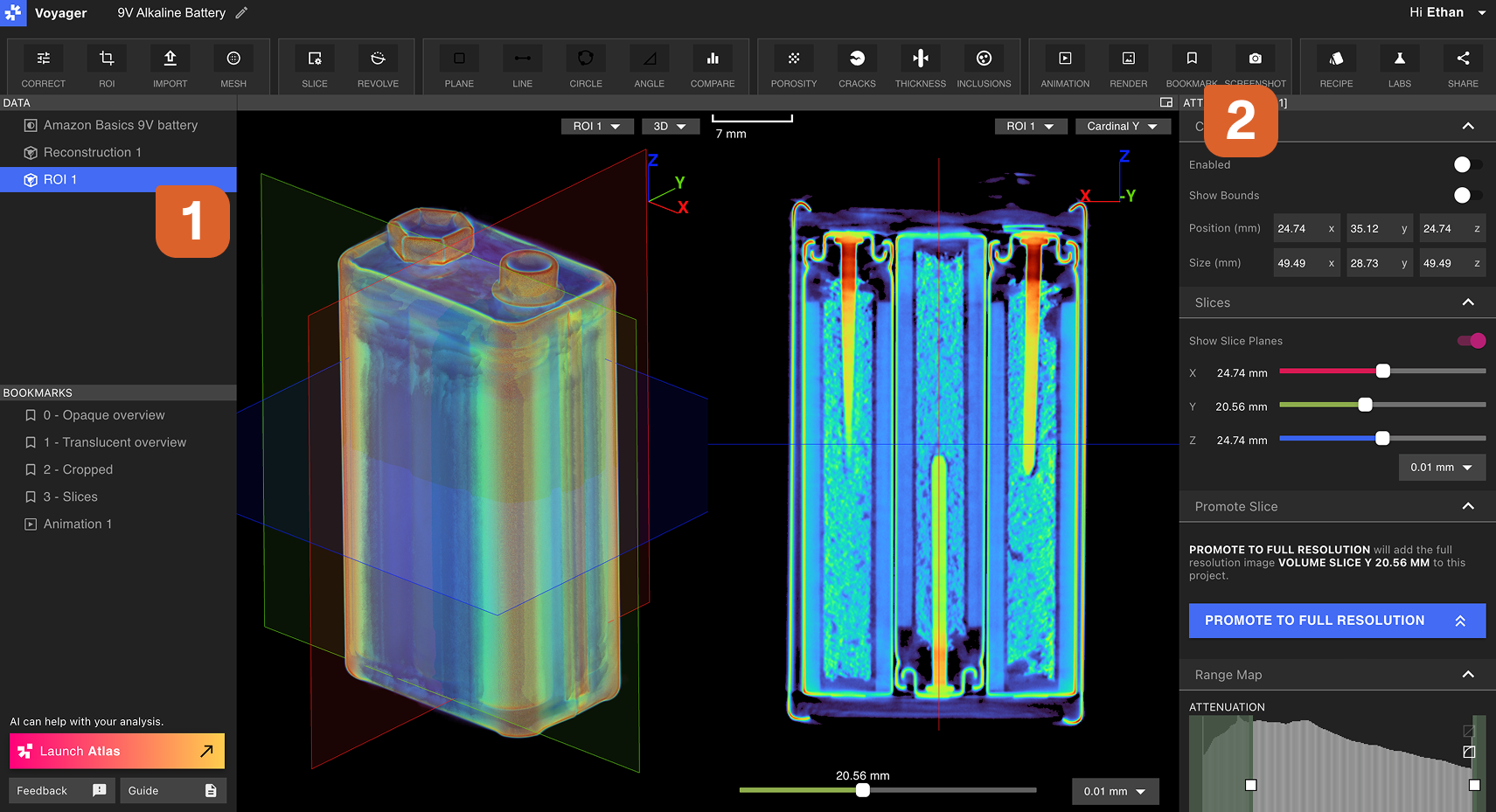
可以在任何類型的資料物件上建立書籤。在資料面板中選擇資料對象，然後根據需要為書籤設定所有視覺化設定。

從工具列中選擇書籤工具。書籤將會加入 Voyager 左側的書籤面板。
<img src="https://mintcdn.com/lumafield/5PyyzHY5mJ7mfgR2/images/Bookmarks_1.png?fit=max&auto=format&n=5PyyzHY5mJ7mfgR2&q=85&s=428ffbbfe930d32432d8fcf52357400a" alt="書籤工具" width="1711" height="929" data-path="images/Bookmarks_1.png" />

<h3 id="modifying-a-bookmark">
  修改書籤
</h3>

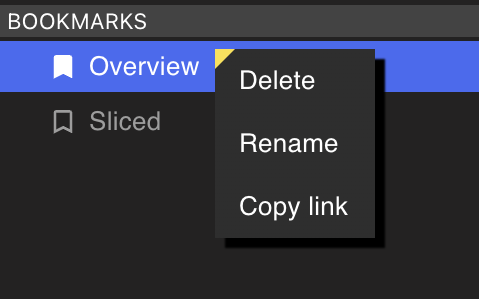
從書籤面板中右鍵選擇書籤以重新命名、刪除或複製書籤的連結。協作者必須具有專案存取權限才能查看共享書籤連結。
<img src="https://mintcdn.com/lumafield/xJZCMtnZUigauoyJ/images/Bookmark_Options.png?fit=max&auto=format&n=xJZCMtnZUigauoyJ&q=85&s=02f6a1de9fb7f0893b40d851a49bb3c6" alt="Bookmark Options" style={{ width:"40%" }} width="479" height="299" data-path="images/Bookmark_Options.png" />

<h3 id="comment-threading">
  評論線索
</h3>

任何對項目具有評論訪問權限的用戶都可以在書籤上留下評論。評論即時填充，以便能夠針對給定問題進行即時協作。

<video controls className="w-full aspect-video" src="https://mintcdn.com/lumafield/XaS1cSmVeQWmj8dF/images/Bookmark_Demo.mp4?fit=max&auto=format&n=XaS1cSmVeQWmj8dF&q=85&s=203eb01de1370be6c5867f018270422e" data-path="images/Bookmark_Demo.mp4" />
