> ## Documentation Index
> Fetch the complete documentation index at: https://support.lumafield.com/llms.txt
> Use this file to discover all available pages before exploring further.
# 嵌入式 Voyager
> 透過將掃描件嵌入網頁來展示產品品質和卓越的工程設計
概述
可以將 Voyager 專案的 HTML 嵌入放置在網頁上。這是展示您的掃描、產品品質和卓越工程的好方法。
嵌入式 Voyager 視窗顯示單一項目上的單一書籤。它可以在 3D、X、Y 和 Z 視圖之間切換,並透過 2 維軸進行托盤。您可以控制誰可以查看嵌入式項目,就像您現在在 Voyager 中通常所做的那樣。
Lumafield 的行銷團隊主要在 Lumafield 網站上使用此功能(如[這](https://www.lumafield.com/article/finding-lead-in-stanleys-quencher-industrial-ct)部落格文章),但如果您想展示掃描結果,請按以下步驟操作。
如何設定嵌入式 Voyager
設定您的項目
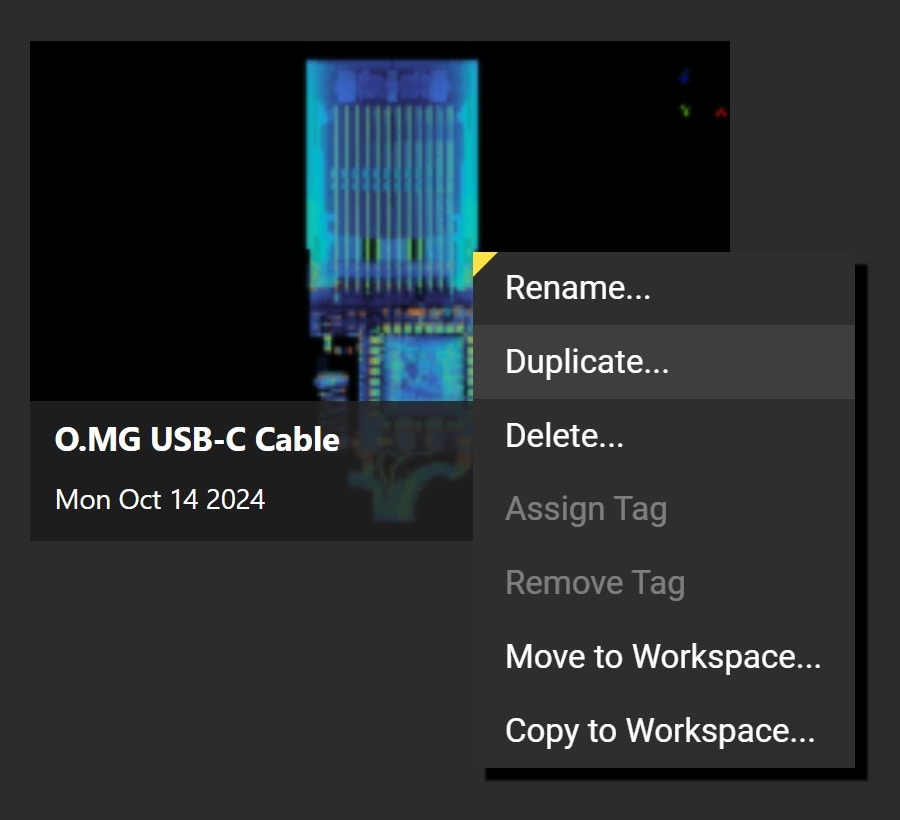
每個嵌入式 Voyager 視窗都會將專案的完整資料下載到使用者的瀏覽器中,就像在 Voyager 應用程式本身中存取專案一樣。為了減少載入時間,您需要製作您的專案配件。此時,請建立要嵌入的項目的副本,方法是在區域中找到該工作項目,右鍵單擊並選擇“複製”。
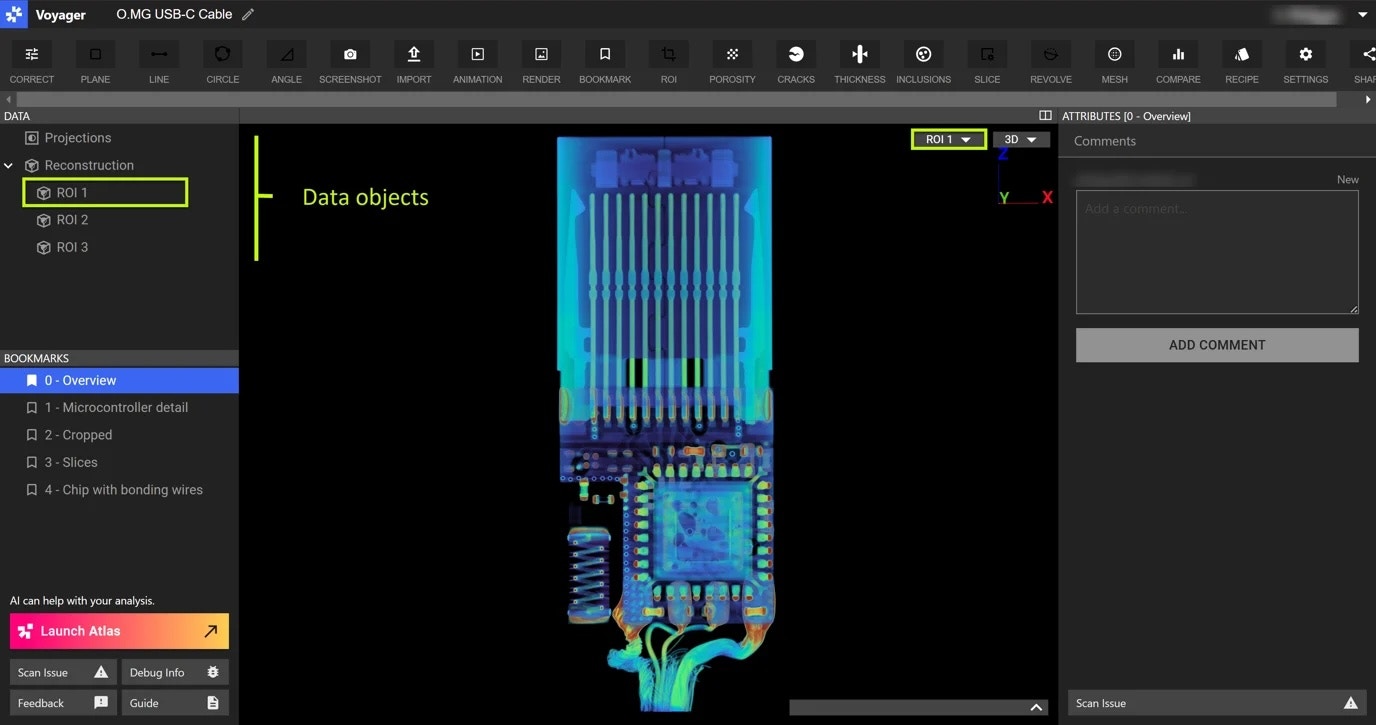
 在複製的專案中,您需要刪除所有資料物品(重建和 ROI)**除了**您的特色書籤所依賴的資料物品。若要驗證書籤依賴哪個資料物品,請隨時檢視器視窗右上角的下拉方塊。
 在 Voyager 工具列上,選擇共享,然後開啟「項目共享」下的「任何有連結的人都可以查看」。
設定您的嵌入
您將把 Voyager 視窗嵌入到內嵌框架中 ([內嵌框架](https://www.w3schools.com/tags/tag_iframe.ASP))。將項目 URL 貼到書籤內。在 URL 後面加上 **?embed=true** 參數。
如果您希望嵌入視窗重新引導到其他項目(通常這將是具有最少資料物件的基於完整專案的專業版本),請在此處新增 **\&project-redirect-id=** 參數,後面新增專案 ID(URL 的最後部分)。但是,您不想將人們超連結到您的 Voyager 項目,請不要包含這部分參數。
在右注之後,您可以將高度和寬度調整為像素或百分比。網路嵌入的一個好起點是高度=400和寬度=100%。然後您可以調整對齊方式;**center**是可靠的預設值。若要嵌入,請在\*\*title=\*\*後的焦點內鍵入掃描的標題。
請參閱下面的範例:
```html embed.html theme={null}
```
**嵌入**
將 HTML 嵌入內容放入網頁上的正確位置,現在您可以在任何電腦或操作裝置上查看掃描結果,從而開啟 Voyager。
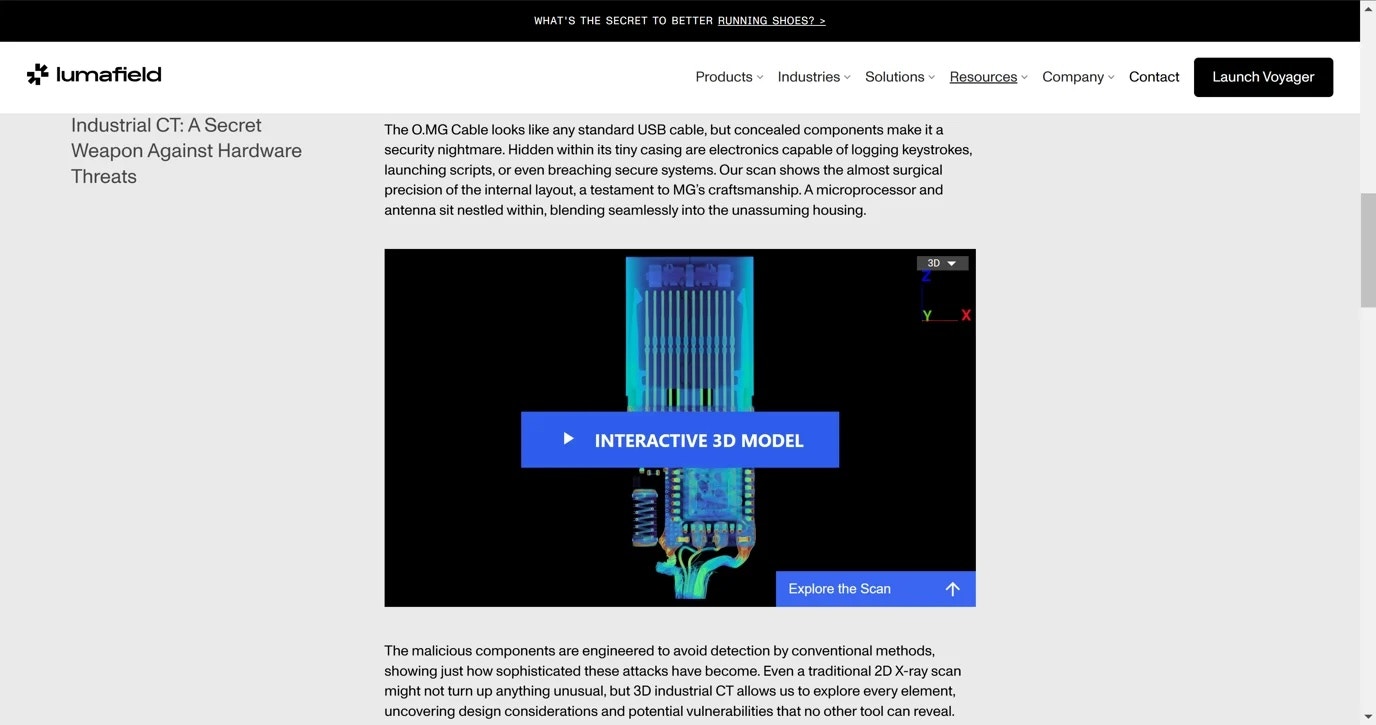 嵌入 Voyager 在網頁中效果最佳。透過一些工作,以及諸如此類的插件的幫助[這](https://www.ispringsolutions.com/blog/how-to-embed-an-iframe-in-a-powerpoint-presentation),您可以將 Voyager 嵌入到 Powerpoint 中。目前,PDF 不支援嵌入 HTML 內容。