> ## Documentation Index
> Fetch the complete documentation index at: https://support.lumafield.com/llms.txt
> Use this file to discover all available pages before exploring further.
# 介面導覽
> Voyager 專案編輯器的組成部分
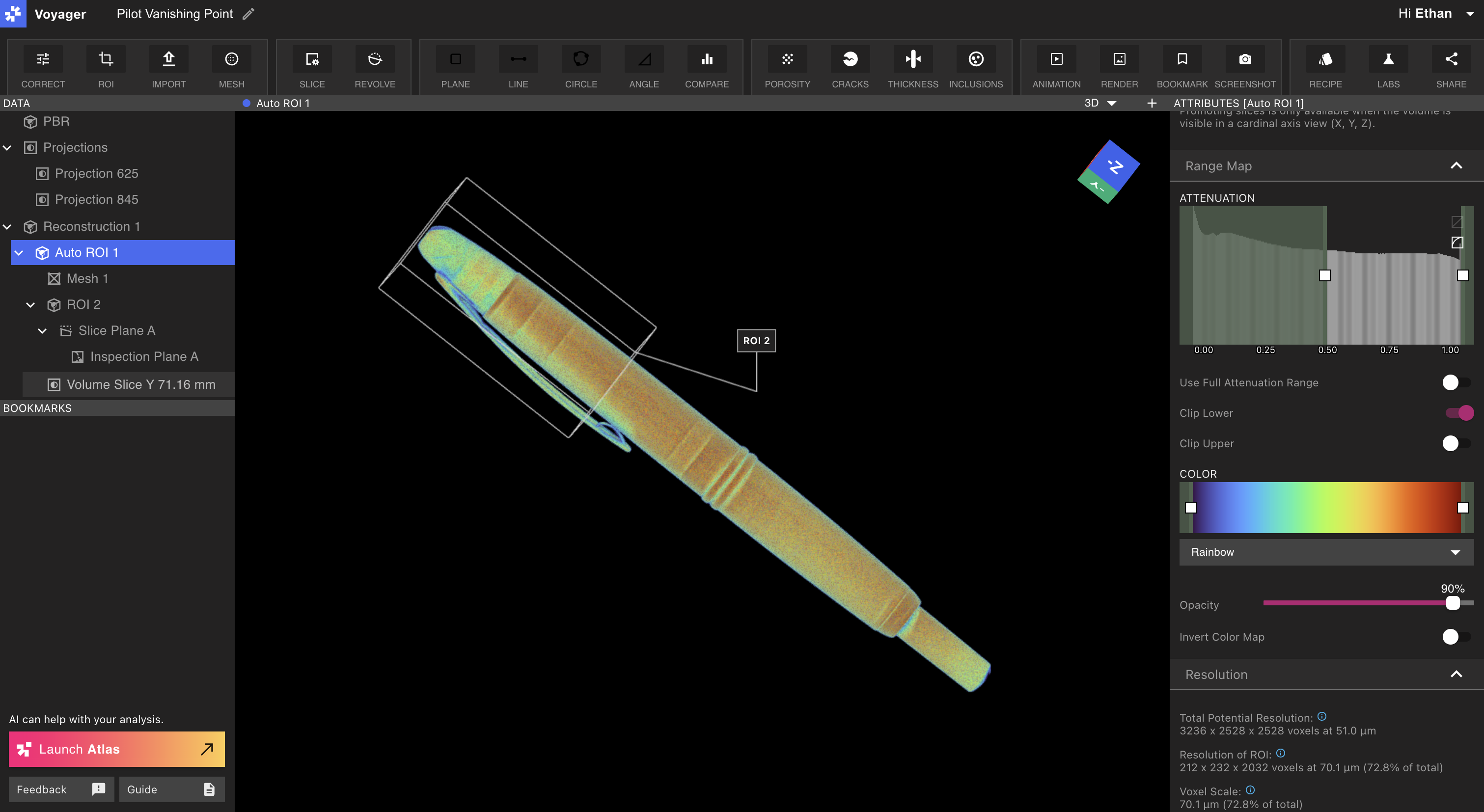
Voyager 專案編輯器是 Voyager 的核心工具,用於分析 Neptune 或 Triton 掃描器的掃描結果。本文介紹了專案編輯器的各個部分及其使用方法。
Viewport
Viewport 顯示專案編輯器的大部分和選定的掃描資料。
Viewport 佈局
Voyager 的中央面板可配置為顯示**單一** Viewport 或兩個**分割** Viewport。預設情況下,Voyager 的中央面板顯示單一 **Viewport**。
**Viewport:** 使用單一 Viewport 在螢幕上大尺寸檢視一個資料物件。透過資料面板中選擇一個資料物件來改變目前物件[資料面板](https://support.lumafield.com/zh-Hant/voyager/voyager-getting-around#data-panel)。
\*\*分割 Viewport:\*\*開啟第二個視窗可以並排查看兩個資料物件或相同資料物件的不同視圖。選擇視窗右上角的“+”圖示可從單一視窗切換到分割視窗佈局。
Viewport 焦點(新!)
在分割 Viewport 佈局中,單一 Viewport 一次保持\_焦點\_狀態,如 Viewport 頂部的突出顯示條如圖(下圖的「網格1」)。這個[屬性面板](https://support.lumafield.com/zh-Hant/voyager/voyager-getting-around#attributes-panel),位於 Voyager右邊,顯示焦點 Viewport 的屬性。
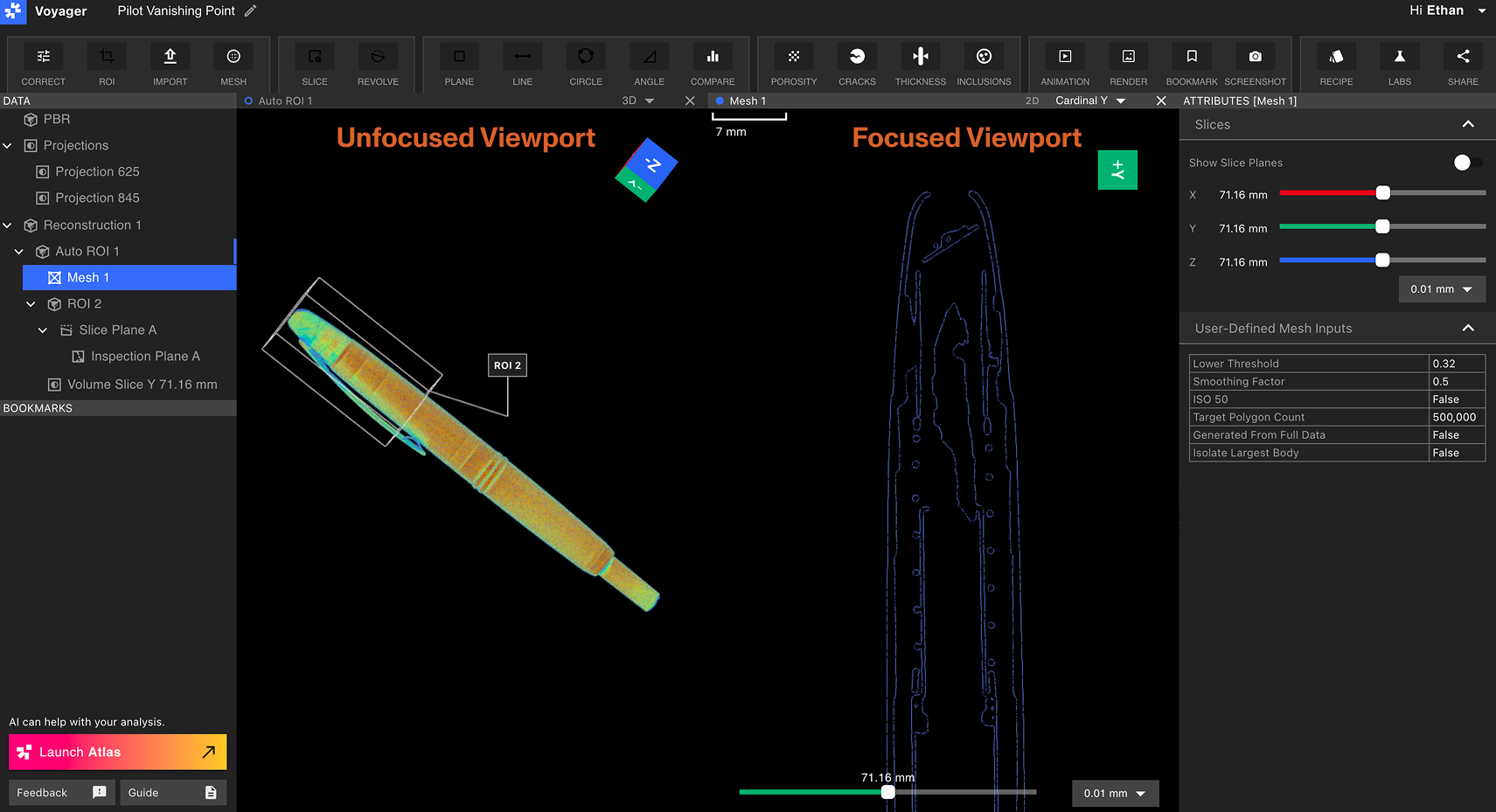 透過選擇 Viewport 中的任意位置來選擇要聚焦的 Viewport。由聚焦 Viewport(上圖的「網格 1」)表示的資料物體將在資料面板中以藍色突出顯示,而\_未對準\_ Viewport 中的資料物體(上圖的「自動 ROI 1」)在資料面板中顯示一個小的藍色標記。
若要退出分割 Viewport 佈局,請選擇任一 Viewport 右上角的「X」圖標,將其關閉並返回單一 Viewport 佈局。
透過選擇 Viewport 中的任意位置來選擇要聚焦的 Viewport。由聚焦 Viewport(上圖的「網格 1」)表示的資料物體將在資料面板中以藍色突出顯示,而\_未對準\_ Viewport 中的資料物體(上圖的「自動 ROI 1」)在資料面板中顯示一個小的藍色標記。
若要退出分割 Viewport 佈局,請選擇任一 Viewport 右上角的「X」圖標,將其關閉並返回單一 Viewport 佈局。
2D 和 3D 視圖
選擇重建、ROI、切片平面、網格或分析結果資料物件時,可以使用 Viewport 右上角的下拉式選單切換2D和3D模式。
2D 視圖
在 2D 視圖中,使用者可以平移、拖曳和縮放。 2D 視圖包括預設的 X、Y 和 Z 基軸,以及在專案中建立的任何裁剪平面。
在 Viewport 中按一下並拖曳即可進行平移。使用滑鼠或觸控板控制進行放大和縮小。
使用 Viewport 下方的滑桿來瀏覽2D視圖的切片。下游的下拉式選單變更切片精度,左上角的比例尺表示視圖中資料的比例。

3D視圖
在3D視圖中,使用者可以旋轉和縮放。在 Viewport 中點擊並拖曳來旋轉。
Viewcube
在 Viewport 中按一下並拖曳以旋轉零件時,Viewcube 會旋轉到符合零件的目前方向。 Viewcube 還包括用於準確選擇零件所需方向的控制項。
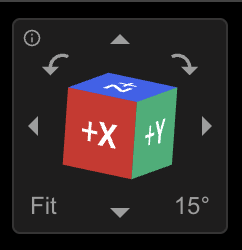 \*\*基本數字箭頭:\*\*按 Viewcube 右下角指定的量旋轉視圖。
\*\*左/右彎曲箭頭:\*\*按 Viewcube 右下角指定的量滾動視圖。
\*\*度數預設(右下):\*\*切換軌道和滾動動作的亮度。
\*\*適合(左下角):\*\*縮放 Viewport 中的資料,使零件完全適合視圖。
**幫助(左上)**:將鼠標停留在「i」圖示上可查看 Viewcube 的鍵盤快速鍵。
\*\*基本數字箭頭:\*\*按 Viewcube 右下角指定的量旋轉視圖。
\*\*左/右彎曲箭頭:\*\*按 Viewcube 右下角指定的量滾動視圖。
\*\*度數預設(右下):\*\*切換軌道和滾動動作的亮度。
\*\*適合(左下角):\*\*縮放 Viewport 中的資料,使零件完全適合視圖。
**幫助(左上)**:將鼠標停留在「i」圖示上可查看 Viewcube 的鍵盤快速鍵。
資料面板
資料面板出現在專案編輯器前端的「資料」標籤下方。資料面板中的項目每個代表一個資料對象,可以是以下:投影、重建、ROI、平面或分析結果。了解有關數據對象的更多資訊[資料物件與工作流程](/zh-Hant/voyager/voyager-data-objects-and-workflows) 文章。
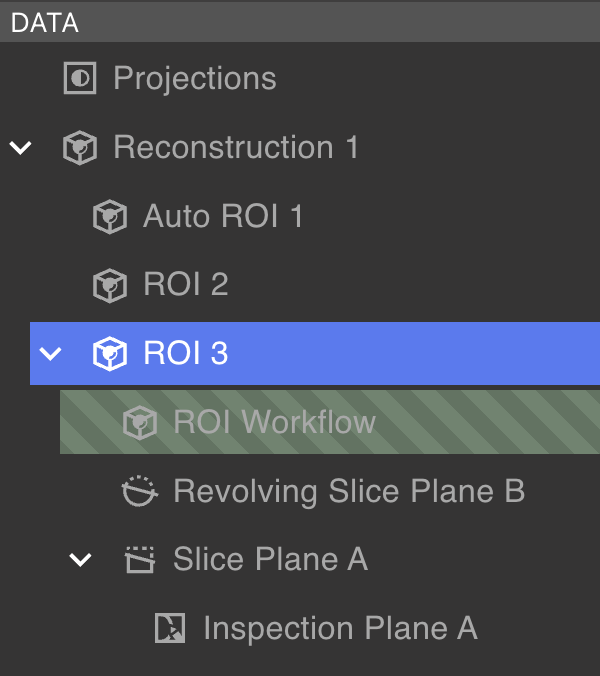 資料物件以樹狀結構排列在資料面板內,其中一些資料物件包含子資料物件。使用父資料物件旁邊的插入符號來展開或折疊其子物件。選擇資料對象會在 Viewport 中顯示其資料。
以綠色條紋突出顯示針對擬發射的數據對象的數據,[工作流程](/zh-Hant/voyager/voyager-data-objects-and-workflows)發射中。一旦工作流程提交但尚未完成,處理資料物件將不會出現在資料面板中。
資料物件以樹狀結構排列在資料面板內,其中一些資料物件包含子資料物件。使用父資料物件旁邊的插入符號來展開或折疊其子物件。選擇資料對象會在 Viewport 中顯示其資料。
以綠色條紋突出顯示針對擬發射的數據對象的數據,[工作流程](/zh-Hant/voyager/voyager-data-objects-and-workflows)發射中。一旦工作流程提交但尚未完成,處理資料物件將不會出現在資料面板中。
資料面板
右鍵選擇資料物品可刪除或重新命名。
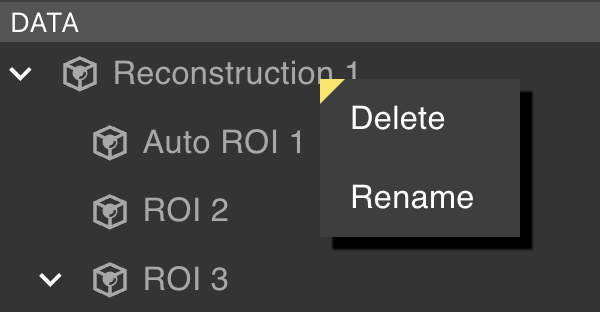 無法刪除具有子項的資料物件。在刪除父資料物件之前刪除所有子項資料物件。
書籤面板
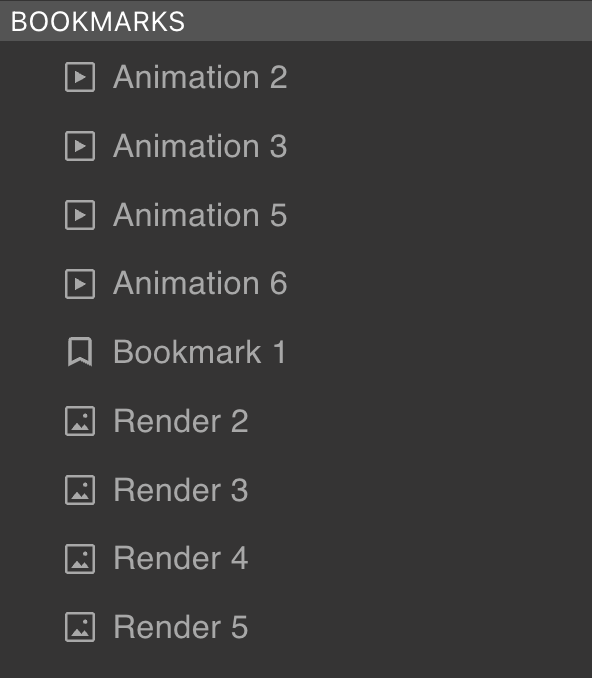
書籤面板位於資料面板下方。它包含書籤、渲染和動畫。右鍵單擊任何項目可刪除、重新命名或複製書籤物品的連結。協作者必須具有專案專存取權限才能查看共享書籤連結。
 工具現已上市專案編輯器的頂部。可用於所選資料物件的工具會反白色;不可用的工具顯示為灰色,因為某些工具僅對特定資料物件類型相容。
 選擇工具可以執行以下操作之一:
* 建立一個新的資料對象
* 建立一個新的書籤對象
* 在屬性面板中顯示新屬性
* 開啟工作流程編輯器
選擇工具可以執行以下操作之一:
* 建立一個新的資料對象
* 建立一個新的書籤對象
* 在屬性面板中顯示新屬性
* 開啟工作流程編輯器
屬性面板
項目編輯器右側的屬性面板顯示所選資料物件的屬性和視覺化設定。可用屬性因資料物件類型而異。
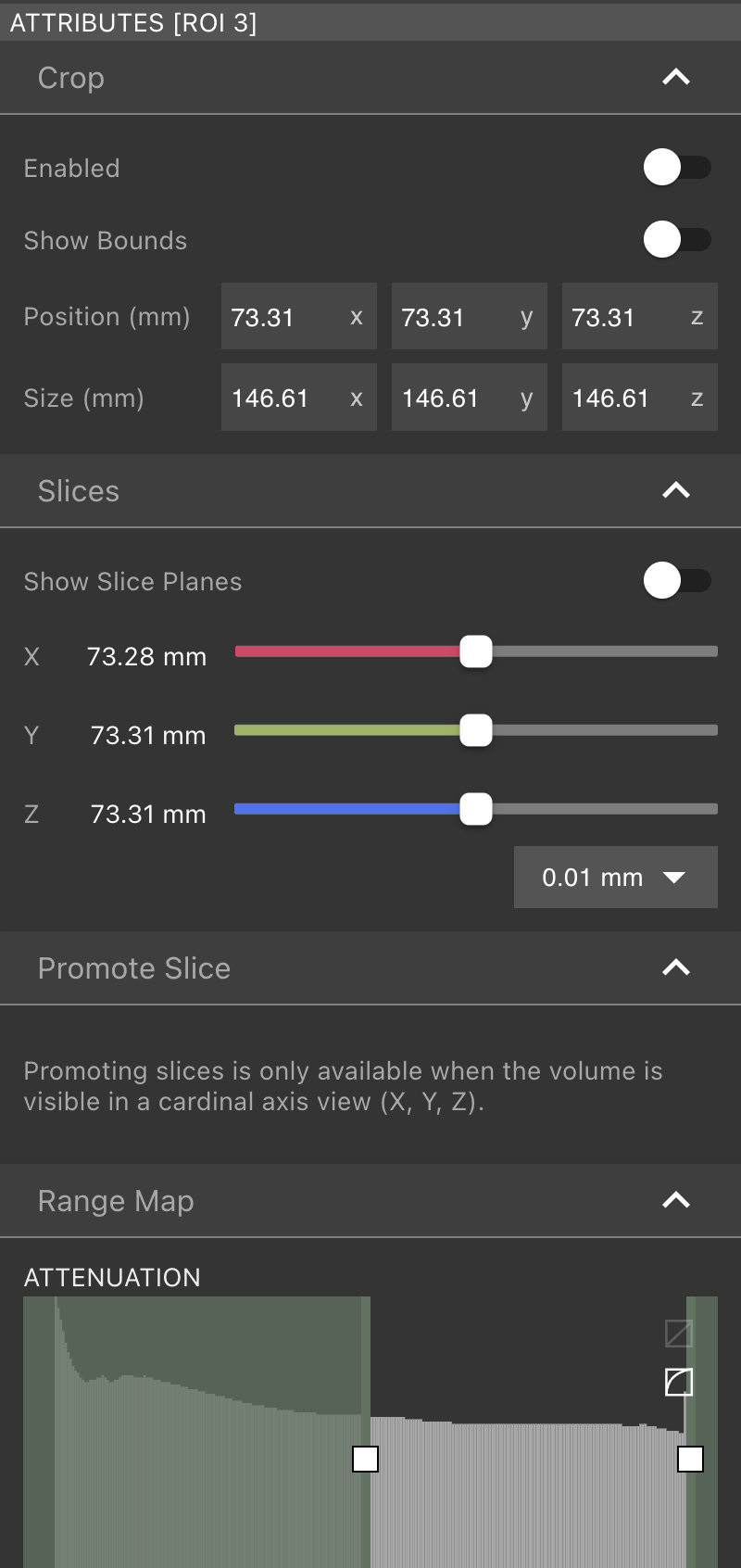 相關屬性的更多詳細信息,請訪問[資料對象+工作流程](/zh-Hant/voyager/voyager-data-objects-and-workflows)頁面。
工作流程編輯器
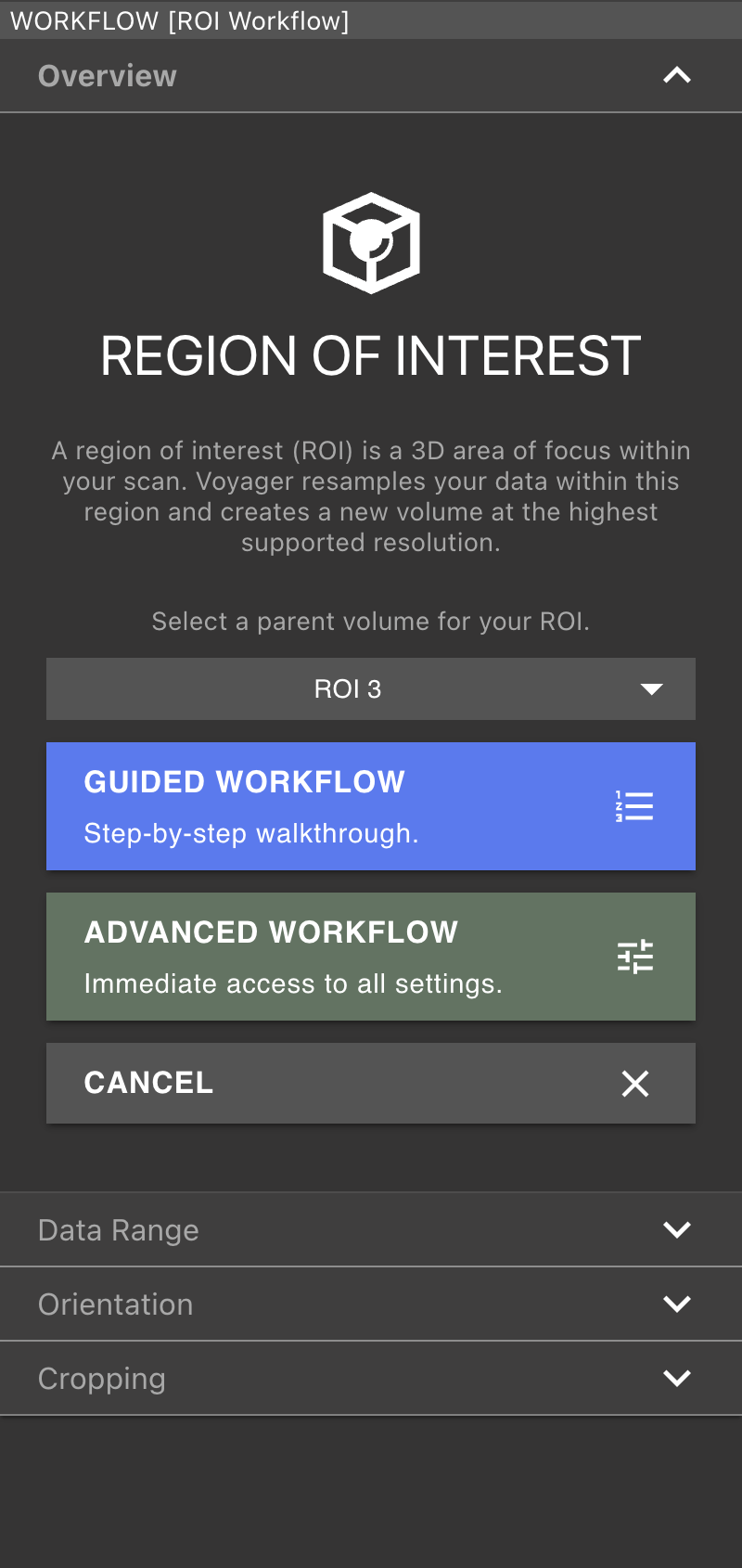
當選擇ROI、頭部長度、縫隙、厚度或夾雜物工具時,工作流程編輯器會取代專案編輯器右邊的屬性面板。使用者可以在活動之間切換[工作流程](/zh-Hant/voyager/voyager-data-objects-and-workflows)不損失進度。
導覽列
在專案編輯器的左上角,可以使用工具來重新命名項目並導航回[專案儀表板](/zh-Hant/voyager/voyager-dashboard)。
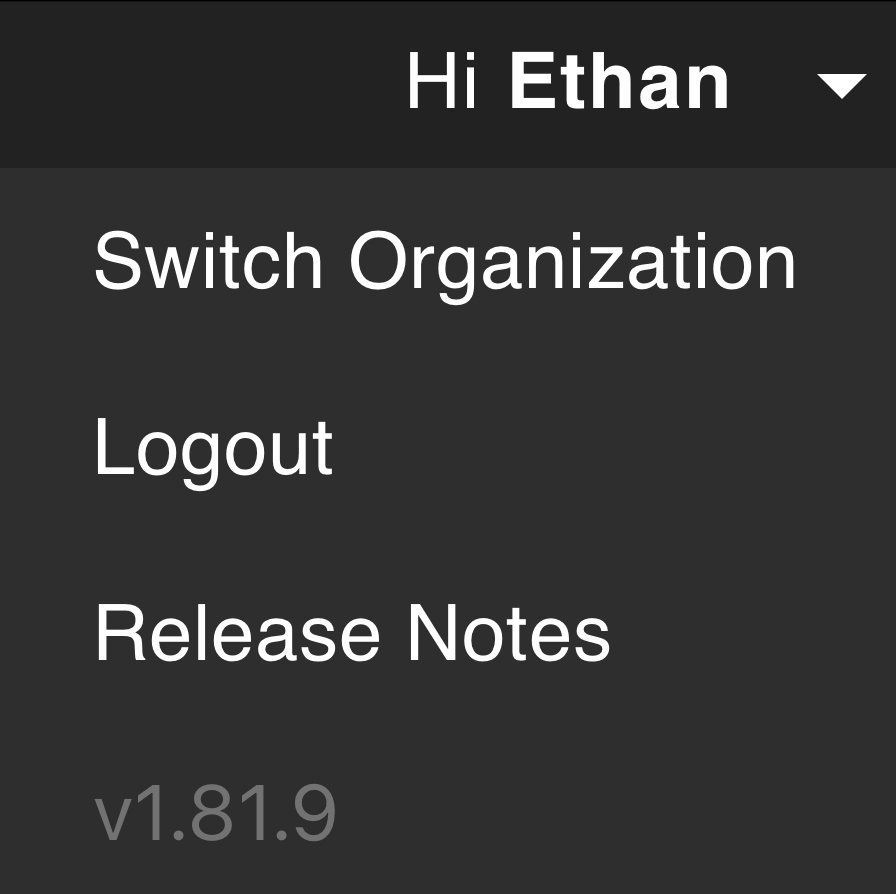
 選擇專案編輯器右上角的選單可以切換到另一個專案[組織](/zh-Hant/platform/organization-workspaces-and-members)(如果您屬於多個組織),登出,開啟[Voyager 發行說明](/zh-Hant/platform/voyager-release-notes),並查看Voyager目前的版本號。
幫助面板
專案編輯器的左下角包含啟動Voyager人工智慧助理Atlas的控制項;發送回饋;並開啟支援文件。