> ## Documentation Index
> Fetch the complete documentation index at: https://support.lumafield.com/llms.txt
> Use this file to discover all available pages before exploring further.

# 多材料網格劃分

> 產生分離多材料零件材料的網格

網格工具可用於為單一多材料零件產生多個網格 - 風扇材料一個。

<h2 id="understanding-the-histogram">
  了解直方圖
</h2>

為網格提取選擇的值可以從資料物件的範圍內看到的直方圖觀察可見。在網格工作編輯器中設定的閾值對應流程表示衰減的範圍內的相同值。

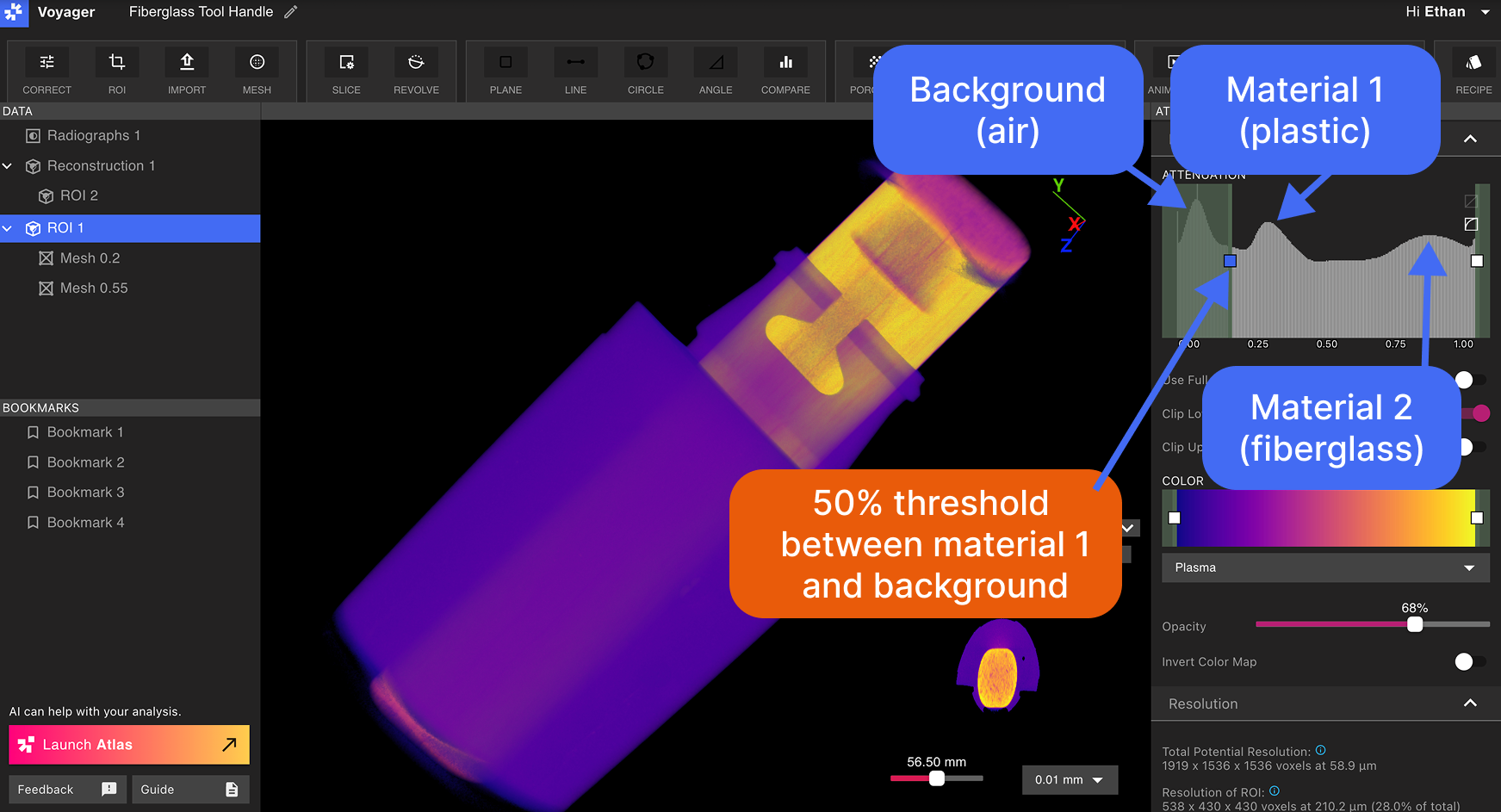
衰減範圍與材料相關。因此，如果您希望了解合適的衰減值，通常需要選擇要選擇的材質與材質分離的背景的 50% 之間的值。

<img src="https://mintcdn.com/lumafield/bI_lyvGPuEd9QeD5/images/Mesh_Overview_Multi.png?fit=max&auto=format&n=bI_lyvGPuEd9QeD5&q=85&s=64aeeff5ddfdd14a994a7e897d717dde" alt="Mesh Overview Zero" width="1743" height="943" data-path="images/Mesh_Overview_Multi.png" />

> 此工具手柄由包覆成型到玻璃纖維芯上的塑膠製成。請注意範圍標籤的材料尖峰以及提供分離的閾值。

從資料面板中選擇所需的資料對象，然後選擇[網格工具](/zh-Hant/voyager/voyager-mesh-tool)。
<img src="https://mintcdn.com/lumafield/bI_lyvGPuEd9QeD5/images/Mesh_Multi_Two.png?fit=max&auto=format&n=bI_lyvGPuEd9QeD5&q=85&s=5a609770dd5c91383f6e5cb99202d497" alt="Mesh Multi Two" width="1743" height="943" data-path="images/Mesh_Multi_Two.png" />

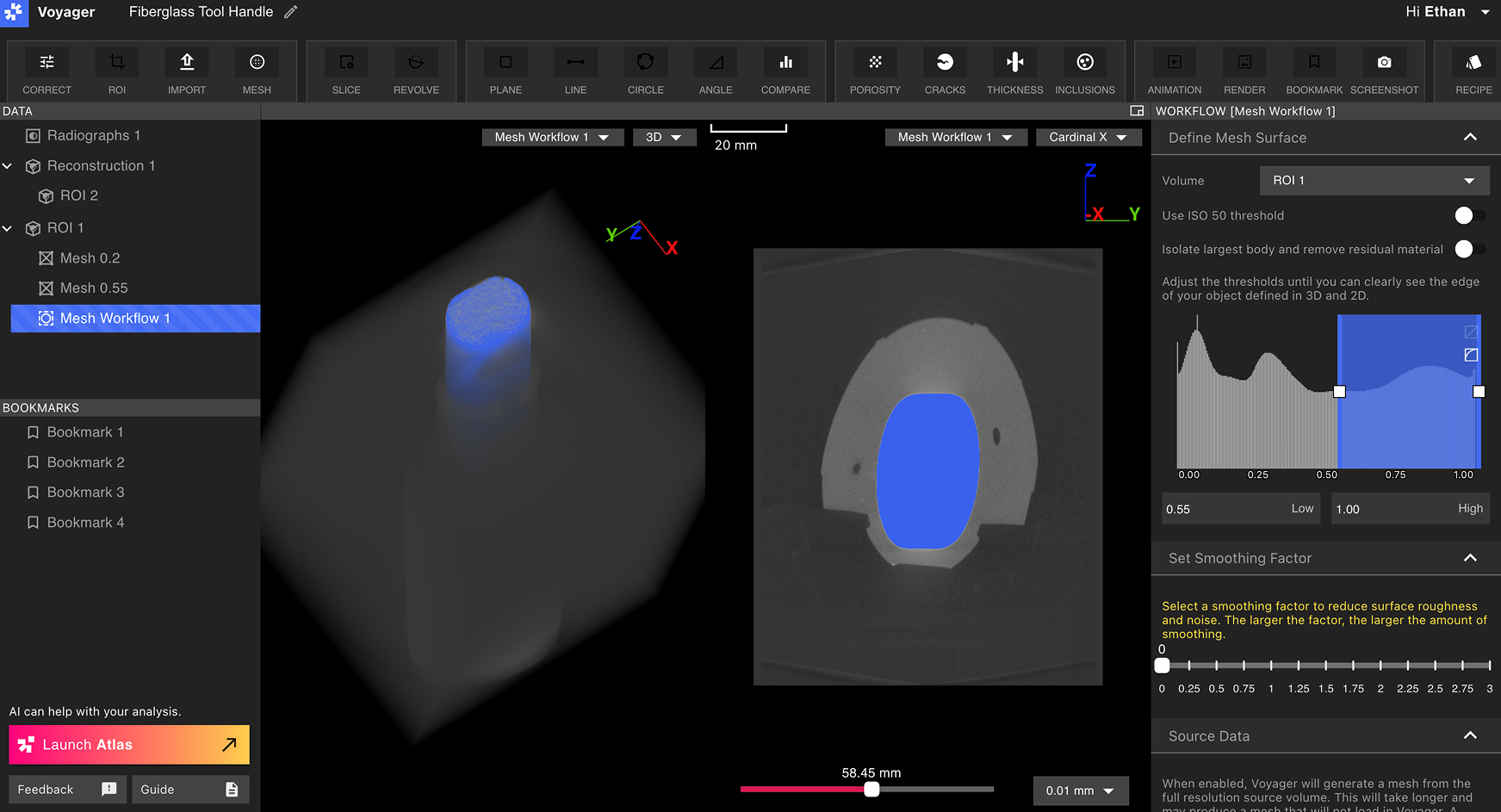
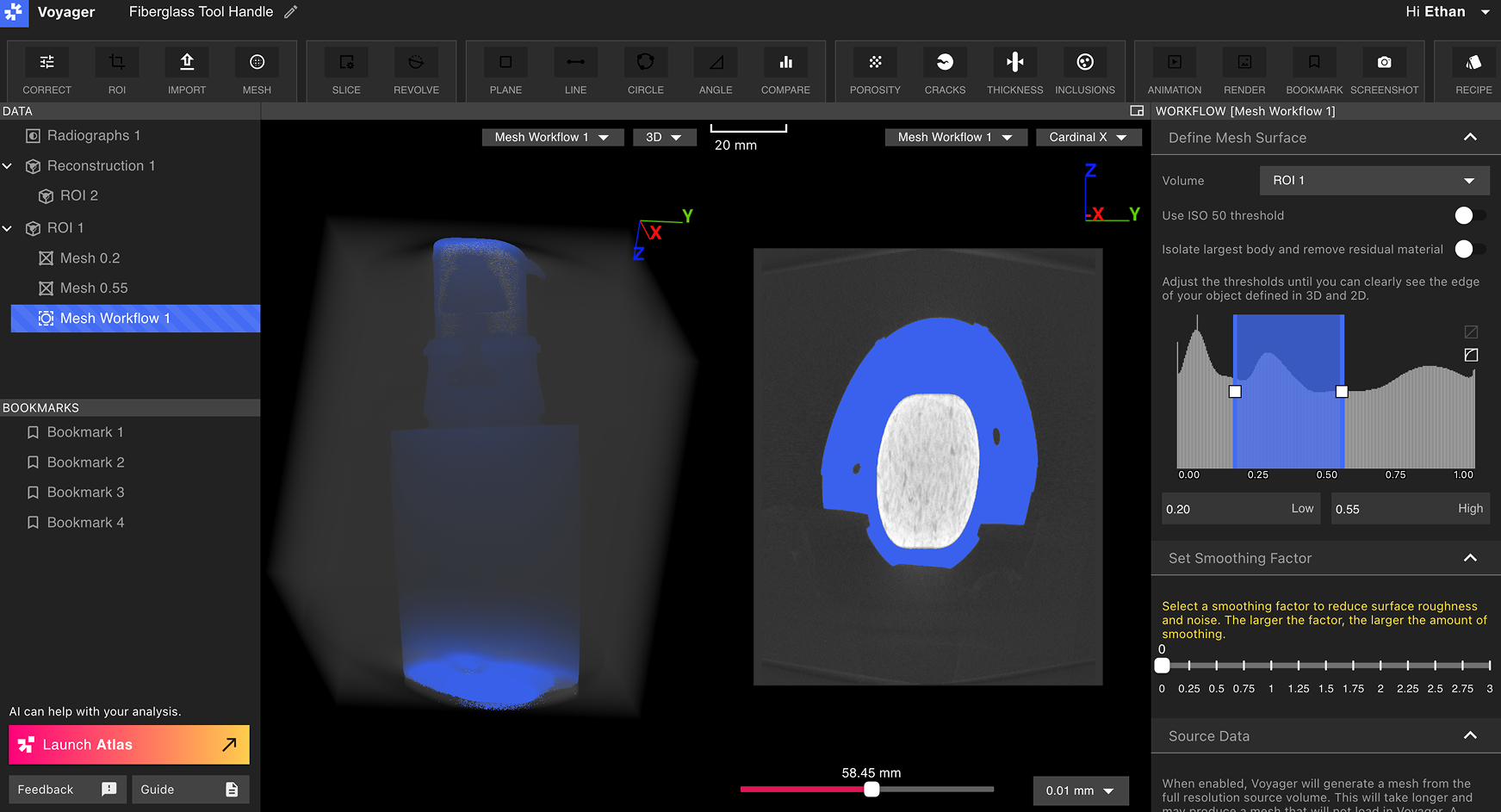
將範圍放大器的熱點放置在山谷處（代表感興趣材料的熱點的熱點）來隔離局部的材料。在上圖中，代表熱點材料的熱點被隔離。

<img src="https://mintcdn.com/lumafield/bI_lyvGPuEd9QeD5/images/Mesh_Multi_Three.png?fit=max&auto=format&n=bI_lyvGPuEd9QeD5&q=85&s=918de1bce85337d6c263da1beae82e6a" alt="Mesh Multi Three" width="1743" height="943" data-path="images/Mesh_Multi_Three.png" />

上週，隔離代表了玻璃纖維芯的熱點。

<h2 id="resulting-meshes">
  產生的網格
</h2>

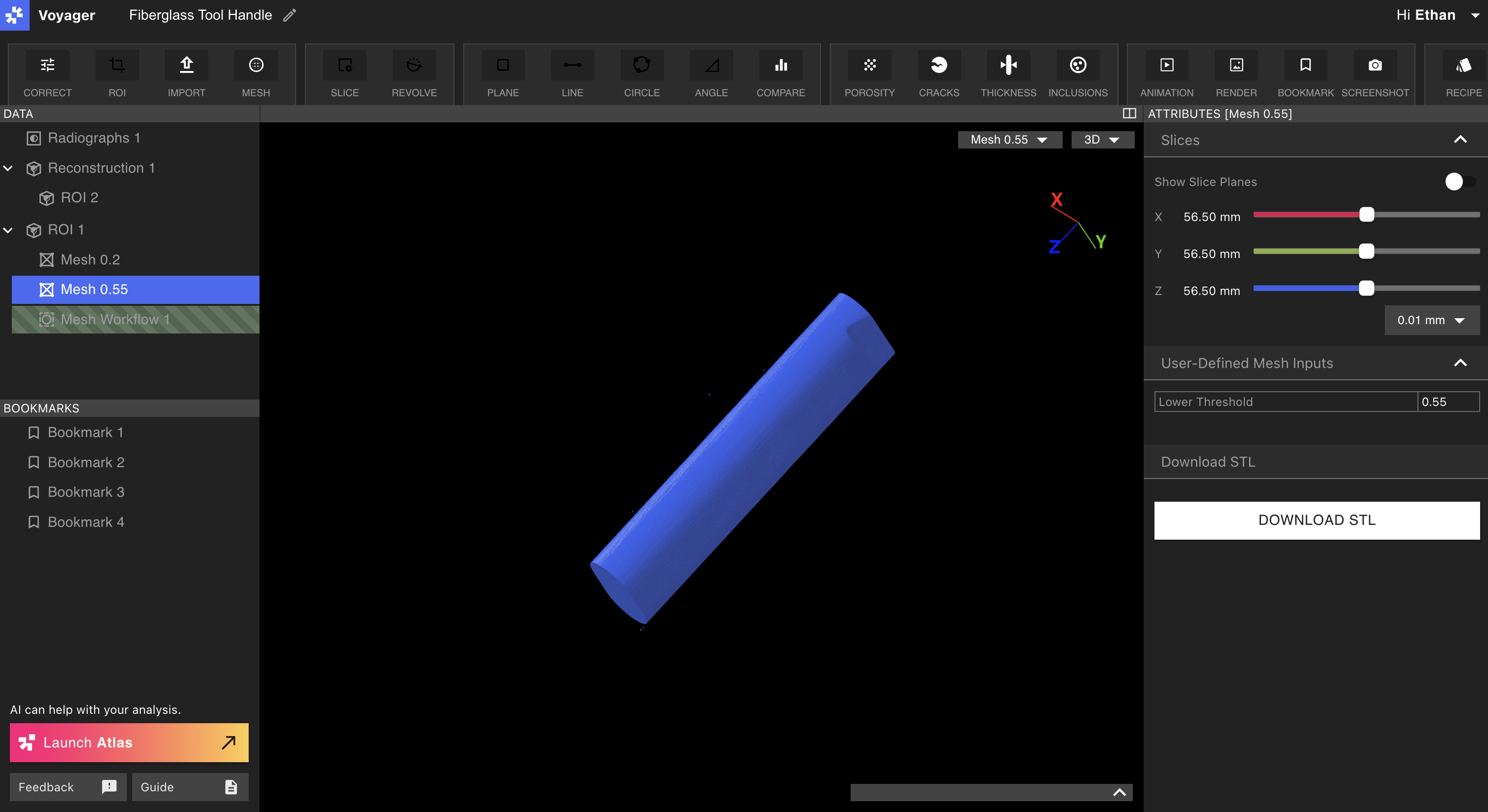
產生的網格將代表零件內部的單一材質。

<Note>
  根據網格閾值或組件材質命名網格。
</Note>

<img height="200" src="https://mintcdn.com/lumafield/bI_lyvGPuEd9QeD5/images/Mesh_Multi_Example.png?fit=max&auto=format&n=bI_lyvGPuEd9QeD5&q=85&s=066110e442da389e903cf4aa9bcd407e" alt="" title="" data-path="images/Mesh_Multi_Example.png" />