> ## Documentation Index
> Fetch the complete documentation index at: https://support.lumafield.com/llms.txt
> Use this file to discover all available pages before exploring further.
# 渲染工具
> 建立易於分享的高品質掃描資料視覺化效果,可無縫插入簡報並增強行銷素材
渲染工具從 Voyager Project 產生可下載的圖像。使用以下自訂選項建立圖像:
* 檔案類型:**PNG**、**JPEG**
* 透明背景切換(適用於 PNG)
* 尺寸:
* 3840 x 2160 (4K)
* 1920 x 1920(正方形)
* 1920 x 1080(標準)
* 1640 x 856(橫向)
* 360 x 800(行動裝置)
除了透過渲染工具手動建立渲染外,[Recipes](/zh-Hant/recipes/recipes-intro) 還可以配置為自動產生渲染書籤。
若要產生掃描資料的**影片**,請造訪[動畫工具](/zh-Hant/voyager/voyager-animation-tool)文章。
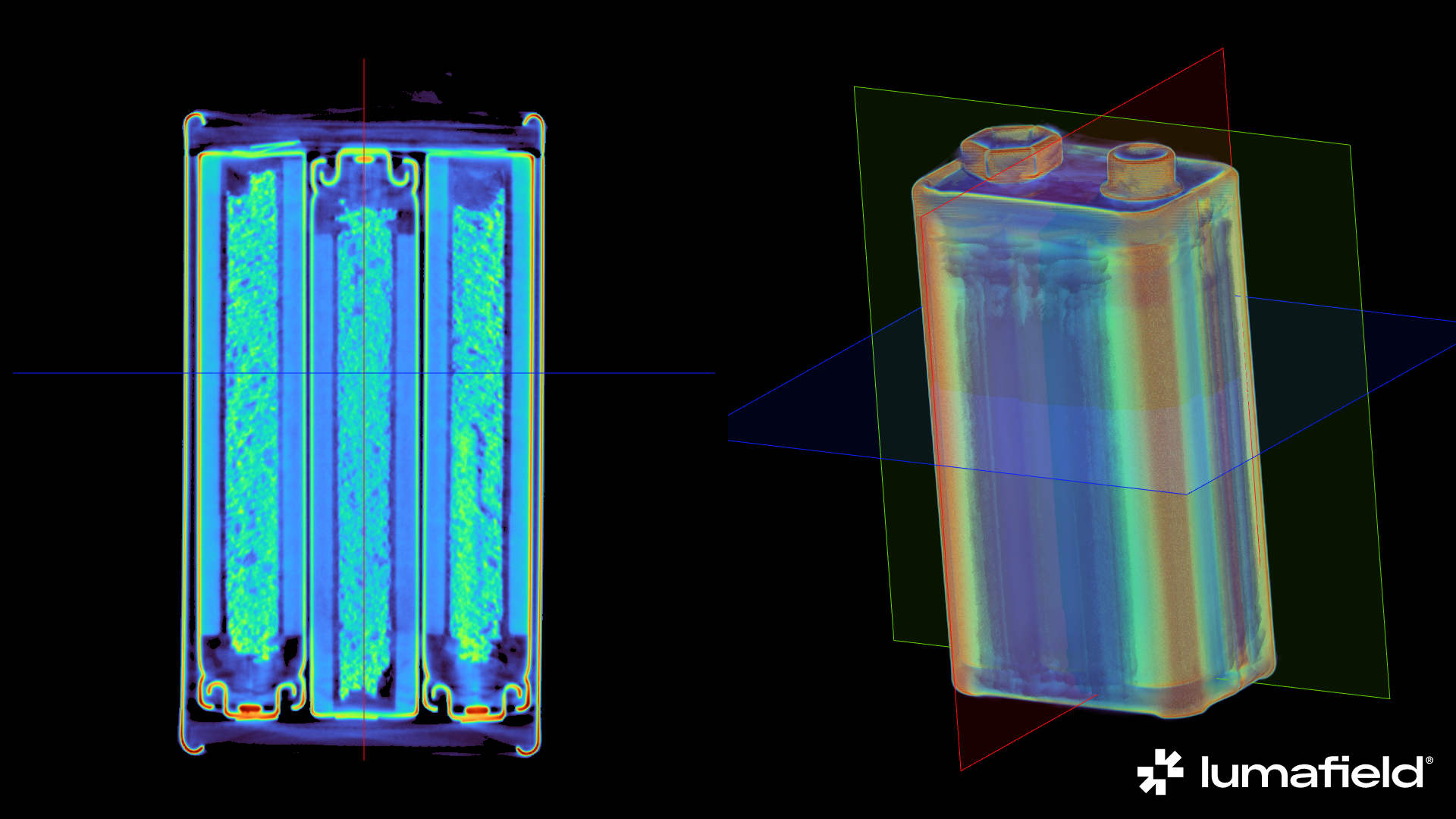 *直接從 Voyager 下載的渲染範例*
建立渲染
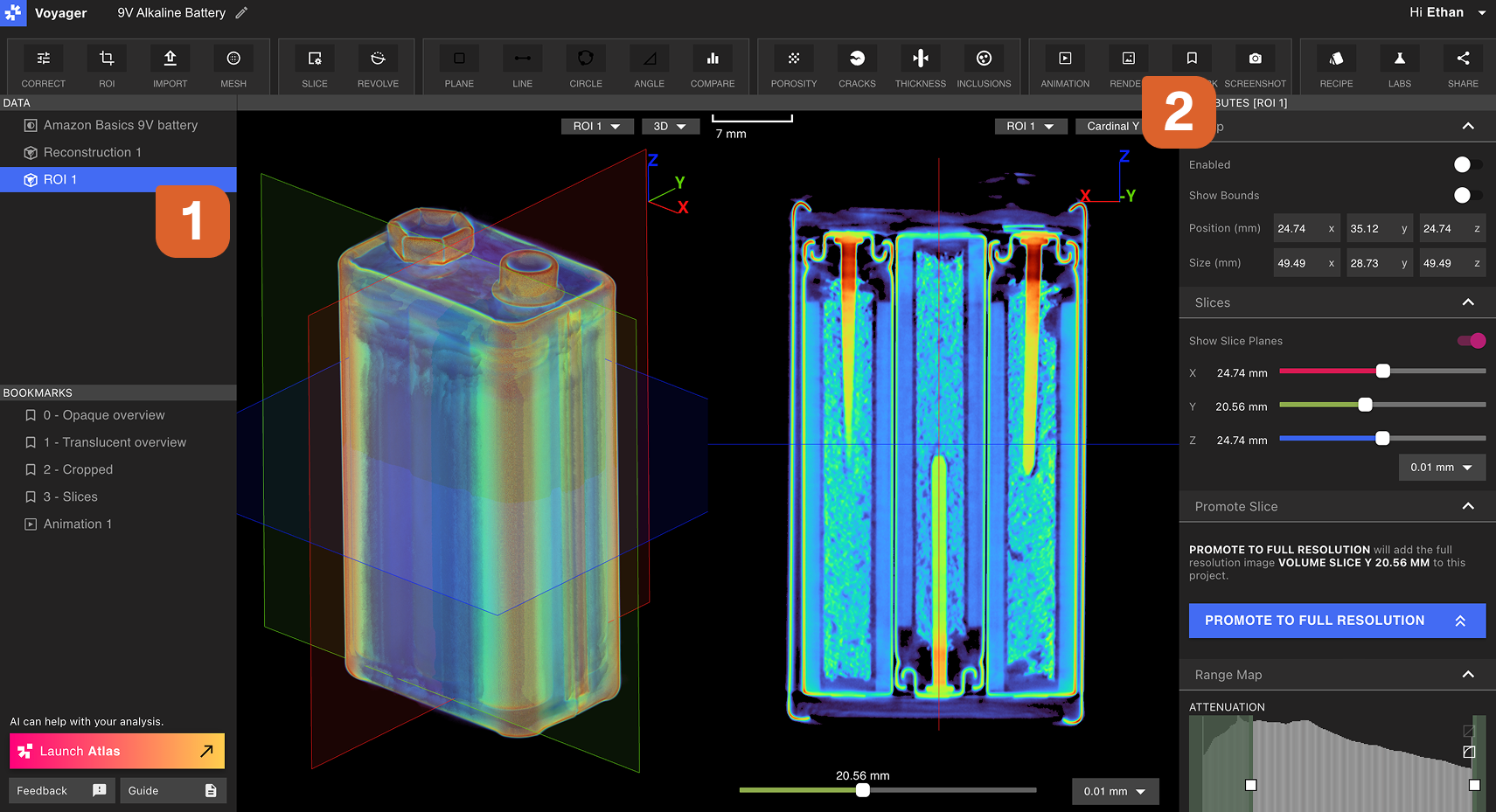
從資料面板中選擇任何資料物件,或從書籤面板中選擇書籤物件,然後從工具列中選擇渲染工具。
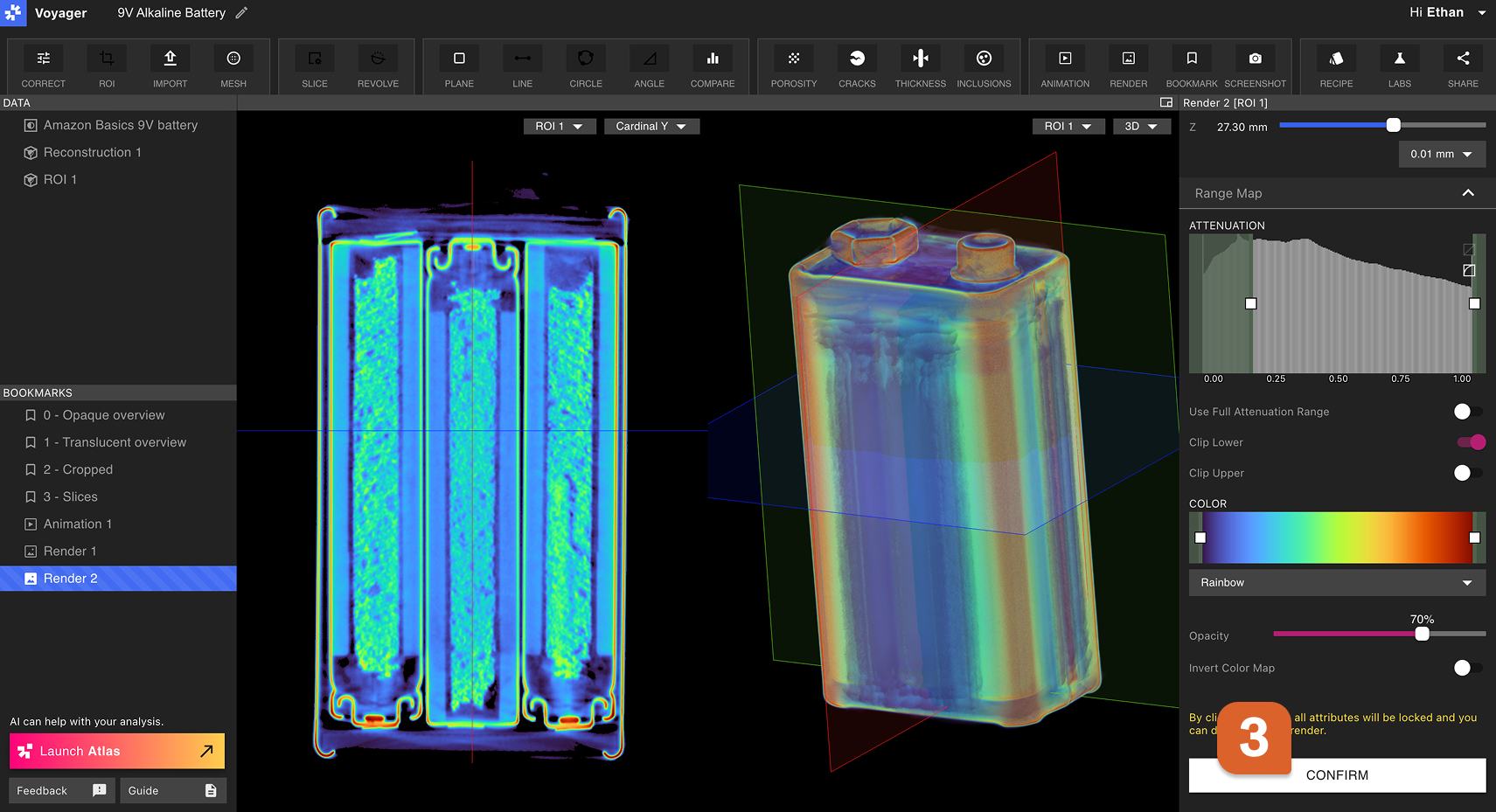
 渲染編輯器將在右側面板中開啟。在「裁切」、「切片」和「範圍圖」選項卡中選擇所有所需的視覺化設定。將Viewport中的資料操控到所需的視圖和方向。對視覺化設定感到滿意後,在渲染編輯器中選擇「確認」。
查看、下載和分享渲染
透過在書籤面板中選擇新建立的渲染來開啟它。
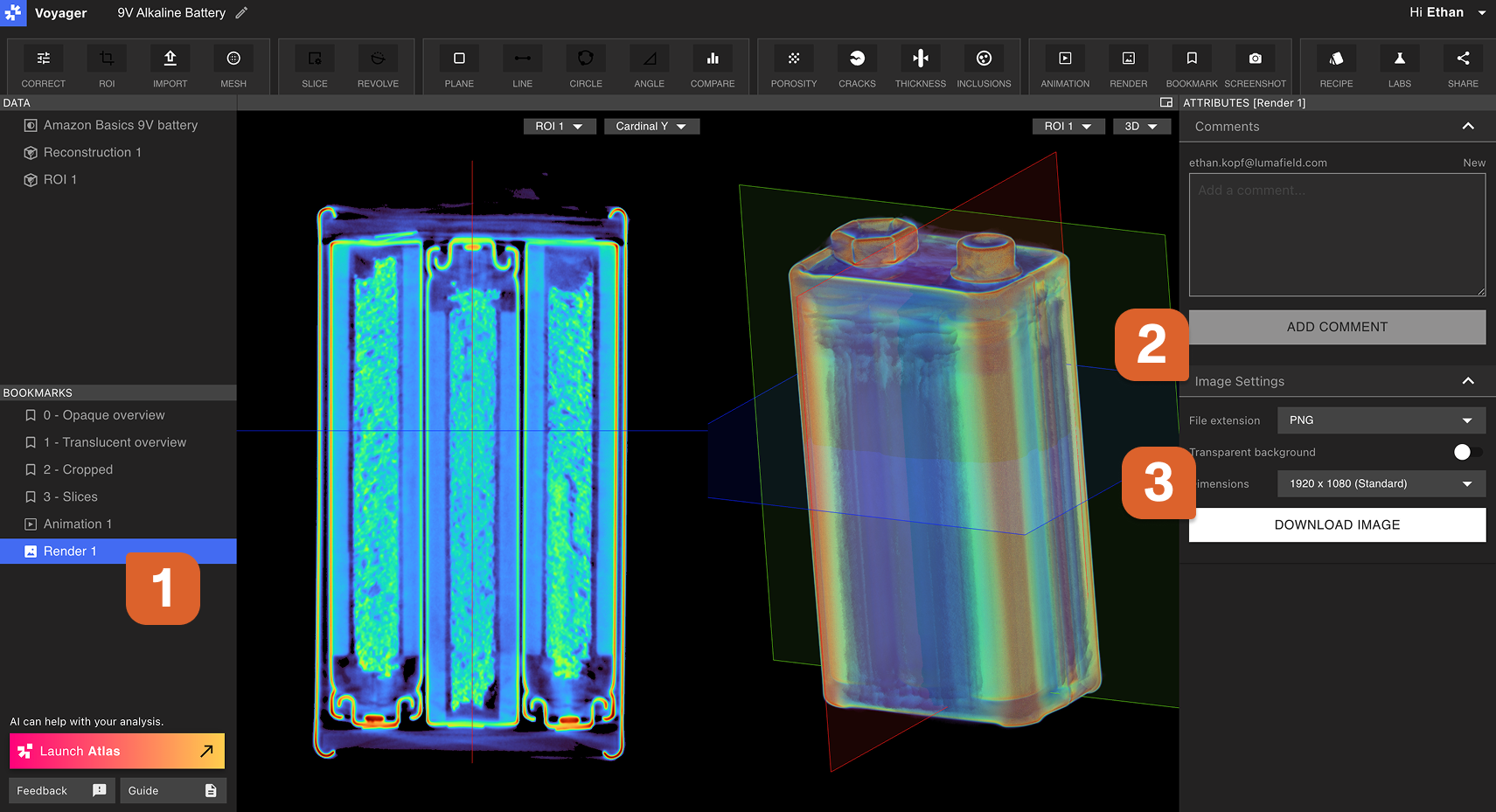 若要**下載**渲染,請在屬性面板的圖像設定選項卡中選擇所需設定,然後選擇產生圖像。產生進度顯示在屬性面板的渲染選項卡中。當渲染完全產生後,它將自動下載。
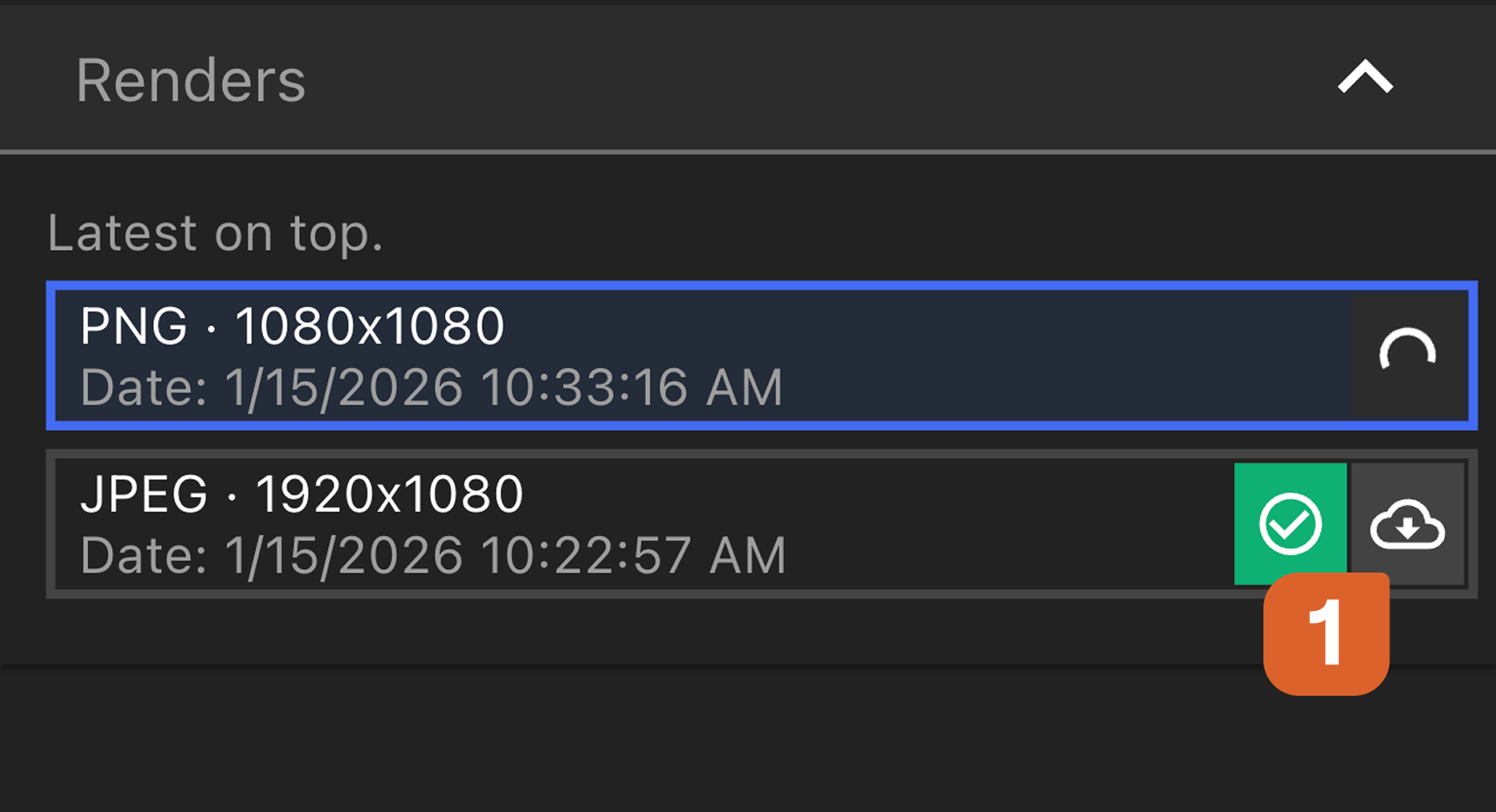 首次下載可能較慢,但使用相同設定的後續下載將會很快。
若要**複製渲染的連結**,請從資料面板中右鍵選擇渲染,然後選擇複製連結。收到該連結的使用者將直接進入 Project 內的渲染書籤。也可以從右鍵選擇選單中**重新命名**或**刪除**渲染。
首次下載可能較慢,但使用相同設定的後續下載將會很快。
若要**複製渲染的連結**,請從資料面板中右鍵選擇渲染,然後選擇複製連結。收到該連結的使用者將直接進入 Project 內的渲染書籤。也可以從右鍵選擇選單中**重新命名**或**刪除**渲染。