> ## Documentation Index
> Fetch the complete documentation index at: https://support.lumafield.com/llms.txt
> Use this file to discover all available pages before exploring further.

# 旋轉切片平面

> 檢查幾何形狀或幾何形狀

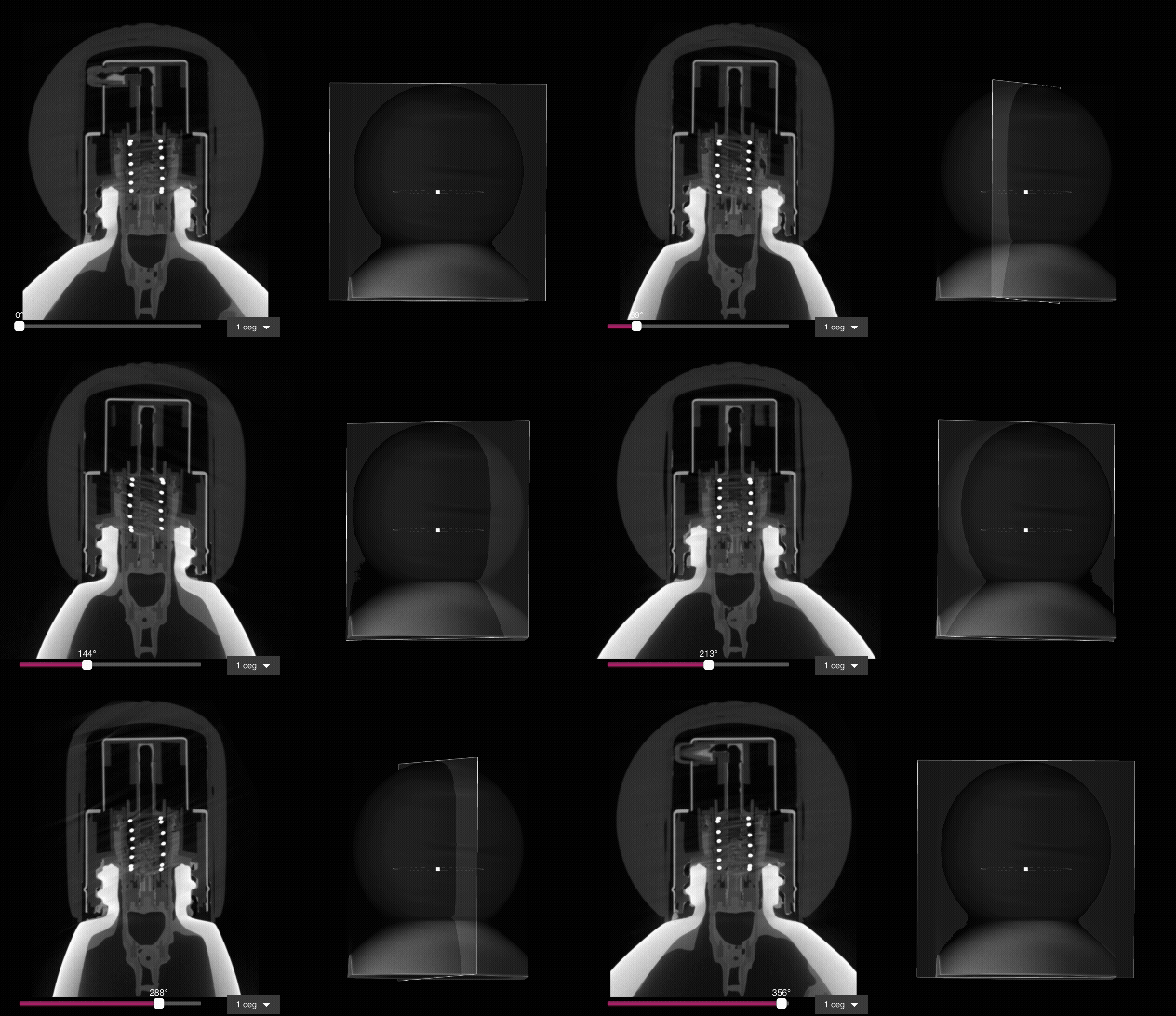
當處理具有軸線或建構幾何形狀的零件時，使用圍繞自訂軸旋轉360°的旋轉切片平面。

<img src="https://mintcdn.com/lumafield/XZJZb99rwJ2O5Sds/images/Revolving_Example.gif?s=0b88691bcd3e84d3ee94e5db6193e330" alt="Revolving Example" width="632" height="364" data-path="images/Revolving_Example.gif" />

<h2 id="creating-a-revolving-slice-plane">
  建立旋轉平面
</h2>

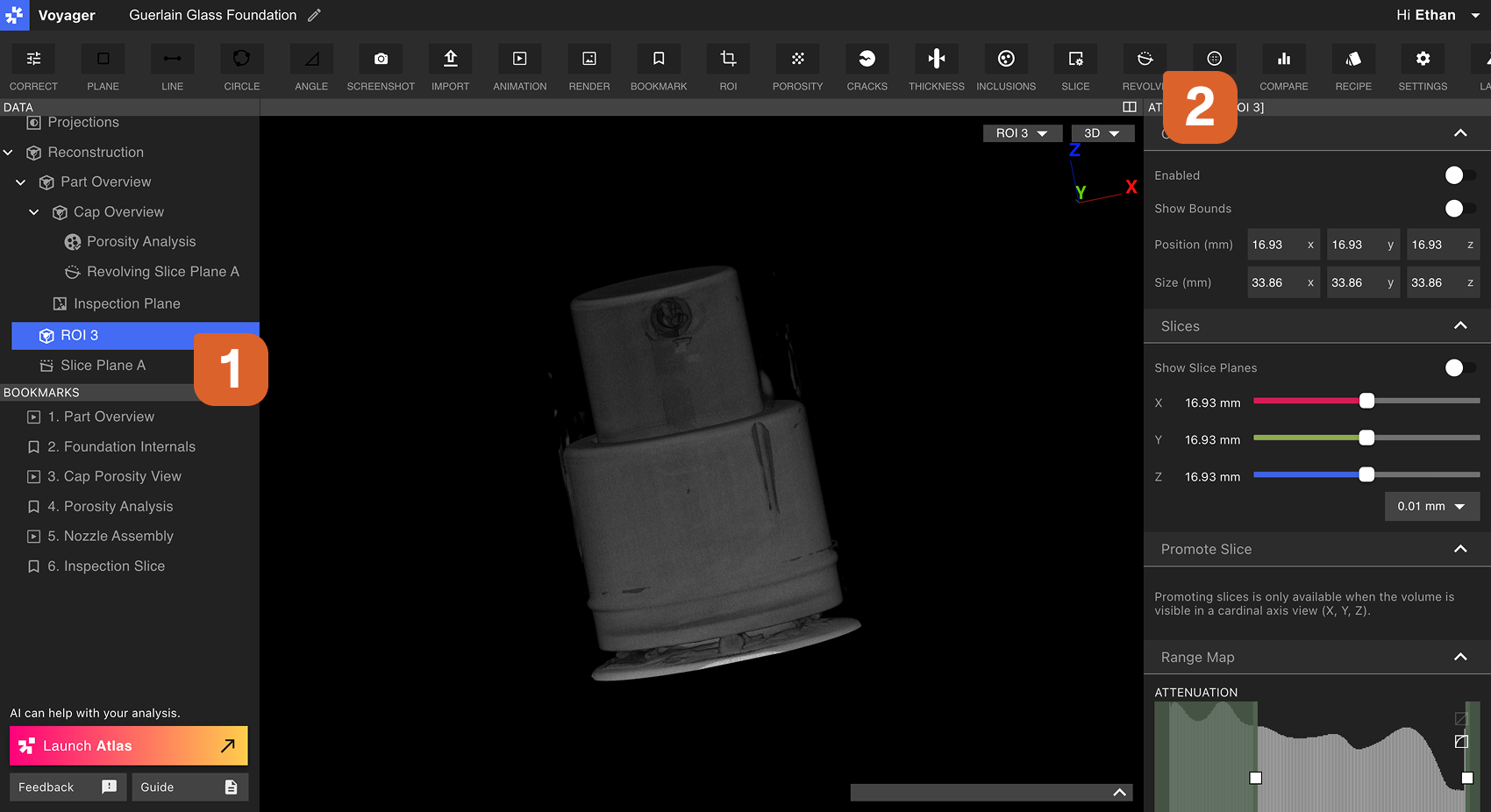
首先，從資料面板中選擇重建或ROI資料對象。若要建立有用的旋轉切片平面，請確保所需的旋轉軸與資料物件的基本X、Y或Z軸校準。如果這些軸不匹配，則建立ROI，其中所需的旋轉軸與基本資料平面對齊。

<img src="https://mintcdn.com/lumafield/9fQYwyXKfGKMPD2d/images/Revolving_Slice_Planes_Step1.png?fit=max&auto=format&n=9fQYwyXKfGKMPD2d&q=85&s=26d3f96346c91d30df2ef595797d19fe" alt="Creating a Revolving Slice Plane Step 1" width="1700" height="926" data-path="images/Revolving_Slice_Planes_Step1.png" />

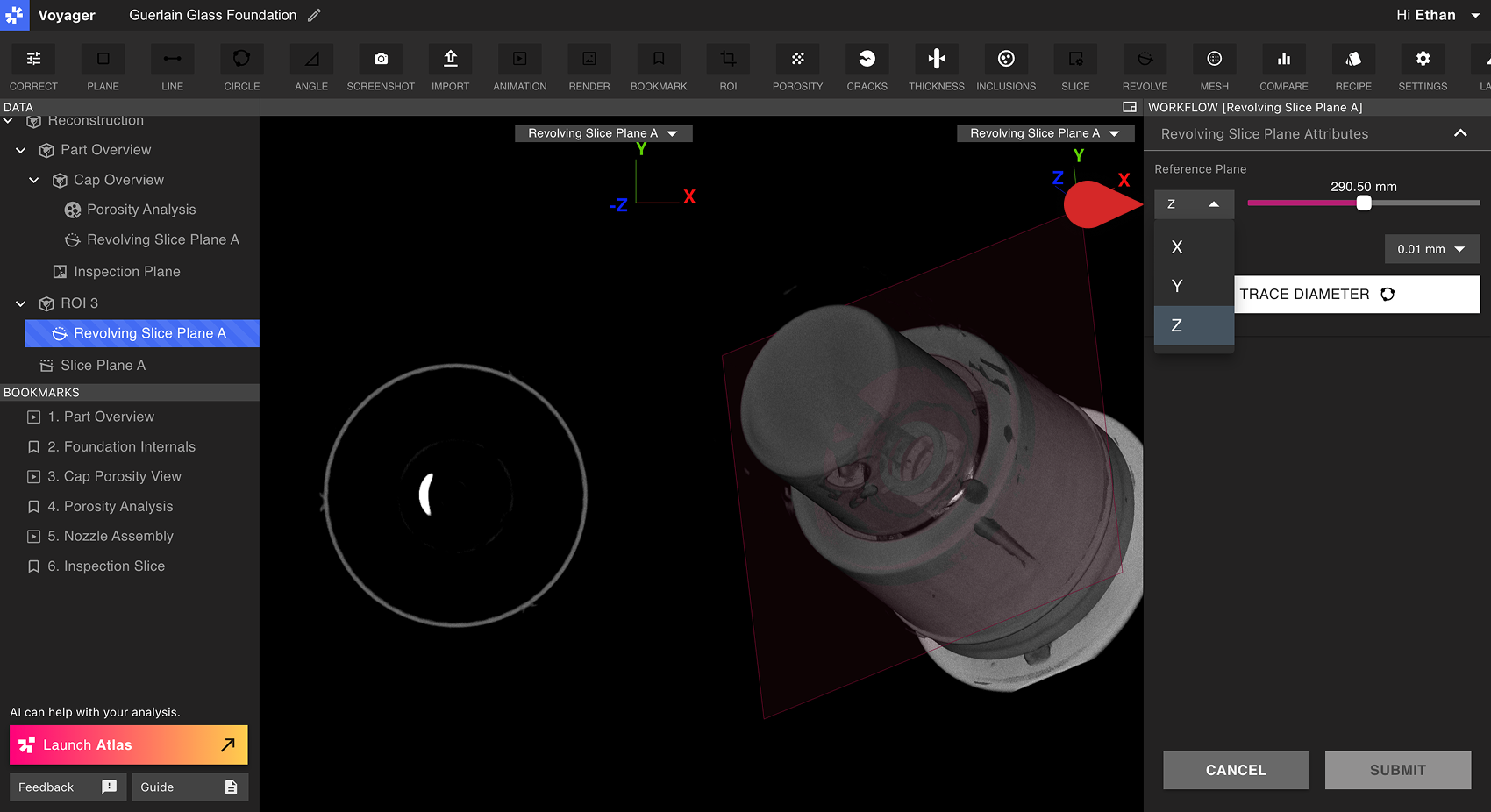
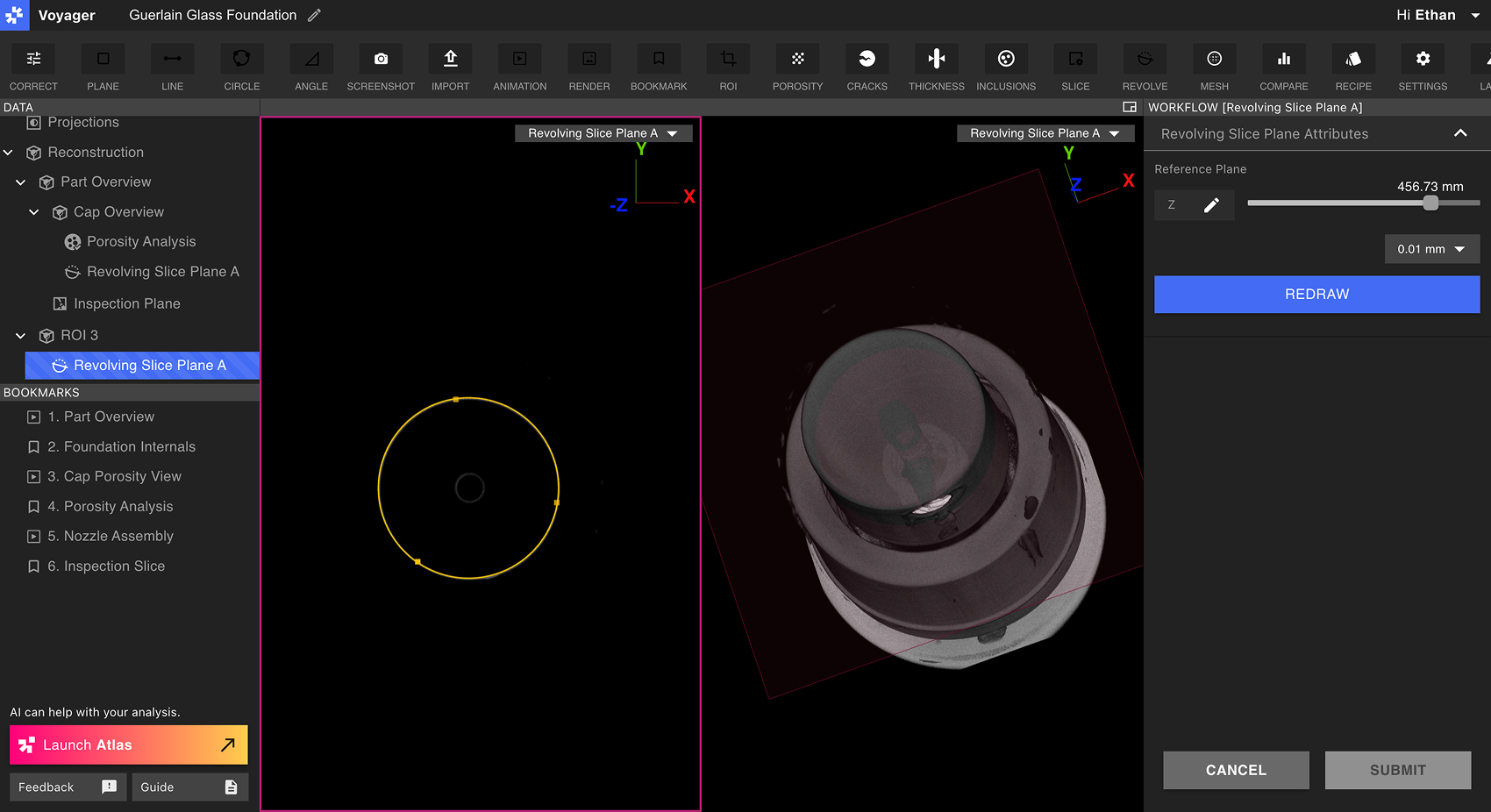
從工作流程編輯器的下拉式選項中，選擇基本的 X、Y 或 Z 平面作為參考平面。選擇沿圓形呈現幾何形狀的位置，以輕鬆捕捉所需的旋轉軸。

<img src="https://mintcdn.com/lumafield/9fQYwyXKfGKMPD2d/images/Revolving_Slice_Planes_Step2.png?fit=max&auto=format&n=9fQYwyXKfGKMPD2d&q=85&s=7457254631acb342af8a25a843f80152" alt="Creating a Revolving Slice Plane Step 2" width="1700" height="926" data-path="images/Revolving_Slice_Planes_Step2.png" />

從工作流程編輯器中選擇表格直徑。在零件的圓形幾何圖形上選擇三個點。此圓的中點將定義旋轉切片平面將圍繞其旋轉的旋轉軸。
<img src="https://mintcdn.com/lumafield/9fQYwyXKfGKMPD2d/images/Revolving_Slice_Planes_Step3.png?fit=max&auto=format&n=9fQYwyXKfGKMPD2d&q=85&s=c8574bfcb1888c74cbc5638b68fa2ee7" alt="Creating a Revolving Slice Plane Step 3" width="1700" height="926" data-path="images/Revolving_Slice_Planes_Step3.png" />

在提交之前使用工作流程編輯器中的切片角度滑桿查看旋轉切片平面圖。預設情況下，Viewport 將分割2D和3D視圖，以最佳方式預覽目前旋轉切片平面圖。選擇「重繪」即可重新選擇圓，如果滿意則選擇「提交」。

<h2 id="viewing-a-revolving-slice-plane">
  查看旋轉切片平面圖
</h2>

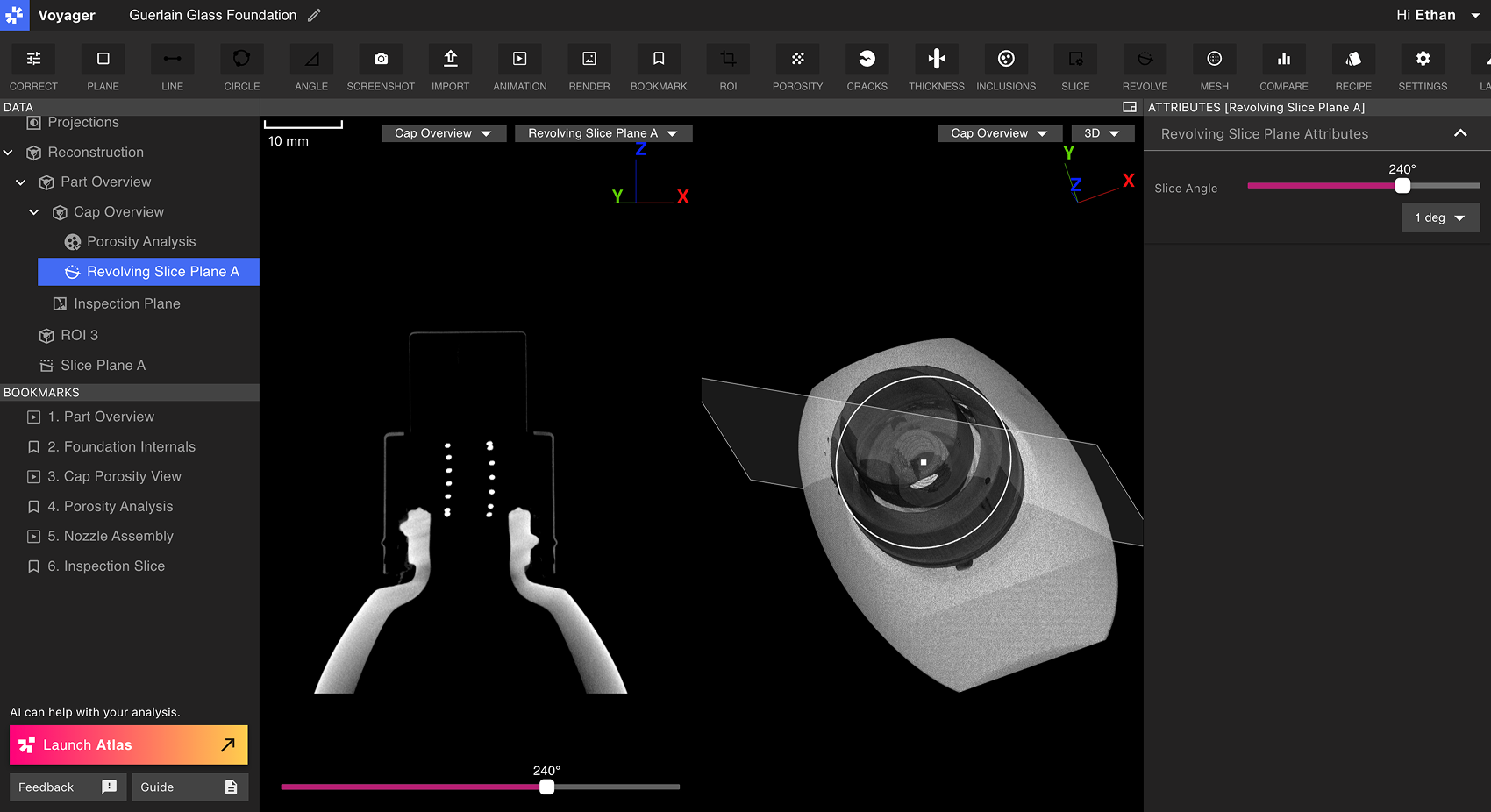
從資料面板中選擇一個旋轉剖面平面圖，將其帶入 Viewport 中。當選擇其父資料物件時，也可以從 Viewport 右上角的「視圖」下拉清單中選擇旋轉剖面資料物件。

<img src="https://mintcdn.com/lumafield/9fQYwyXKfGKMPD2d/images/Revolving_Slice_Planes_Step4.png?fit=max&auto=format&n=9fQYwyXKfGKMPD2d&q=85&s=c3644b72cad2e8abb98f9311431ddb2a" alt="Creating a Revolving Slice Plane Step 4" width="1700" height="926" data-path="images/Revolving_Slice_Planes_Step4.png" />

選擇旋轉切片平面後，切片角度滑桿將同時出現在 Viewport 底部和屬性面板中。滑動切片角度控制可查看圍繞旋轉切片平面 360° 的資料。