Members settings
Add and manage all users in your Organization from the Members Tab.
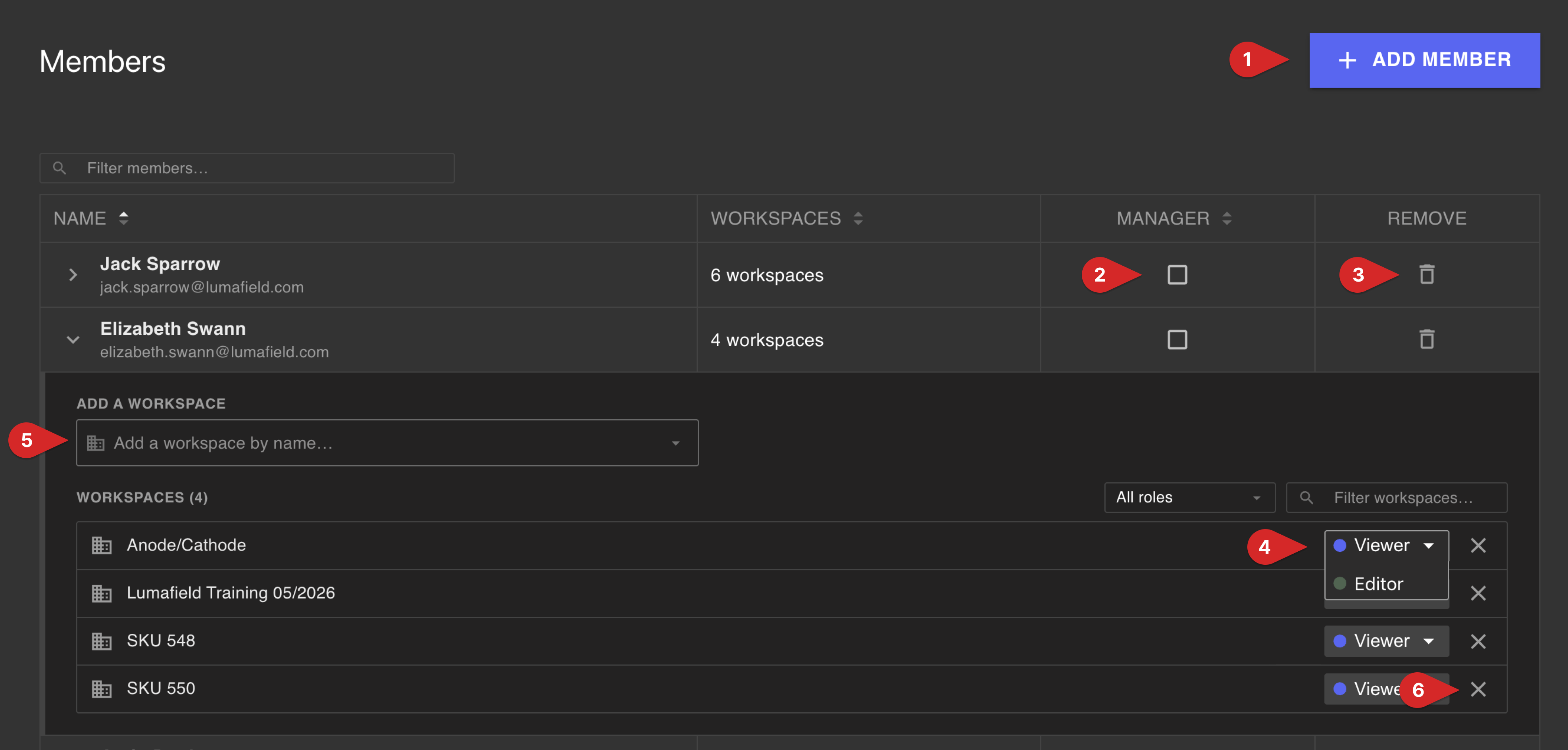
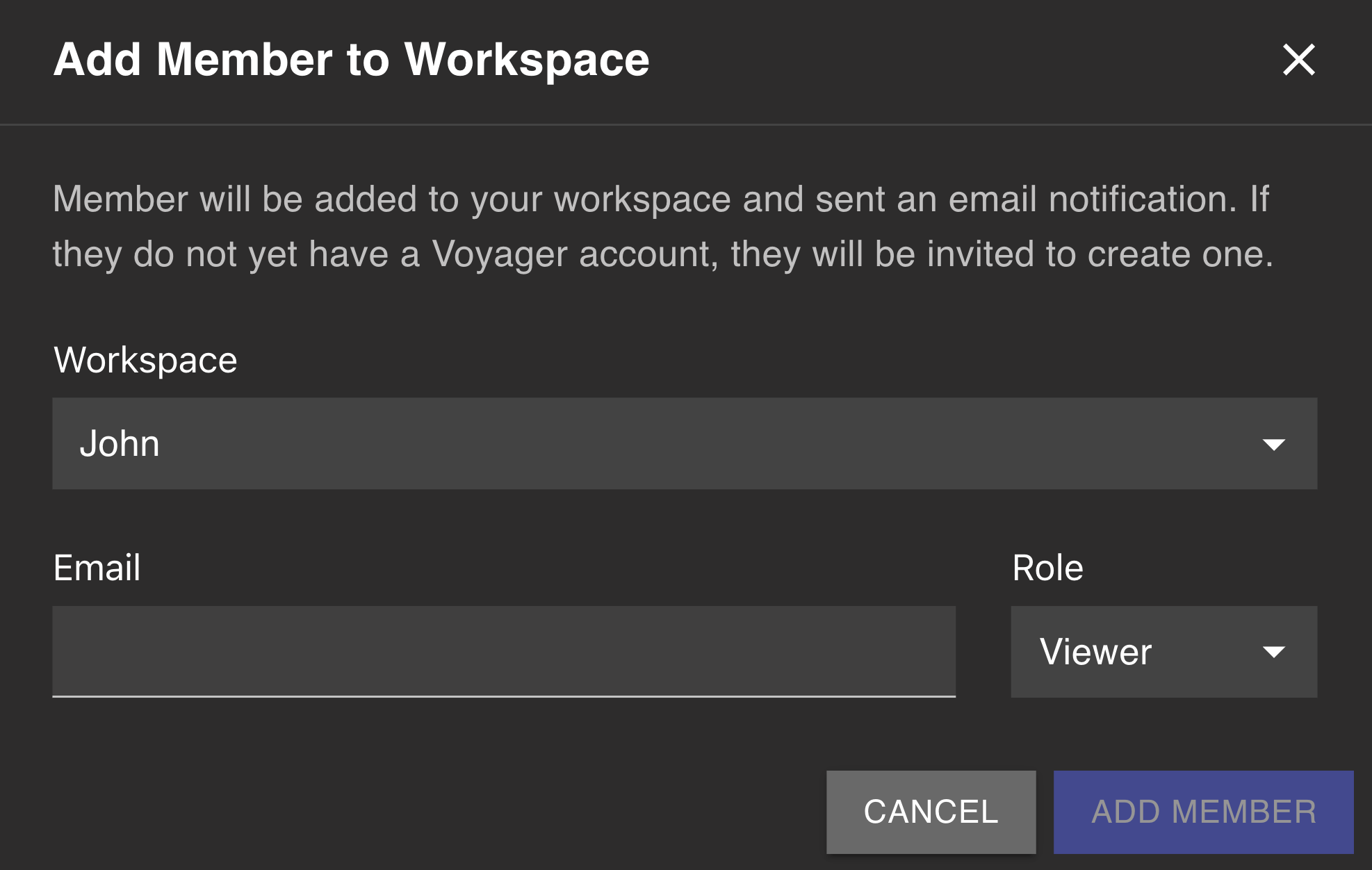
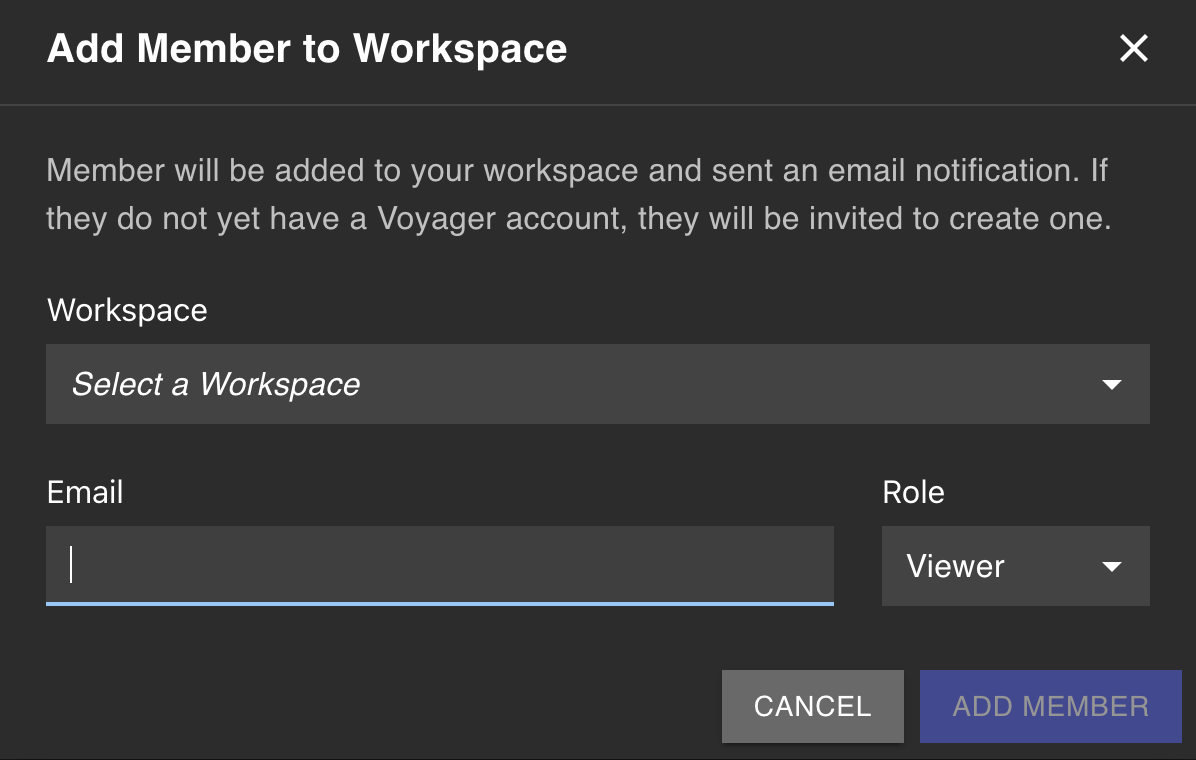
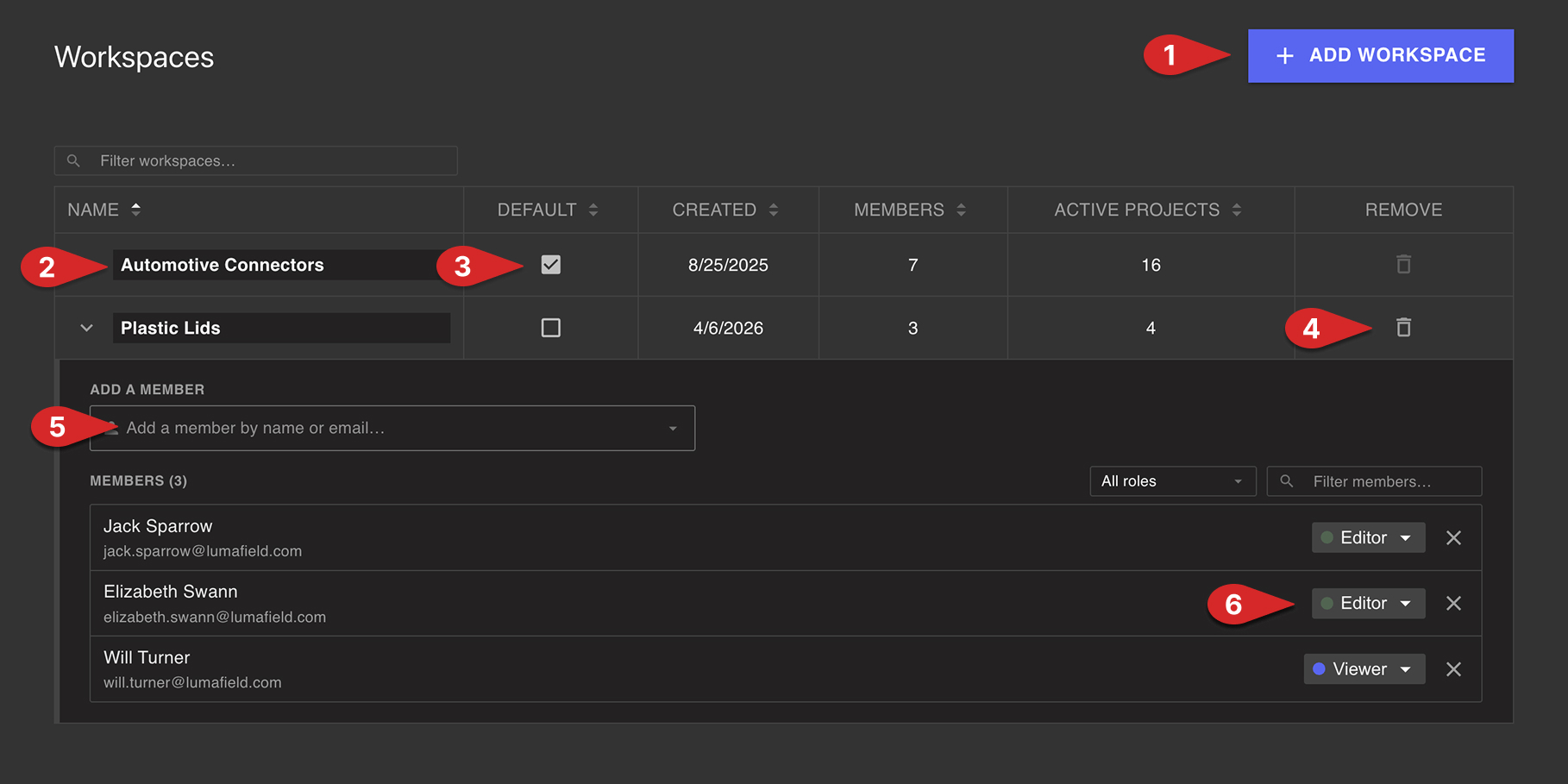
- Add a member to your Organization. You’ll be prompted to enter the user’s email - if they do not yet have a Voyager account, they will be invited to create one. You’ll also be asked to choose a Workspace to add the new member too and set Viewer/Editor status.
- Set an existing user as an Organization Manager. Doing so will allow the user to access the Manager Dashboard, including all controls on this article.
- Remove a member from your Organization. They will no longer be a member of any Workspaces within your Organization.
- Modify a user’s Workspace access level. Choose between Viewer and Editor status.
- Add a user to a Workspace in your Organization. The new user will be added with Viewer status by default, which can be changed if desired.
- Remove a user’s access to a Workspace.
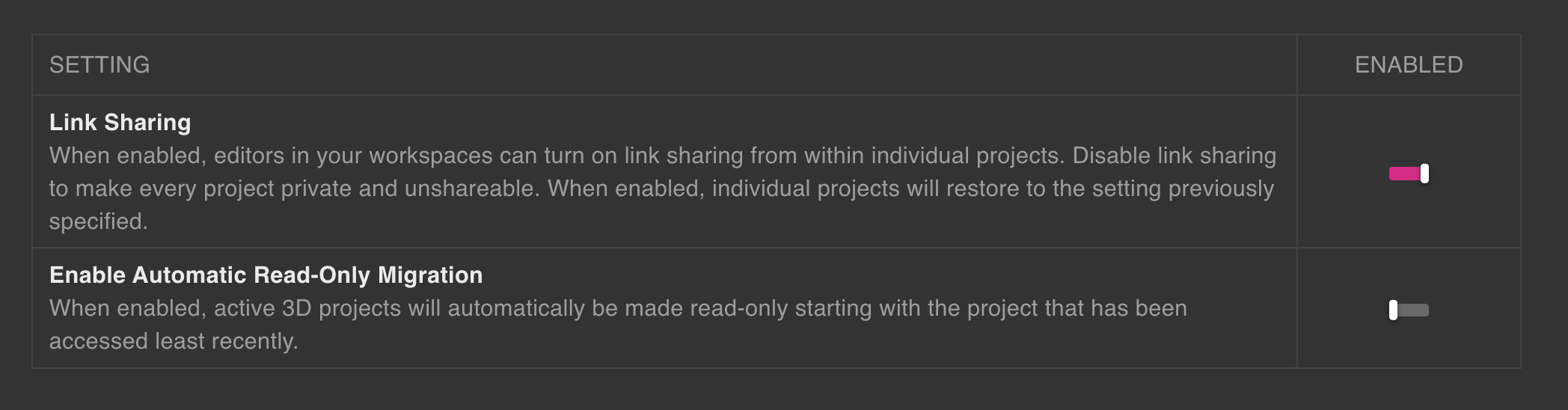
If your Organization has Link Sharing enabled, any user, even if not a member of your Organization, can view Projects on which Link Sharing is turned on.
Bulk Add Members
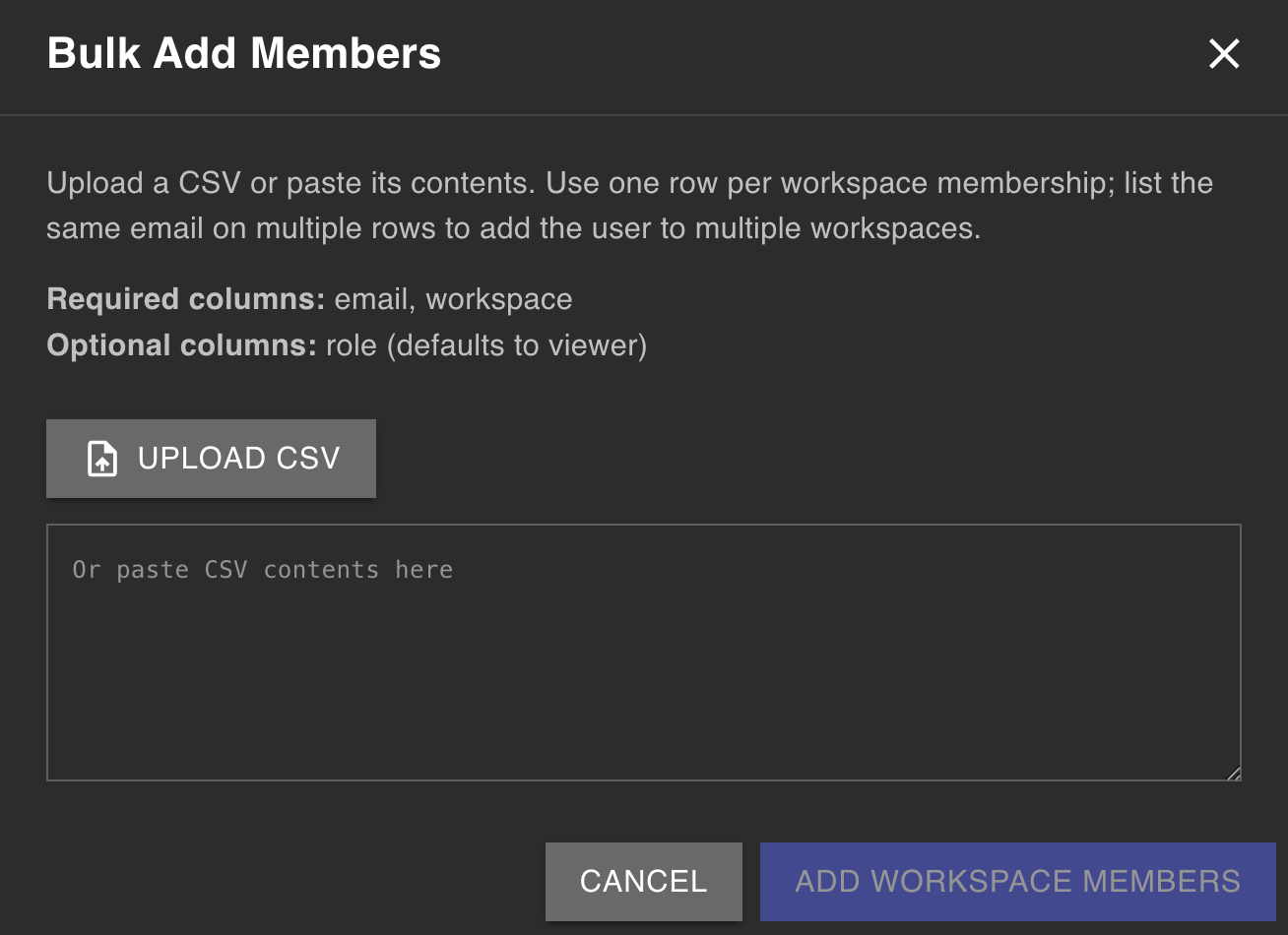
Select the “Bulk Add Members” button in the Members tab to add a list of Members all at once.Input a CSV file that includes the following columns:
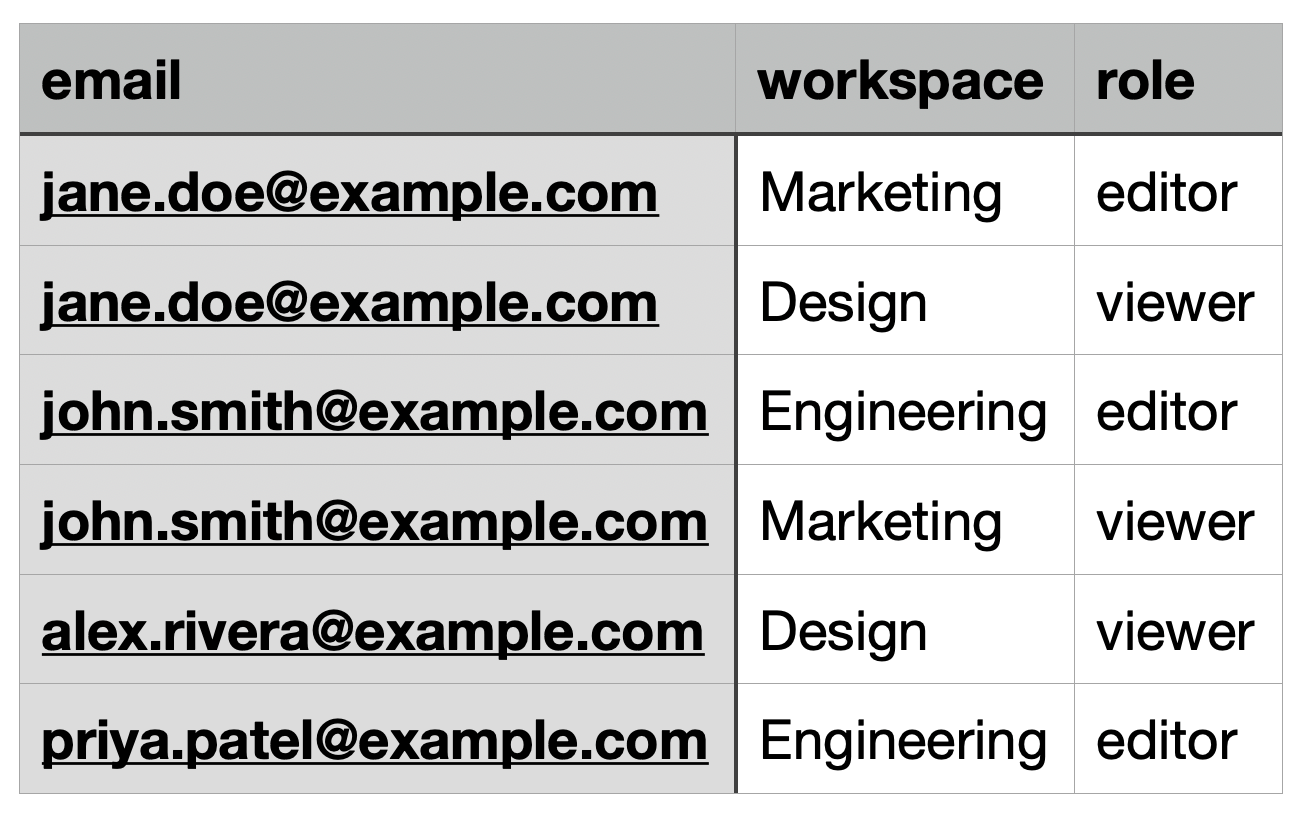
- Required: email, workspace name
- Optional: role (
editor or viewer )
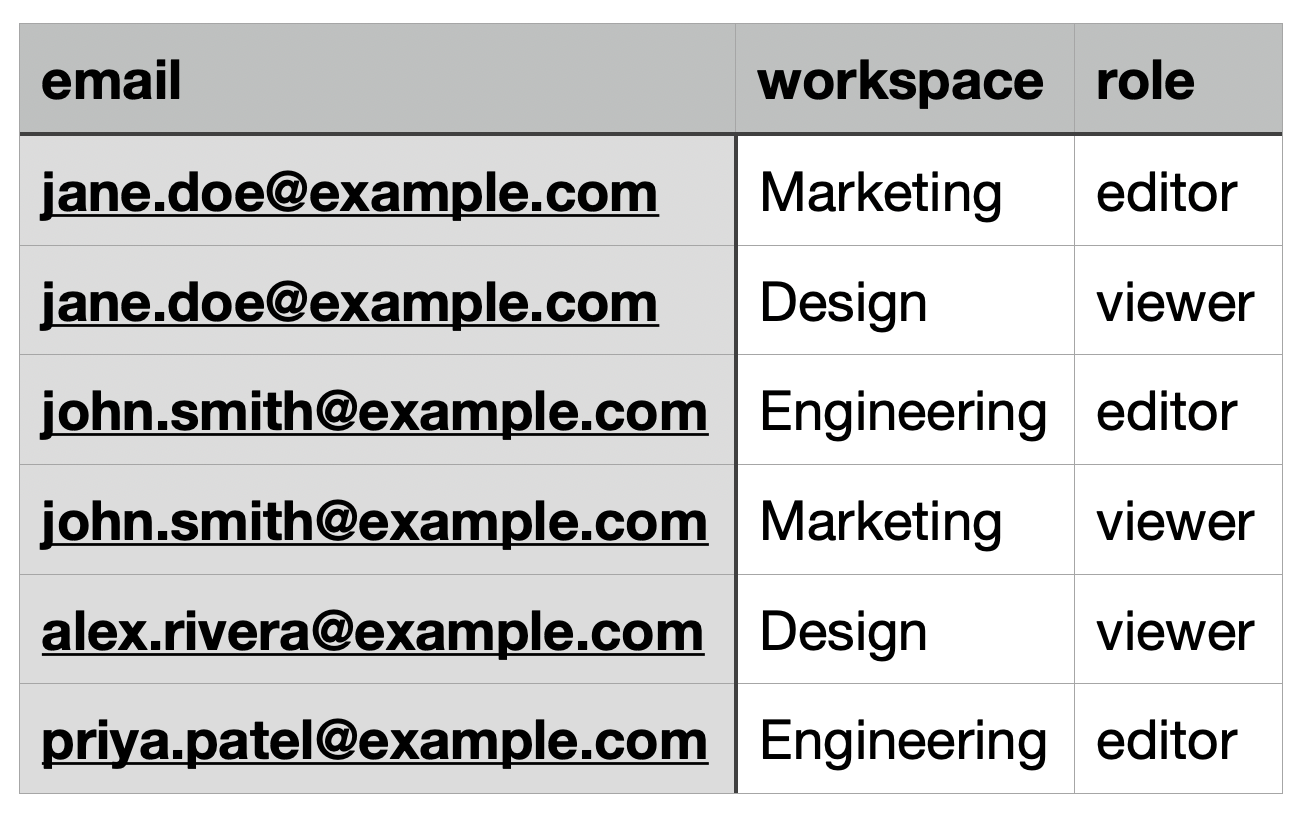
See an example CSV file format below.Select “Add Workspace Members” to complete the workflow, adding all specified users to the designated Workspaces.Adding Voyager Users on GovCloud/On-Prem
Adding users to a Voyager Organization for a GovCloud or On-Prem Organzation follows slightly different steps.
- Select “ADD MEMBER” on the right
- Populate the fields and set the new user as either an Editor or a Viewer, then select the blue “ADD MEMBER” button to create the new user account and generate the temporary password
Be sure to copy this password before navigating away from this page.
- Copy the password by clicking on the yellow text, and send it securely to that team member
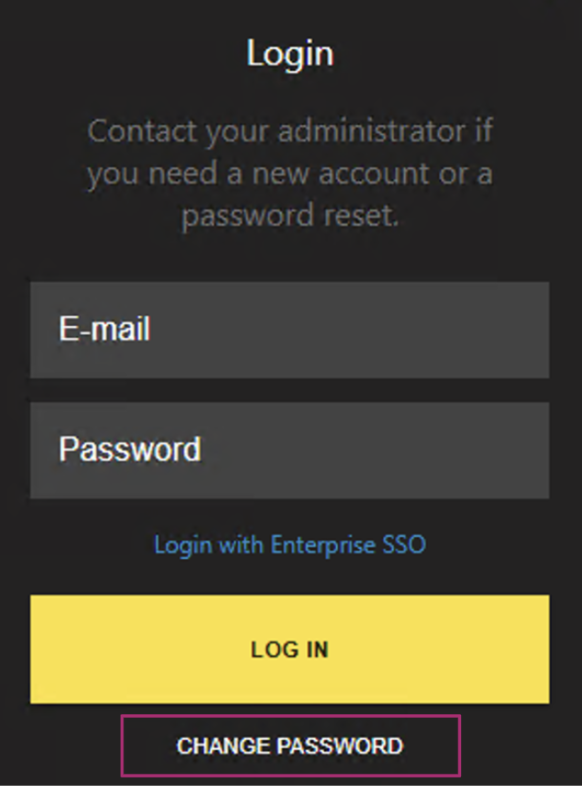
- Have the new user navigate to https://voyager.gov.lumafield.com, and select “CHANGE PASSWORD” at the bottom of the dialog box on the right
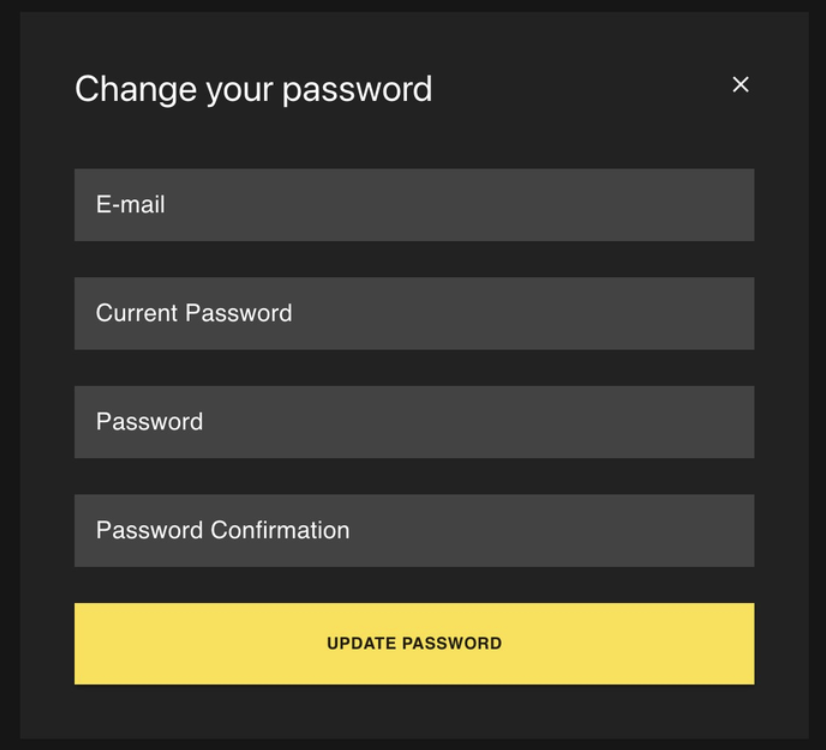
- Have the new user fill in all four fields of the “Change your password” form:
- E-mail: Enter the email address for your account
- Current Password: Enter the temporary password provided by the Organization Manager
- Password: Enter your new desired password.
- Password Confirmation: Re-enter your new password to confirm it.
- Select “UPDATE PASSWORD.”
Congrats! You have added a new team member successfully!Resetting Passwords for Users on GovCloud/On-Prem
Resetting a password for GovCloud or On-Prem configurations of Voyager will require the assistance of an active user with Organization Manager privileges, and can be done through the Members tab of the Manager DashboardThe user with the Organization Manager account, can initiate the reset by finding the user under the members list in need of a password reset, selecting “RESET”, and following the listed directions to reset credentials.Scanner management settings
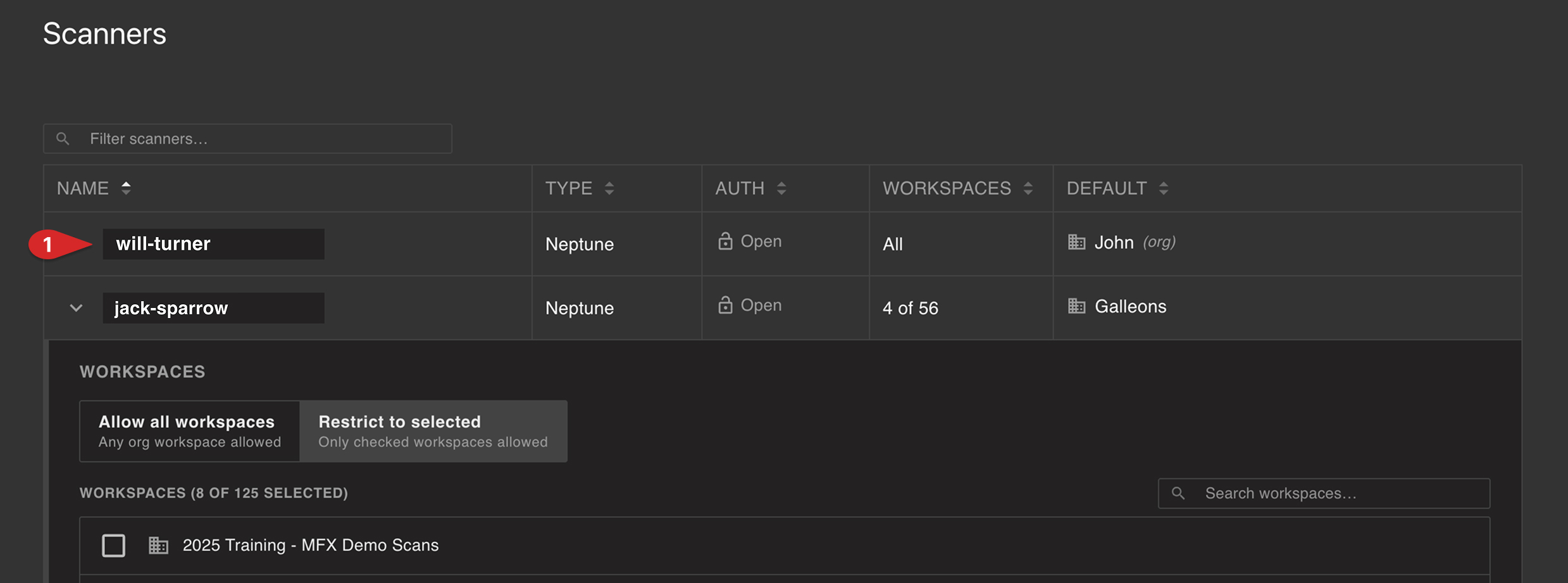
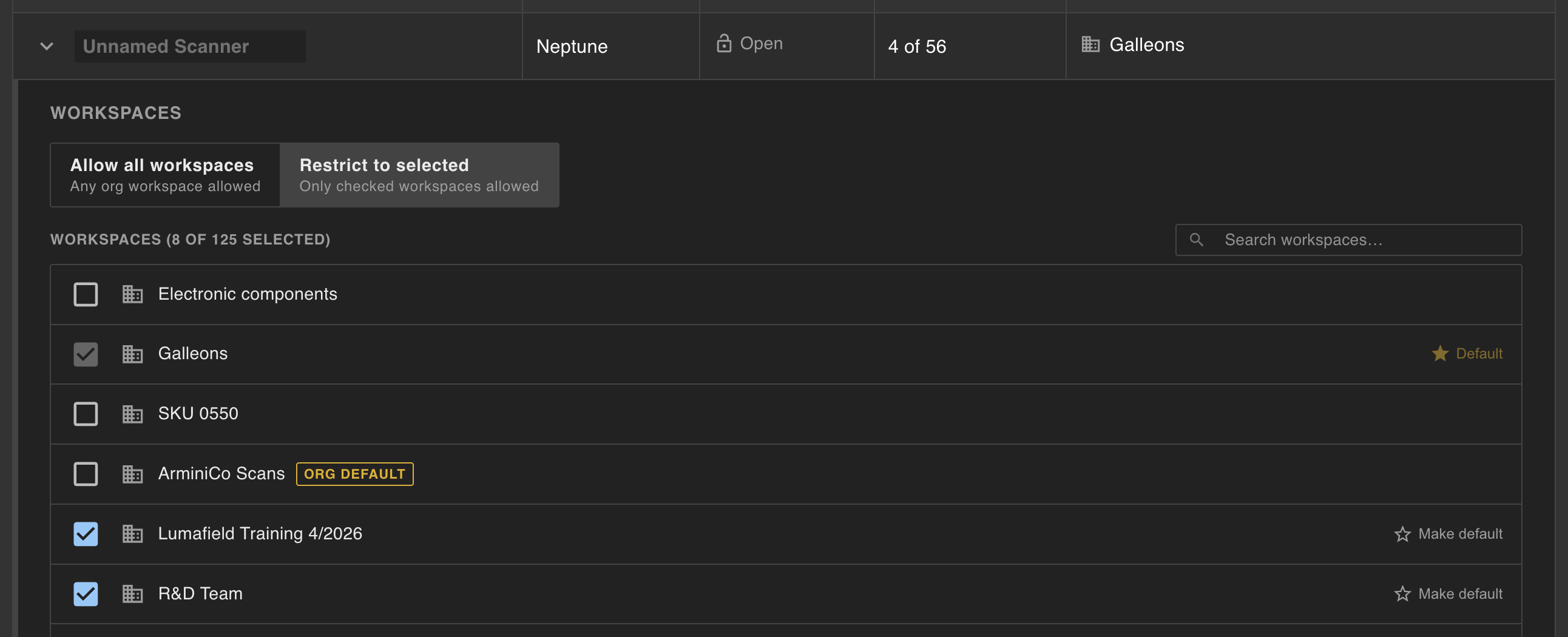
If at least one scanner is part of your Organization, you’ll be able to manage your scanners from the Scanners tab. Scanners that are part of the Managed Organization will appear in a list in the Scanners section.A scanner can be renamed by selecting its name.Scanner Workspace access
Provision which Workspaces a scanner can create Projects into. Allow all Workspaces, or choose manually from a list.The Scanner’s default Workspace cannot be removed from the list of accessible Workspaces.