

Basic Settings
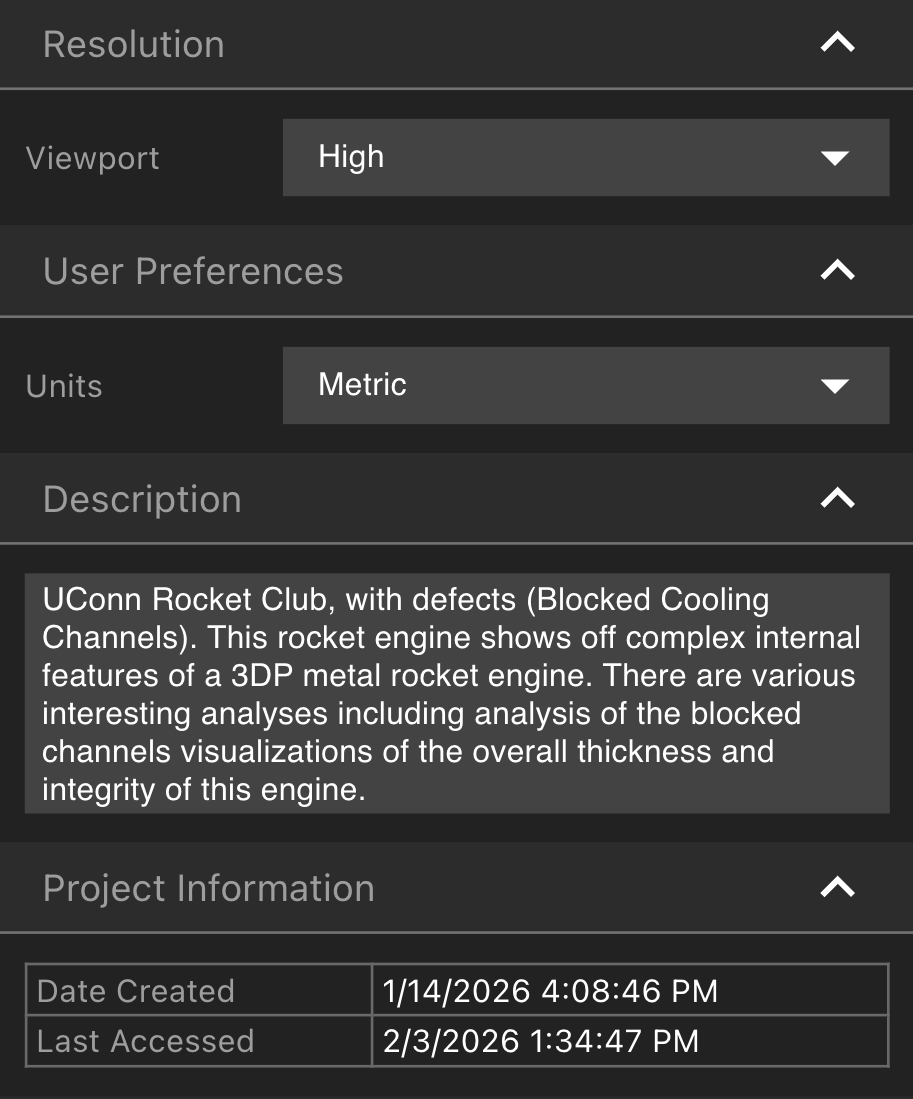
- Modifying the Viewport resolution can help load data more quickly. Select a Resolution within the Resolution Tab.
- Smoothing (Resolution Tab): when on, the volume smooths itself over a few frames after you stop moving the camera. Turn it off for a faster, grainier look. Your choice is remembered across reloads.
- Toggle between Metric and Imperial units within the User Preferences Tab
- Attenuation Values (User Preferences Tab): choose Normalized or LAC. See Attenuation Values.
- Give your Project a description viewable to all collaborators in the Description Tab
- Check when the Project was created and last accessed within the Project Information Tab
Attenuation Values
Attenuation Values switches how Voyager displays intensity. The volume is still stored normalized. The setting only changes the numbers you see.- Normalized maps the volume’s range to 0–1. This is the default.
- LAC shows the linear attenuation coefficient, in 1/mm, by remapping that 0–1 range onto the volume’s physical minimum and maximum.
Thumbnails
With the desired Thumbnail in the Viewport, select Capture to lock in the image as the Project’s Thumbnail. Select Save to download the Thumbnail image.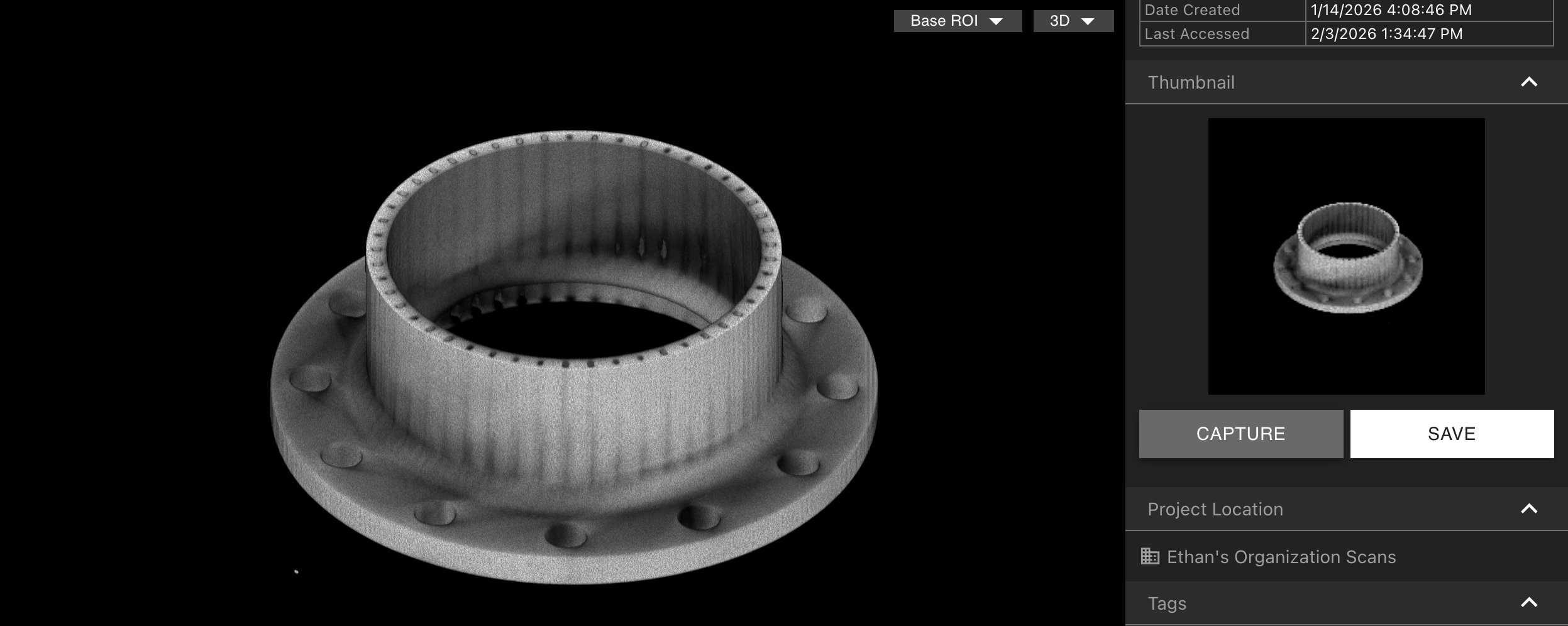
Assigning Tags
Assign a Tag to a Project from within the Tags Tab, by selecting “Assign Tag”. This can also be done from the Project Dashboard for multiple Projects at a time.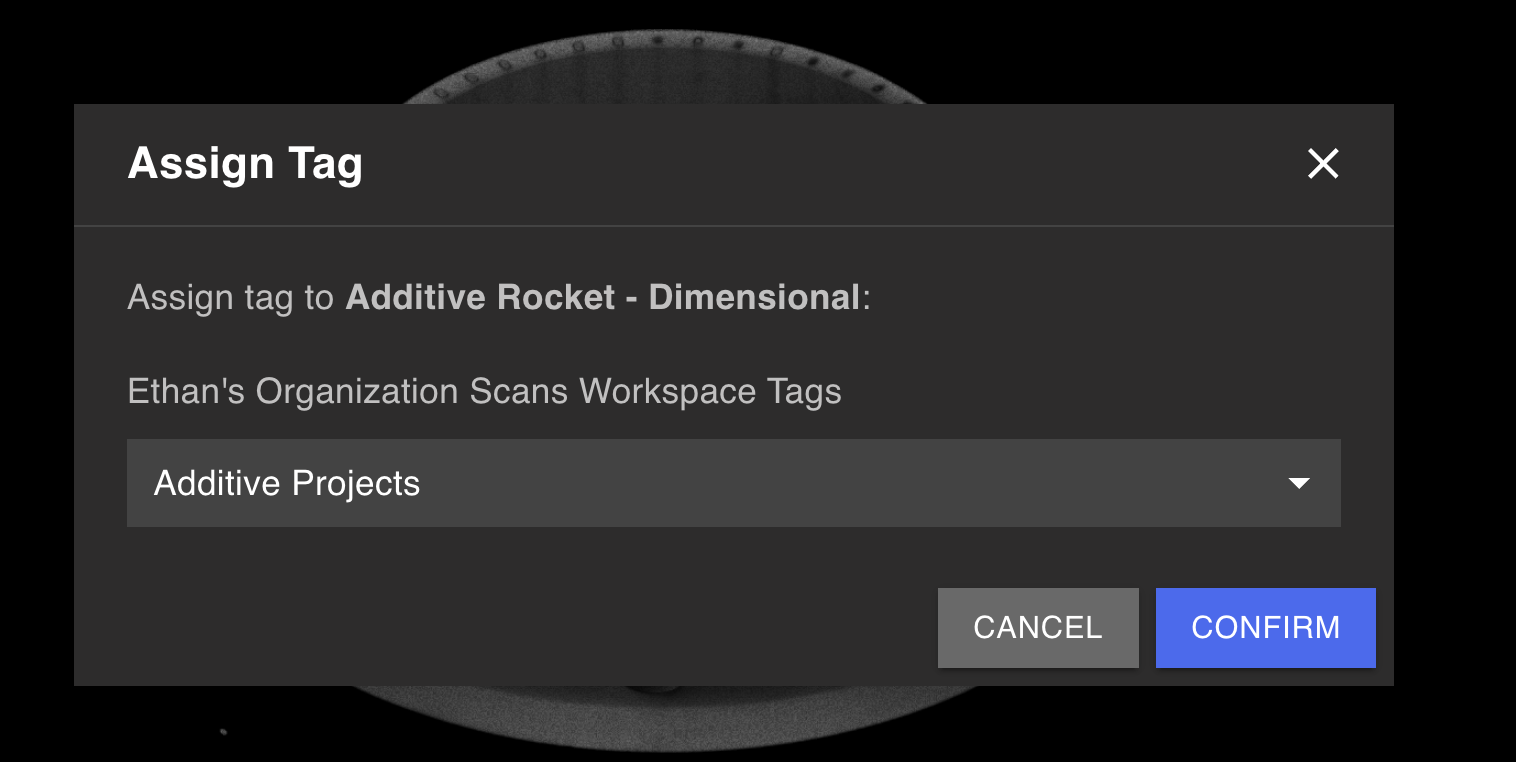
Full-Resolution Exporting
If your Organization has the Full-Resolution Export Analysis Module enabled, you can download full-resolution scan data from within the Export Full Resolution Data Tab.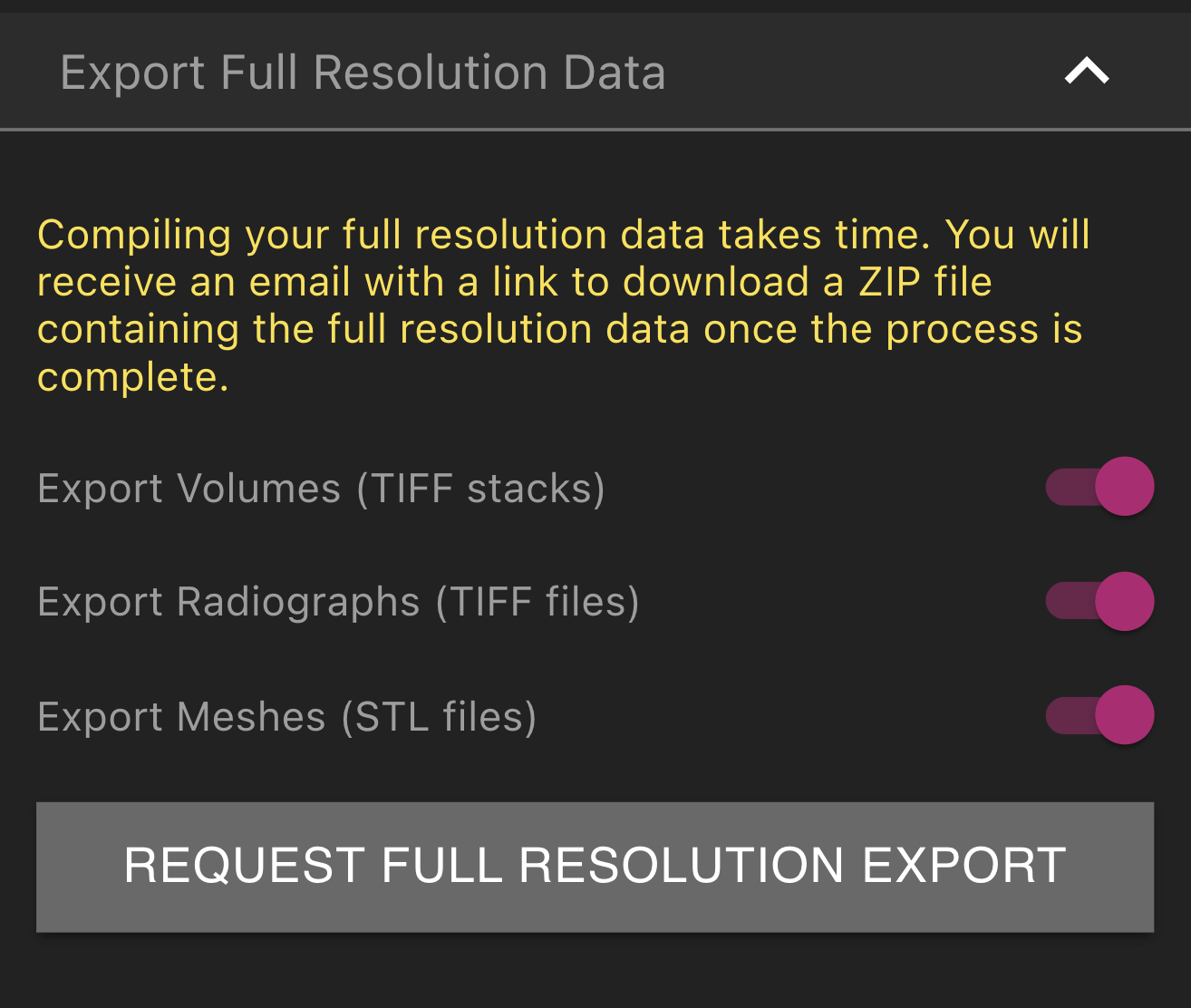 Select which of Volumes, Radiographs, and Meshes to include in the export. After selecting Request Full Resolution Export, “Export Requested” will display. When the export is complete, you will receive an email with a link to download the data in the form of a ZIP file.
A reconstruction stored at half precision is saved as a 16-bit integer stack. The file is about half the size of the previous exact export, and the values are slightly rounded. That matters if you import the stack into Volume Graphics. The exact 32-bit float format is still available on the export request. Reconstructions that were already 32-bit float, and volumes that were already integers, are written as they are.
Select which of Volumes, Radiographs, and Meshes to include in the export. After selecting Request Full Resolution Export, “Export Requested” will display. When the export is complete, you will receive an email with a link to download the data in the form of a ZIP file.
A reconstruction stored at half precision is saved as a 16-bit integer stack. The file is about half the size of the previous exact export, and the values are slightly rounded. That matters if you import the stack into Volume Graphics. The exact 32-bit float format is still available on the export request. Reconstructions that were already 32-bit float, and volumes that were already integers, are written as they are.