Viewport
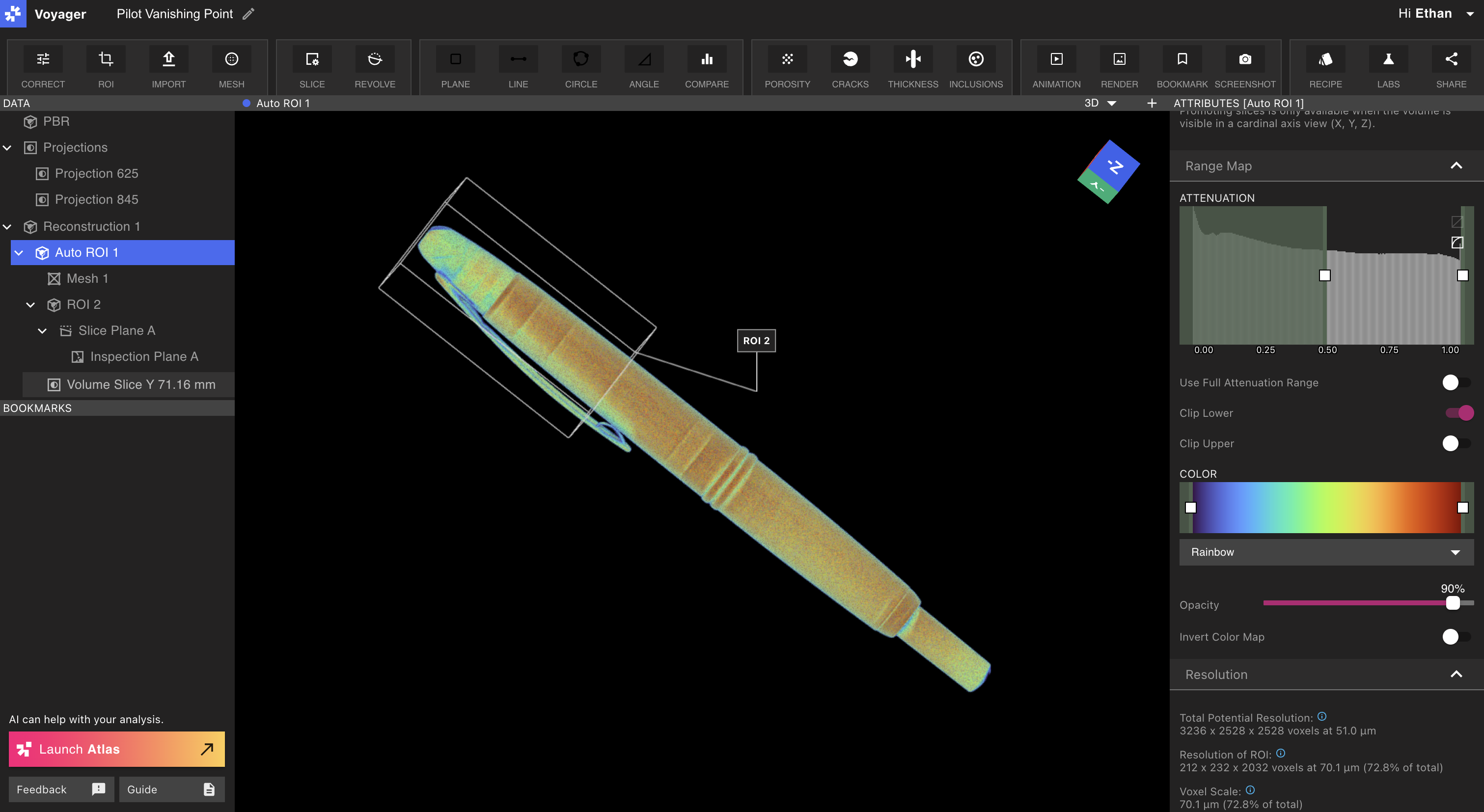
The Viewport occupies the majority of the Project Editor and displays selected scan data.Viewport layouts
The central panel of Voyager can be configured to display either a single Viewport or two split Viewports. By default, Voyager’s central panel displays a single Viewport. Single Viewport: Use a single Viewport to view one data object at large dimensions on your screen. Change the current object by selecting a data object from the Data Panel. Split Viewport: Open a second Viewport to view two data objects, or different views of the same data object, side-by-side. Select the ”+” icon at the top-right of the Viewport to toggle from single Viewport into the split Viewport layout.Viewport focus (new!)
In the split Viewport layout, a single Viewport remains focused at a time, as indicated by a highlighted bar at the top of the Viewport (“Mesh 1” in the below image). The Attributes Panel, on the right side of Voyager, displays the attributes of the focused Viewport.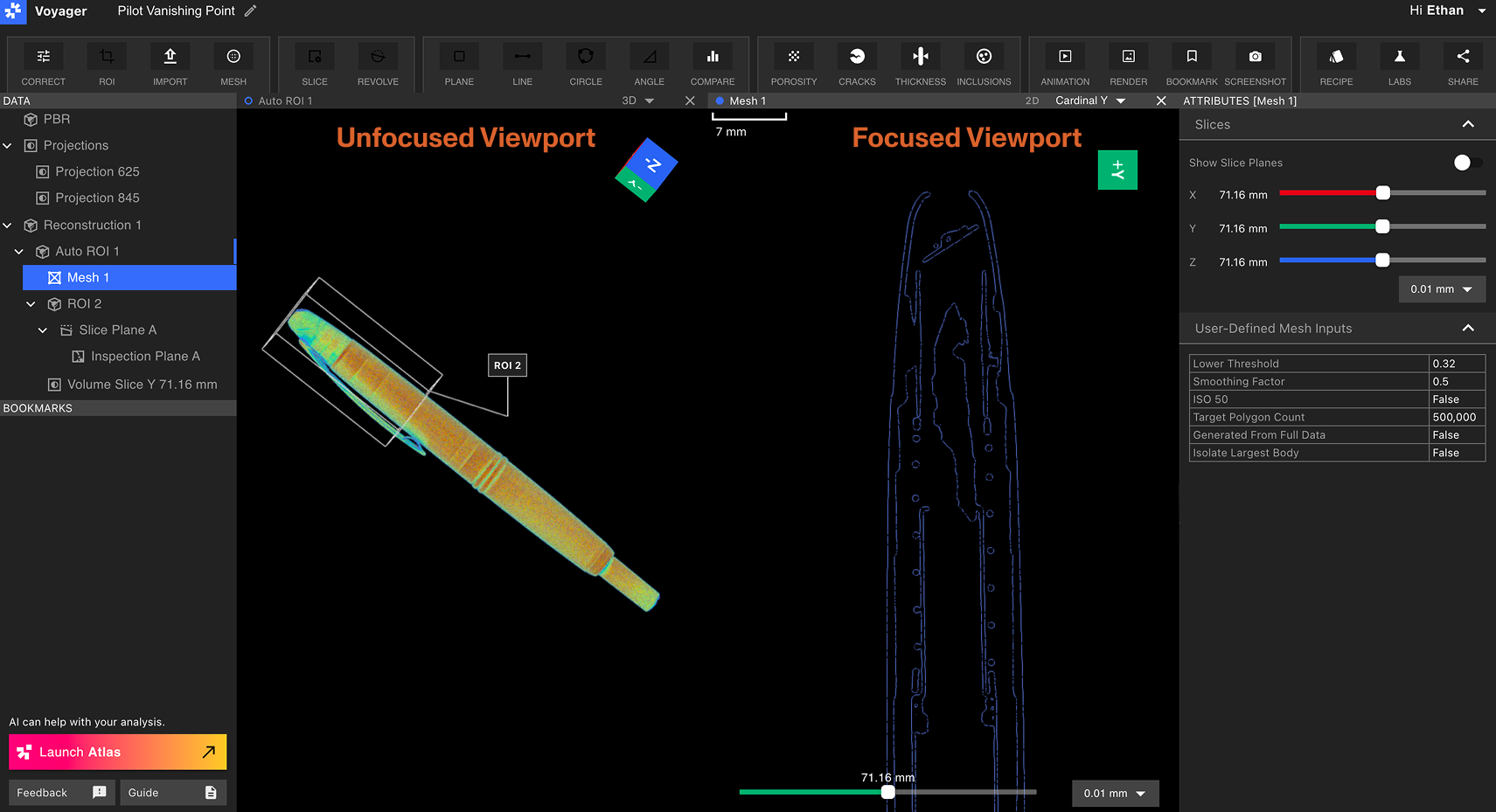 Choose a Viewport to focus by selecting anywhere within that Viewport. The data object represented by the focused Viewport (“Mesh 1” in the above image) will be highlighted in blue in the Data Panel, while the data object in the unfocused Viewport (“Auto ROI 1” in the above image) displays a small blue marker in the Data Panel.
To exit the split Viewport layout, select the “X” icon at the top-right of either open Viewport to close it and return to single Viewport layout.
Choose a Viewport to focus by selecting anywhere within that Viewport. The data object represented by the focused Viewport (“Mesh 1” in the above image) will be highlighted in blue in the Data Panel, while the data object in the unfocused Viewport (“Auto ROI 1” in the above image) displays a small blue marker in the Data Panel.
To exit the split Viewport layout, select the “X” icon at the top-right of either open Viewport to close it and return to single Viewport layout.
2D and 3D views
When a Reconstruction, ROI, Slice Plane, Mesh, or Analysis Results Data Object is selected, switch among the X, Y, Z, and 3D views using the buttons in the Viewport header. The cardinal buttons are colored to match the Viewcube axes: X red, Y green, and Z blue. Custom and Revolving Slice Planes are not listed in the header. Open them from the Data Panel, or use the Go to control next to the custom plane slider in the Attributes Panel.2D views
In 2D views, users can pan, scrub and zoom. 2D views include the default X, Y, and Z cardinal axes, along with any Slice Planes created within the Project. Stack Aggregation can collapse a slab of slices into a single 2D view. A floating toolbar in the bottom-right corner arms the Intensity probe and Line profile when the view is large enough to hold it. Click and drag within the Viewport to pan. Use mouse or trackpad controls to zoom in and out. Use the slider below the Viewport to scrub through slices of a 2D view. The adjacent dropdown changes the slice precision, and the scale bar at the top-left represents the scale of the data in view. Nudging a slice slider with the arrow keys also shows the slice planes in the 3D Viewport.
3D views
In 3D views, users can rotate, pan and zoom. Rotate by clicking and dragging within the Viewport, pan by using right click + drag within the Viewport, and use mouse or trackpad controls to zoom in and out.Viewcube
When clicking-and-dragging in the Viewport to orbit the part, the Viewcube orbits to match the part’s current orientation. The Viewcube also includes controls to choose a desired orientation of your part with precision.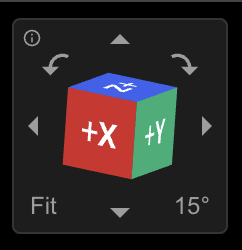 Cardinal arrows: orbit the Viewport in the selected direction by the amount specified at the bottom-right corner of the Viewcube.
Left/right curved arrows: roll the Viewport in the selected direction by the amount specified at the bottom-right corner of the Viewcube.
The orbit and roll buttons are available at any camera angle.
Degree scale (bottom right): toggle the sensitivity of the orbit and roll actions.
Fit (bottom left): scale the data in the Viewport so that the part fits fully within view.
Help (top left): mouse over the “i” icon to view the Viewcube’s keyboard shortcuts.
Cardinal arrows: orbit the Viewport in the selected direction by the amount specified at the bottom-right corner of the Viewcube.
Left/right curved arrows: roll the Viewport in the selected direction by the amount specified at the bottom-right corner of the Viewcube.
The orbit and roll buttons are available at any camera angle.
Degree scale (bottom right): toggle the sensitivity of the orbit and roll actions.
Fit (bottom left): scale the data in the Viewport so that the part fits fully within view.
Help (top left): mouse over the “i” icon to view the Viewcube’s keyboard shortcuts.
Data Panel
The Data Panel appears on the left side of the Project Editor below the label “Data”. Each item in the Data Panel represents a data object, which can be one of the following: Projections, Reconstruction, ROI, Plane, or Analysis Results. Learn more about data objects on the Data Objects + Workflows article.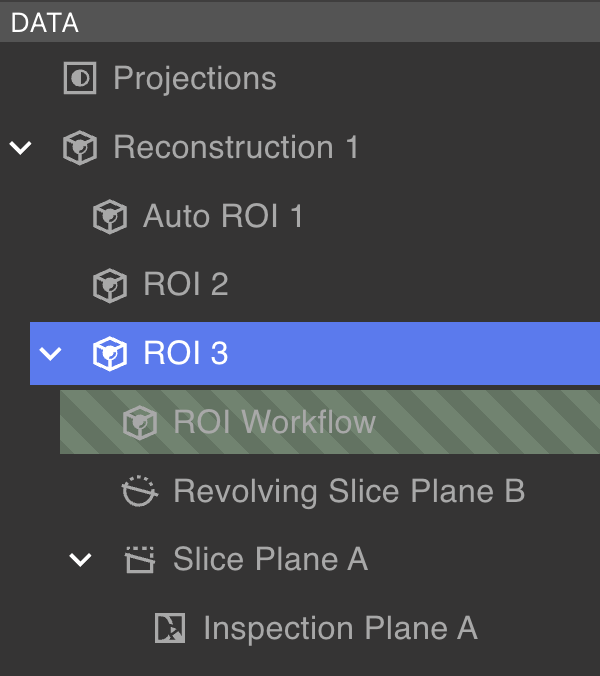 Data objects are arranged within the Data Panel in a tree structure in which some data objects contain child data objects. Use the caret next to a parent data object to expand or collapse its children. Selecting a data object displays its data in the Viewport.
Data objects highlighted with green stripes are in-progress data objects, indicating that a Workflow is underway. Once the Workflow is submitted but has not yet completed, the processing data object will not appear in the Data Panel.
Data objects are arranged within the Data Panel in a tree structure in which some data objects contain child data objects. Use the caret next to a parent data object to expand or collapse its children. Selecting a data object displays its data in the Viewport.
Data objects highlighted with green stripes are in-progress data objects, indicating that a Workflow is underway. Once the Workflow is submitted but has not yet completed, the processing data object will not appear in the Data Panel.
Data Panel controls
Right-click a data object to delete or rename it.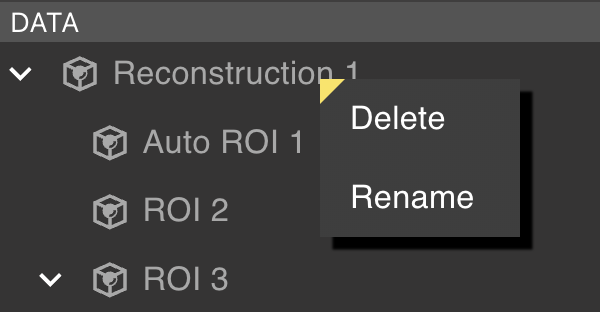
Data objects with children cannot be deleted. Delete all child data objects before deleting the parent.
Bookmarks Panel
The Bookmarks Panel is located below the Data Panel. It contains Bookmarks, Renders, and Animations. Right-click any item to delete, rename, or copy a link to a Bookmark Object. A collaborator must have Project access to view a shared Bookmark link.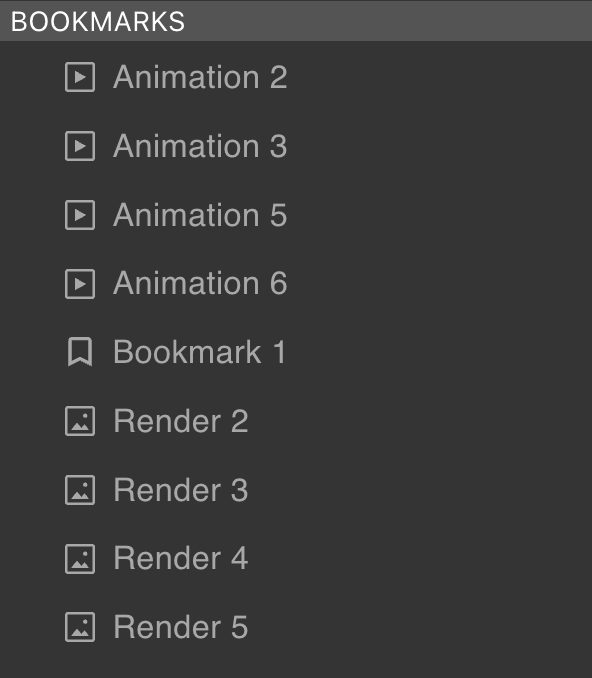
Toolbar
The Toolbar appears at the top of the Project Editor. Tools available for the selected data object are highlighted; unavailable Tools appear greyed out as some Tools function only on specific data object types. Selecting a Tool may do one of the following:
- Create a new data object
- Create a new Bookmark object
- Display new attributes in the Attributes Panel
- Open a Workflow Editor
Attributes Panel
The Attributes Panel on the right side of the Project Editor displays attributes and visualization settings for the selected data object. Available attributes vary by data object type.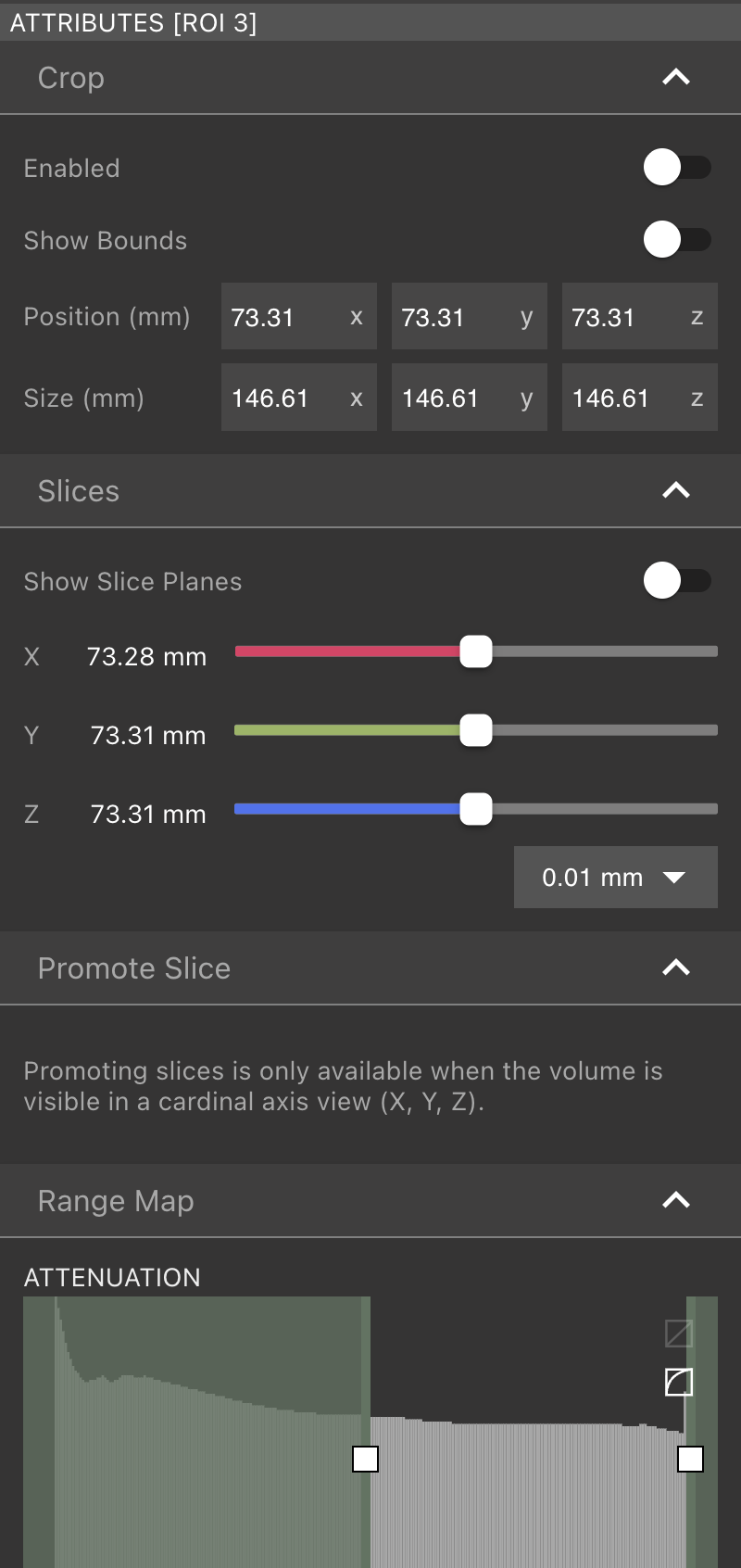 Additional details on Attributes are available on the Data Objects + Workflows page.
Workflow Editor
When the ROI, Porosity, Cracks, Thickness, or Inclusions Tool is selected, the Workflow Editor replaces the Attributes Panel on the right side of the Project Editor. Users can switch between active Workflows without losing progress.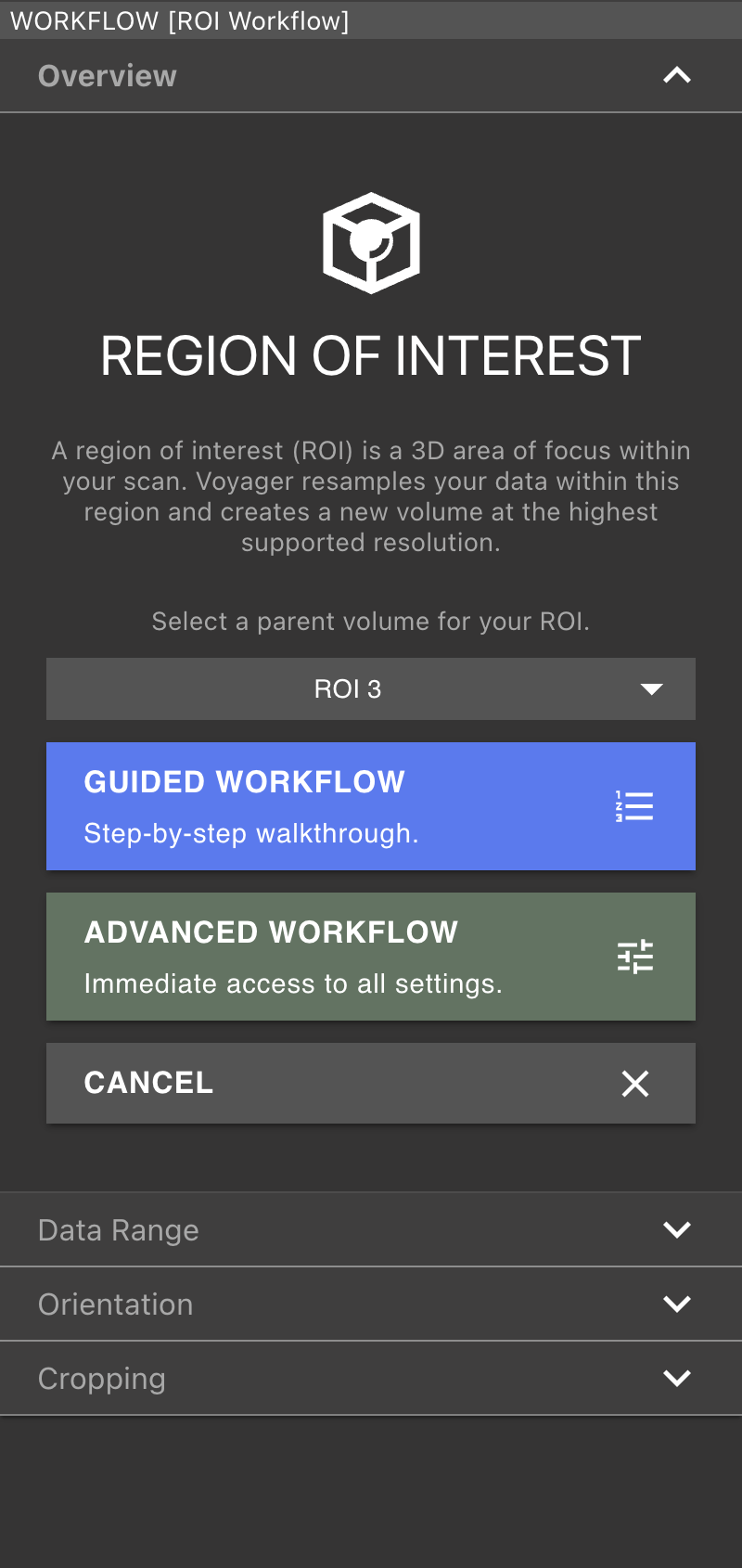
Navigation Bar
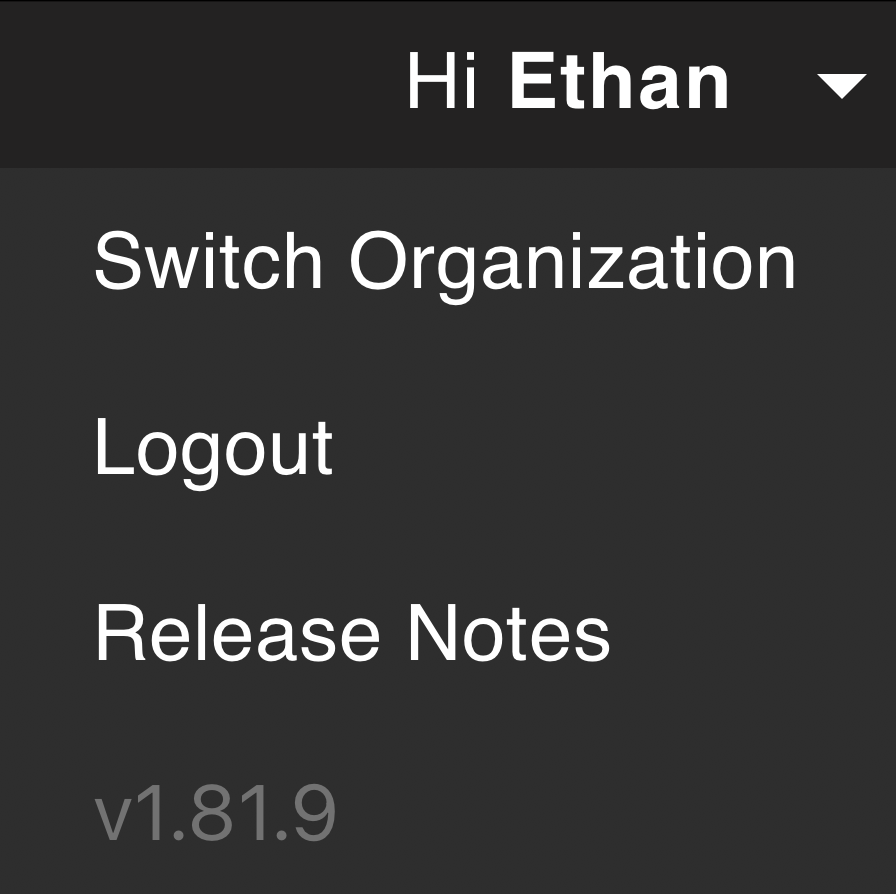
At the top-left the Project Editor, tools are available to rename the Project and navigate back to the Project Dashboard. Select the menu at the top-right of the Project Editor to Switch to another Organization (if you are part of multiple Organizations), logout, open the Voyager Release Notes, and view Voyager’s current version number.
Help Panel
The bottom-left corner of the Project Editor contains controls to launch Atlas, Voyager’s AI assistant; send feedback; and open support documentation.