

+0/−0.1), or Limit (a minimum and a maximum). Leader and label placement can be changed after the measurement exists. The number does not change.
The tools are in Dimensioning Mode once a feature set exists. Features authored by hand are measured the same way as extracted ones. A distance or an angle between two planes does not require the volume to be rotated onto a drawing. Rotate an ROI when you need the part’s own axes before you pick the features.
Distance
The Distance Tool measures between two extracted or authored features. The supported feature pairs and methods today are:- Plane to Plane — Center to Center, Max Perpendicular, Min Perpendicular, Mid Perpendicular
- Plane to Cylinder — Center to Center, Centroid
- Cylinder to Cylinder — Center to Center, Centroid
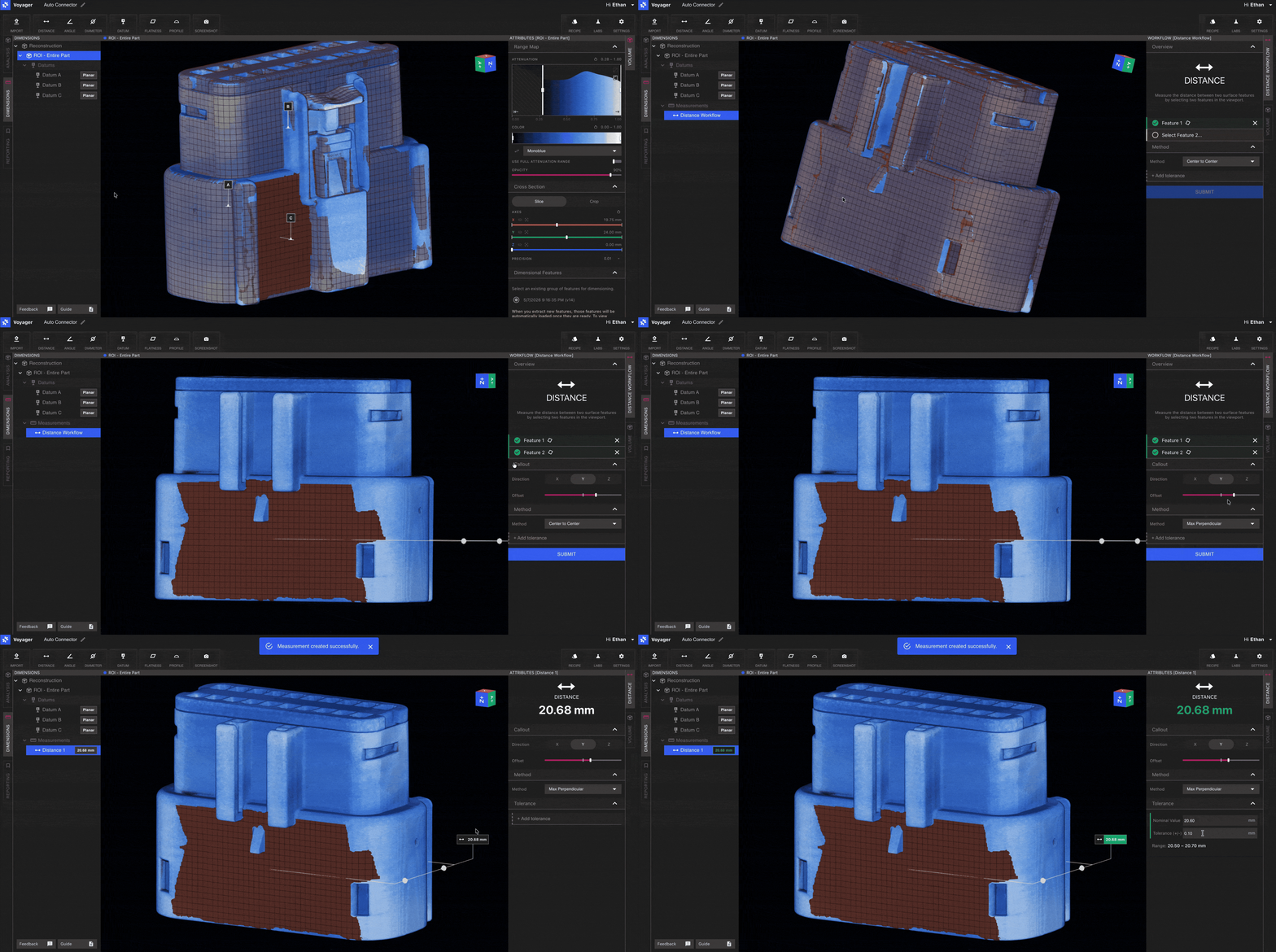
Workflow
1
Select the Distance Tool
Choose Distance from the Toolbar in Dimensioning Mode.
2
Pick two features
Click the first feature in the Viewport, then click the second. Eligible features highlight on hover so you know which surfaces are available.
3
Choose method and tolerance
Pick a method from the dropdown in the Workflow Editor (the available methods depend on the feature pair you selected) and enter a tolerance.
4
Submit
Submit to compute the dimension. The result is added to the scene with a leader line and a tolerance-aware color code.
The supported method matrix is actively being extended. Reach out to Lumafield to share dimensional requirements that aren’t yet covered.
Angle
The Angle Tool measures the angle between two features. Supported pairs:- Plane to Plane
- Plane to Cylinder
- Cylinder to Cylinder
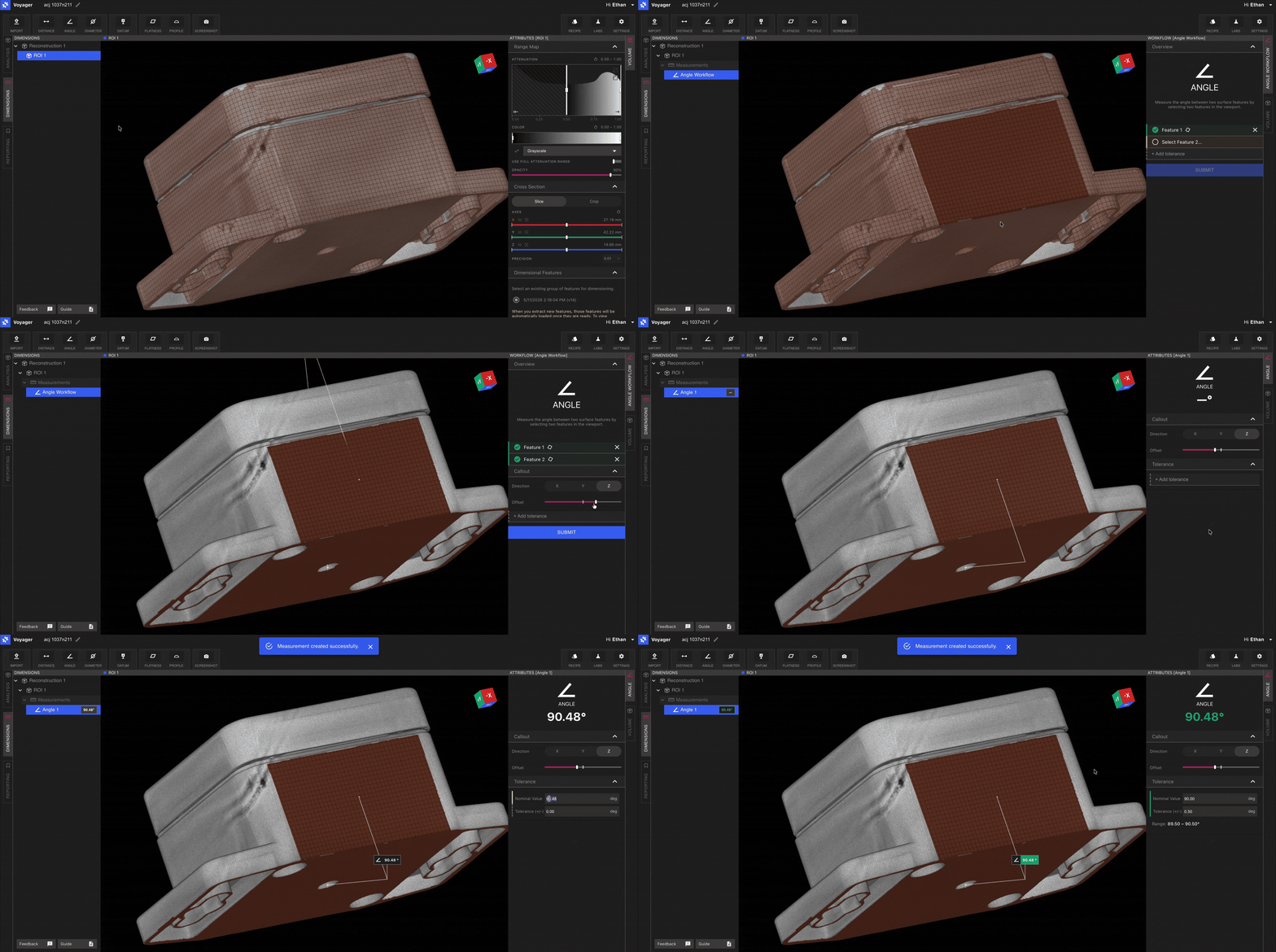
Workflow
1
Select the Angle Tool
Choose Angle from the Toolbar.
2
Pick two features
Select the two features whose included angle you want to evaluate.
3
Add tolerance and submit
Enter the tolerance and submit. The angle and pass/fail state appear in the dimension label.
Diameter
The Diameter Tool measures the diameter of any extracted or authored cylinder. This is the simplest of the Direct Dimensions Tools — point and select.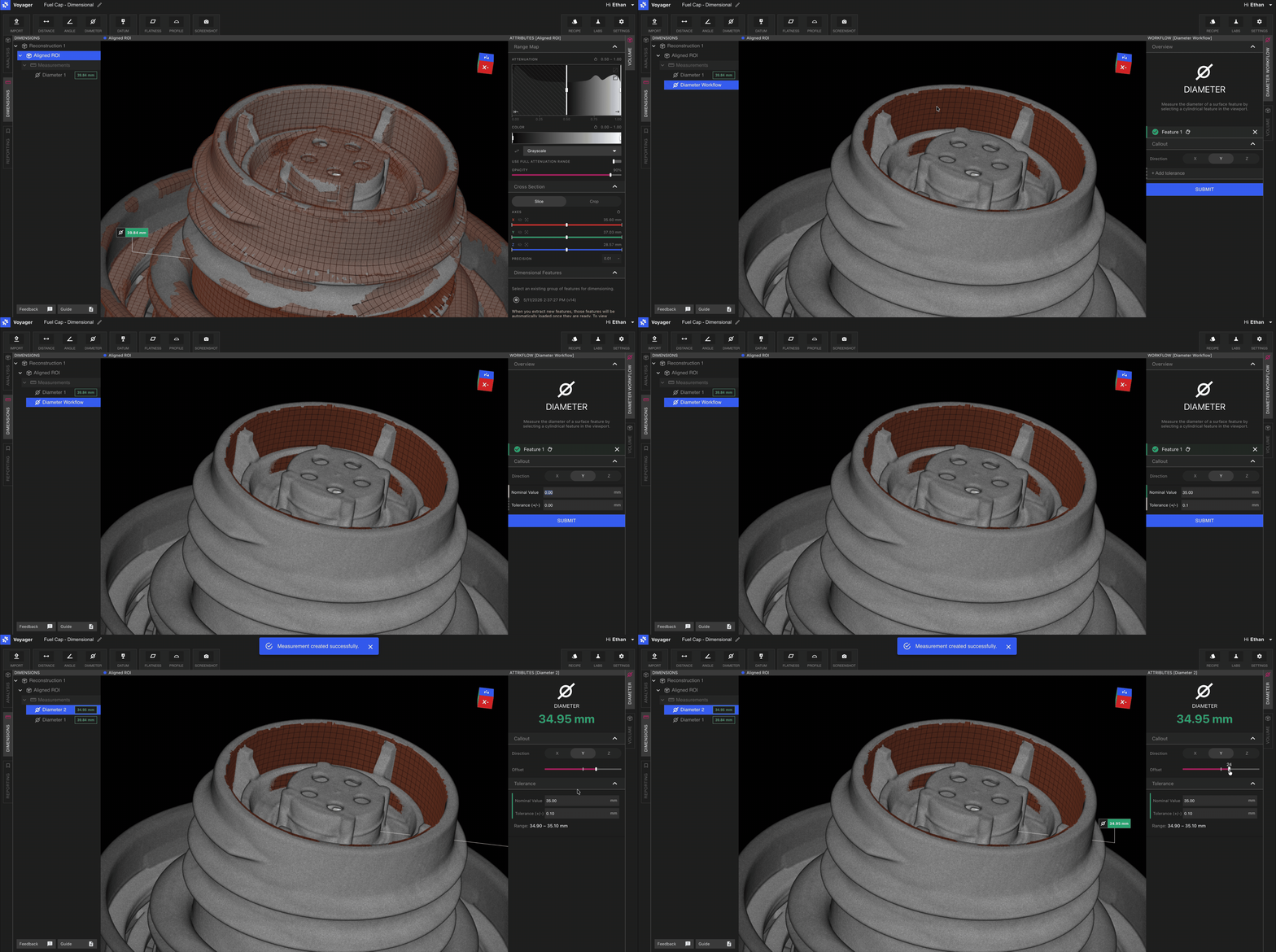
Workflow
1
Select the Diameter Tool
Choose Diameter from the Toolbar.
2
Pick a cylinder
Click an extracted or authored cylindrical feature.
3
Add tolerance and submit
Enter the tolerance and submit.
Tolerance and pass/fail color coding
Every Direct Dimension supports a tolerance. Choose Symmetric, Unilateral, or Limit in the panel. Unilateral takes Upper (+) and Lower (−). Limit takes Min and Max. When a tolerance is set:- The dimension label is green when the measurement is within tolerance.
- The dimension label is red when the measurement is out of tolerance.