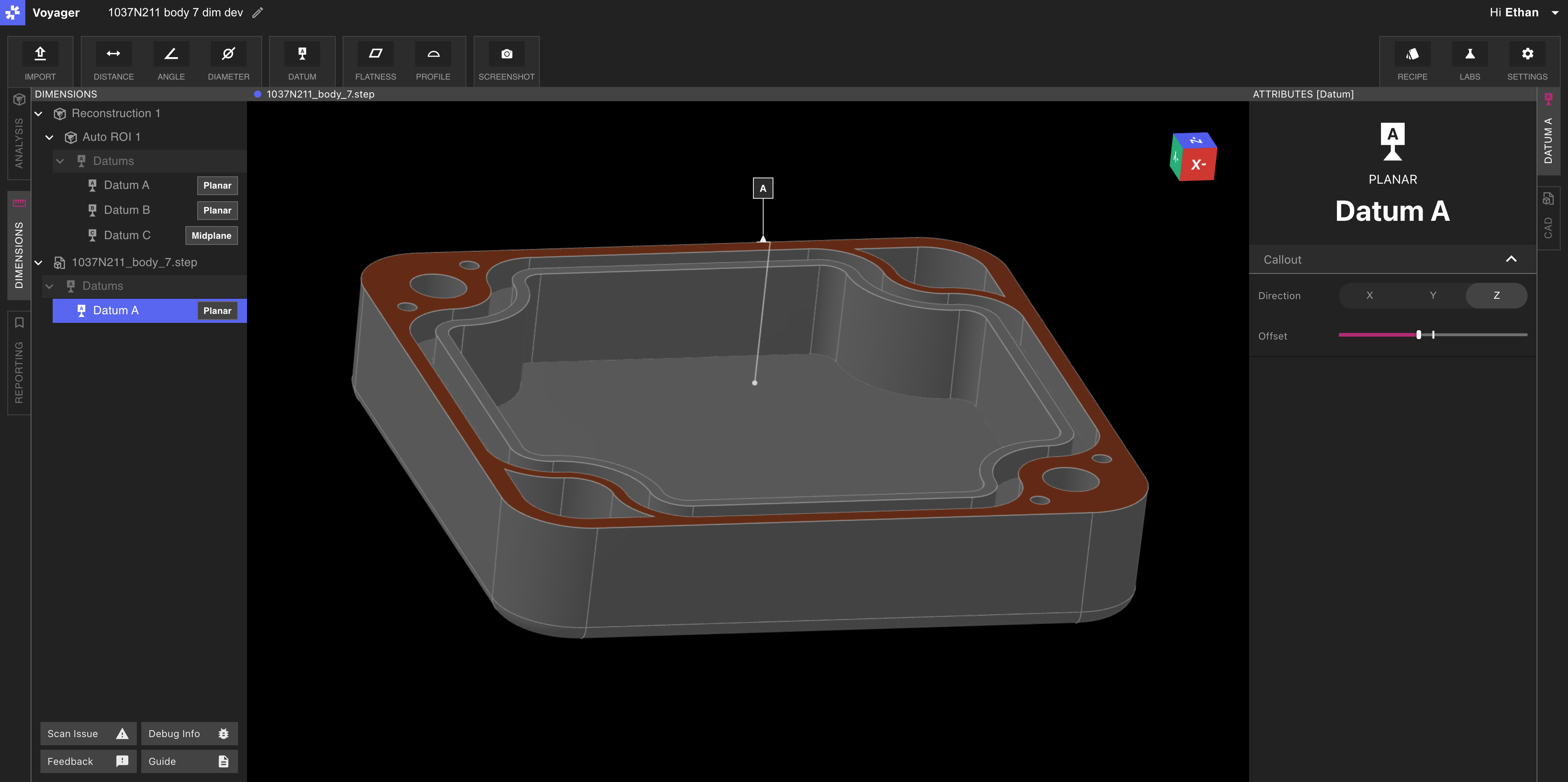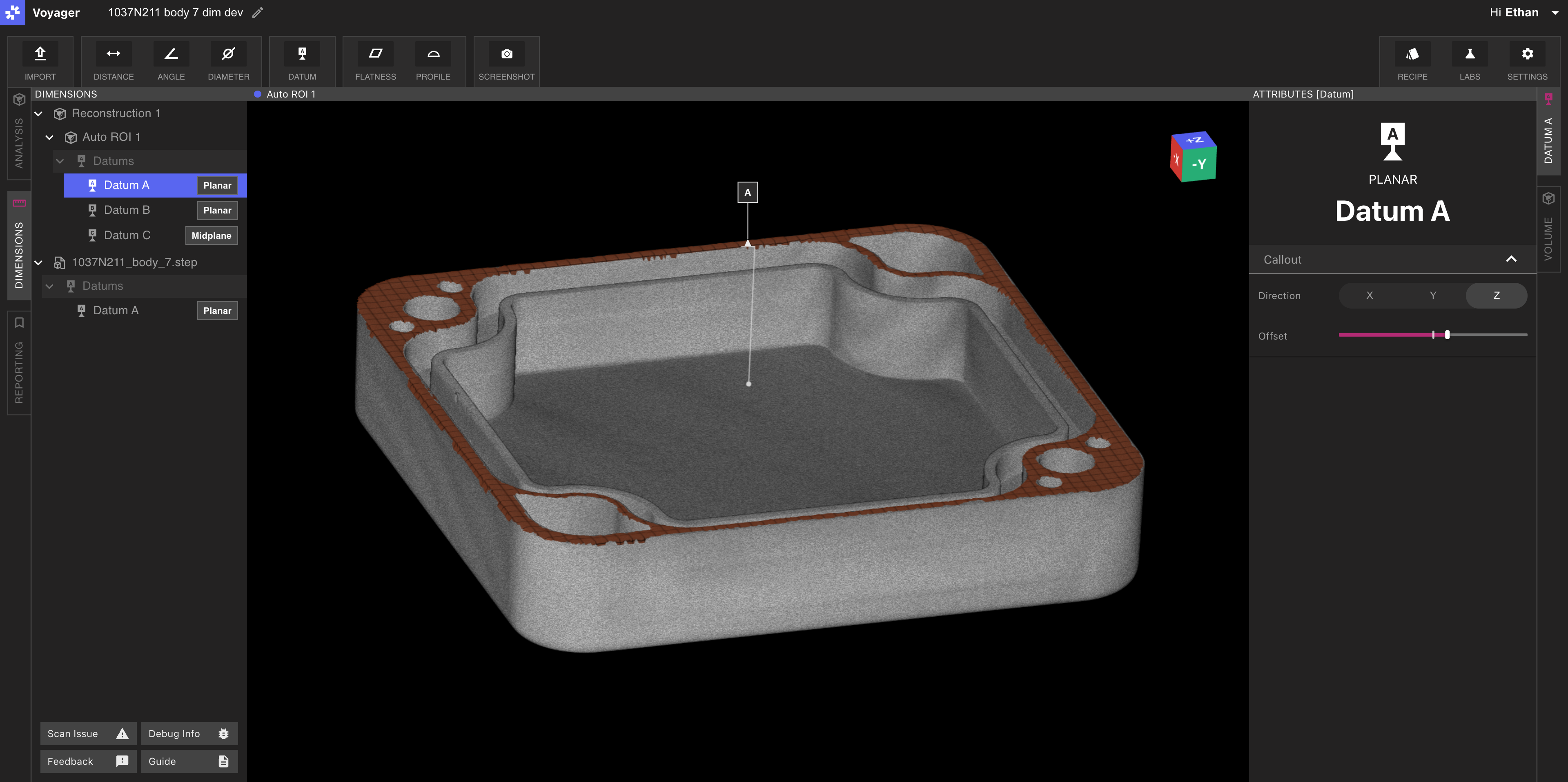
Datum types
- Plane — one or more plane features. Several faces can belong to one plane datum. Hold the modifier key the panel names to add another face.
- Axis — one cylinder. The datum is the axis of that cylinder.
- Midplane — the plane halfway between two plane features.
How a plane datum sits on the part
A new plane datum uses a tangent fit. The datum plane rests on the high points of the surface. That is the contacting simulator ASME Y14.5 and ISO 5459 describe, and it is the default for every new plane datum. A plane datum can also be:- GG — least squares, the average of the surface
- GC — the minimum zone, the middle of the narrowest pair of parallel planes that contain the surface
Defining a datum
1
Select Datum
Choose Datum from the Toolbar in Dimensioning Mode, or right-click a feature and choose the datum action for its kind.
2
Choose where it is built
Select the feature set, or a CAD model that has finished processing.
3
Choose the type and the features
Pick Plane, Axis, or Midplane, then click the feature or features. Eligible features highlight on hover.
4
Label and submit
Assign a label such as
A, B, or C. The label is stored in capitals. Submit to add the datum to the feature set.