

.STEP file as the nominal CAD body for your scanned part. Profile and Position measure the scan against that body. Datums and Frames can be built on its faces the same way they are built on the scan. Alignment places the scan on the body so those datums can be copied across.
The CAD picker in Profile, Position, and Alignment lists every STEP file in the Project and only lets you select one that has finished processing. A file that is still processing, or that failed, is shown with that status and cannot be chosen.
This page covers the Dimensioning Mode workflow for nominal CAD import. For the broader Import Tool — including
.STL Mesh import in Analysis Mode — see the main Import Tool article.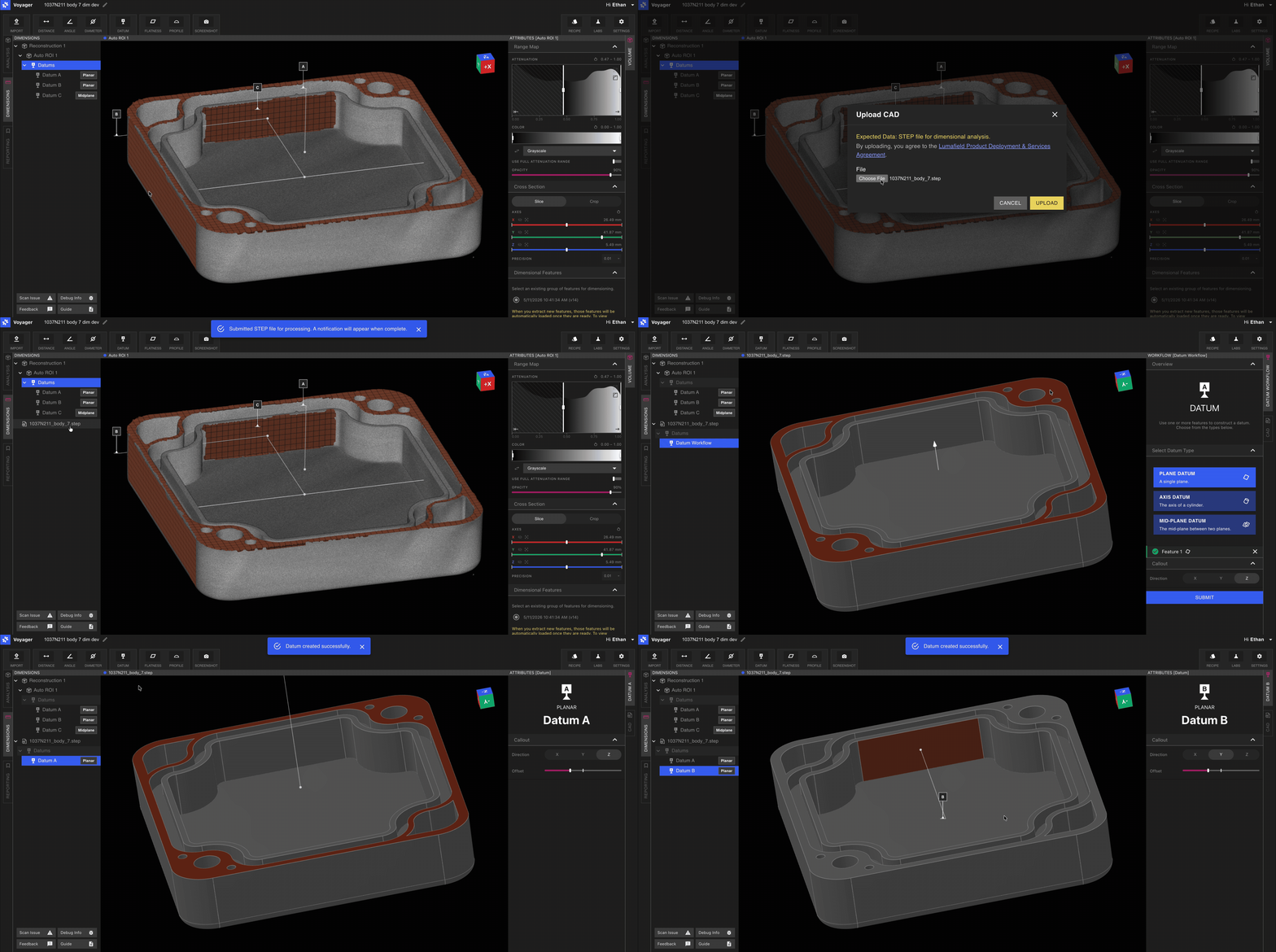
Why a separate workflow
Nominal CAD import is the only point in 3D Auto-Dimensioning where data enters Voyager from outside the scanner. The CAD body provides:- The exact nominal geometry that Profile compares against your scan.
- A surface on which you can build a CAD-side Datum Reference Frame that mirrors the DRF defined on the scanned part.
Workflow
1
Switch to Dimensioning Mode
Select the Dimensioning tab from the Mode tabs on the left-hand side of Voyager.
2
Open the Import Tool
Select the Import Tool from the Toolbar. In Dimensioning Mode the Import Tool accepts
.STEP files.3
Upload your .STEP file
Choose the STEP file representing the nominal part. The imported body appears in the Data Panel as a new Data Object.
4
Wait until processing finishes
Profile, Position, and Alignment cannot use the CAD until its status is ready. Leave the Project and come back if the import is still marked processing.
5
File guidance
A few practical tips for clean STEP imports:- Single body per file. If your CAD model contains assemblies or fixtures, export only the part to be evaluated.
- Native units preserved. STEP files declare their own units; Voyager respects them. There is no scale field to set, unlike the
.STLflow in Analysis Mode. - Geometry, not tessellation. STEP is exact geometry, so polygon count is not a concern — unlike the
.STLflow used by the Compare Tool, where polygon density affects accuracy.
Related pages
- Import Tool — main article covering both
.STLand.STEPworkflows - Voyager Modes
- 3D Auto-Dimensioning
- Datum Definition
- Alignment
- Profile
- Position
- Voyager 2.0 Release Notes and Monthly Highlights