Home
After you sign in, Home is where you land. From Home you open Projects, Scanner Status, Scanners, Team, Organization Settings, and Studies. Sign-in is the Voyager login. If your Organization uses Enterprise SSO, that button is still on the login page. See Joining an Organization.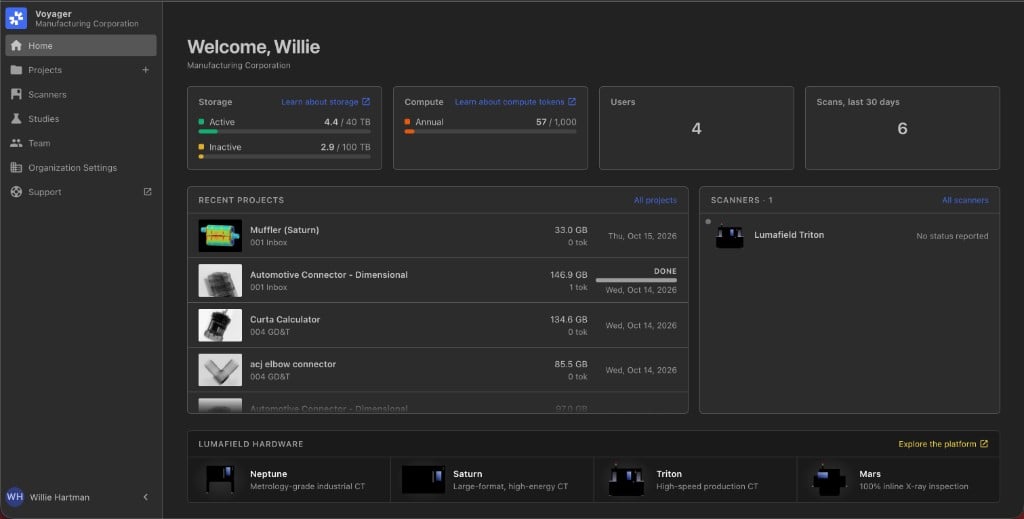
Projects
Projects is the list of CT Projects in your Organization. Search, Tags, Recipe status, and bulk actions work as they did on the Project Dashboard. See Project Dashboard.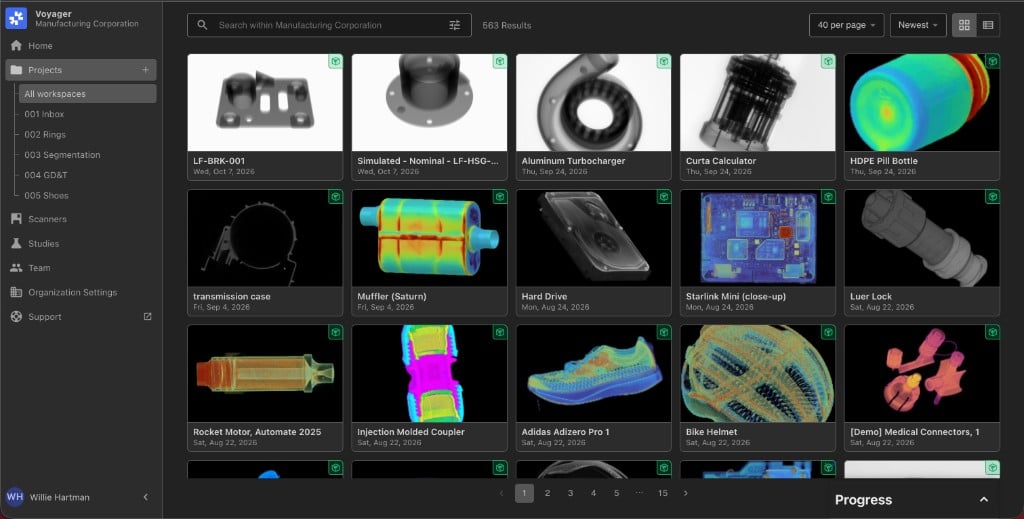
Scanner Status
Scanner Status is a map of the scanners in your Organization, with each scanner’s live status. A scanner reports status after it is running scanner software v1.11. Scanners on an older software version still scan. They do not appear with status on the map until they are updated.Scanners
Scanners is visible to every Member of the Organization. Viewers and Editors can open the page. Organization Managers change settings. A scanner’s details show its model and its active Project. History lists only Projects you can open. You will not see a Project that sits in a Workspace you cannot access. The upload setting is Restrict uploads to selected workspaces. Organization Managers use it to limit which Workspaces a scanner can create Projects in. Step-by-step scanner settings are on Team and Organization Settings.Team and Organization Settings
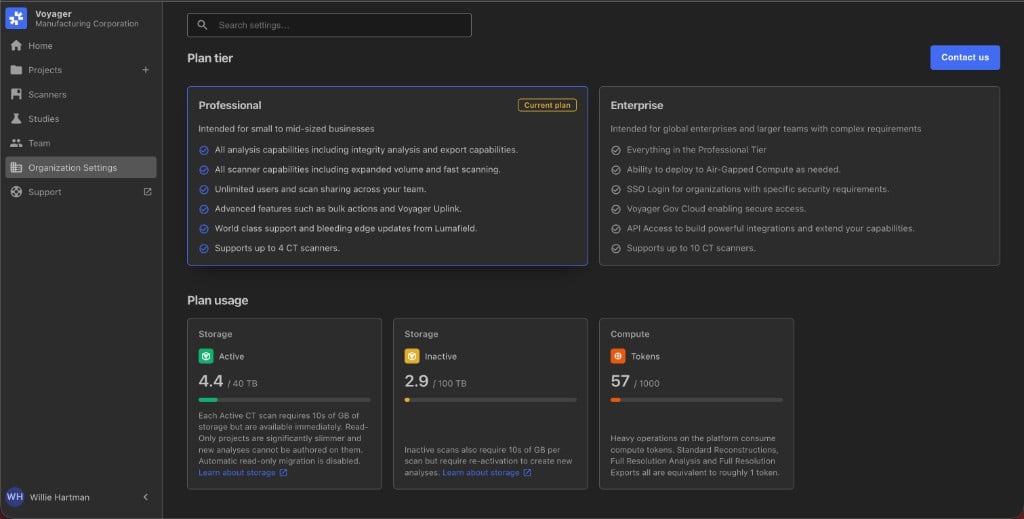
Team and Organization Settings hold the Member, Workspace, plan, and scanner controls that used to live on the Manager Dashboard. Organization Managers still administer them. Viewers and Editors do not.